How to Install Python on Windows
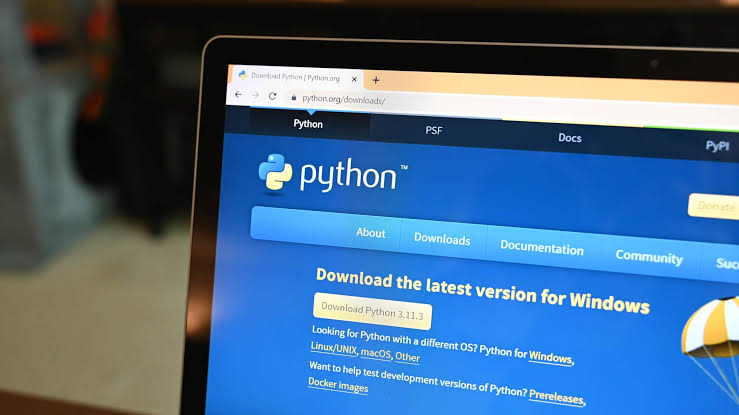
One of the most widely used programming languages worldwide is Python. Automation, AI, data science, and web development all use it. Installing it correctly is the first step towards learning to code if you are a newbie.
In this guide, I’ll walk you through installing Python on Windows in three simple steps in this post.
Step 1: Download the Python Installer
First, you need to get the official installer from the Python website.
- Open your browser and go to python.org.
- Hover over the Downloads menu and click on Windows.
- Click the button that says Download Python 3.x.x (the latest version).
Step 2: Run the Installer (Important!)
Once the file is downloaded, double-click it to start the installation. This is the most important part:
- Look at the bottom of the installer window.
- Check the box that says “Add Python to PATH”.
- Note: If you forget this, you won’t be able to run Python from the command line easily.
3. Click Install Now.
Wait for a few seconds until the setup is successful.
This is a great idea for a Medium post! Since you want it to be easy to understand, I’ve structured it with clear headings, short sentences, and bold instructions to make it “scannable” for readers.
A Simple Guide: How to Install Python on Windows
Python is one of the most popular programming languages in the world. It is used for web development, data science, AI, and automation. If you are a beginner, installing it correctly is the first step to your coding journey.
In this guide, I will show you how to install Python on Windows in 3 easy steps.
Step 1: Download the Python Installer
First, you need to get the official installer from the Python website.
- Open your browser and go to python.org.
- Hover over the Downloads menu and click on Windows.
- Click the button that says Download Python 3.x.x (the latest version).
Step 2: Run the Installer (Important!)
Once the file is downloaded, double-click it to start the installation. This is the most important part:
- Look at the bottom of the installer window.
- Check the box that says “Add Python to PATH”.
- Note: If you forget this, you won’t be able to run Python from the command line easily.
3. Click Install Now.
Wait for a few seconds until the setup is successful.
Step 3: Verify the Installation
Now, let’s make sure Python is working correctly on your computer.
- Press the Windows Key on your keyboard, type
cmd, and press Enter. - In the Command Prompt window, type the following command and press Enter:
python --version
3. If you see something like Python 3.12.x, congratulations! Python is installed.
Let’s Test Python With Simple Code “HELLO WORLD”
Let’s test if it really works. In the same Command Prompt, type:
python
This opens the Python Shell. Now type:
print("Hello, World!")
Press Enter. If you see the text “Hello, World!” printed on the screen, you are officially a Python programmer!
Conclusion
Installing Python is simple, but checking the “Add to PATH” box is the secret to a smooth setup. Now that you have Python ready, you can start building apps, scripts, or even AI models.
Happy Coding!
Want more articles and tutorials like this?
Get new tutorials, security alerts, and IT tips straight to your inbox.