Ethernet Cables vs Fiber Optics: Network Cabling Types and When to Use Them
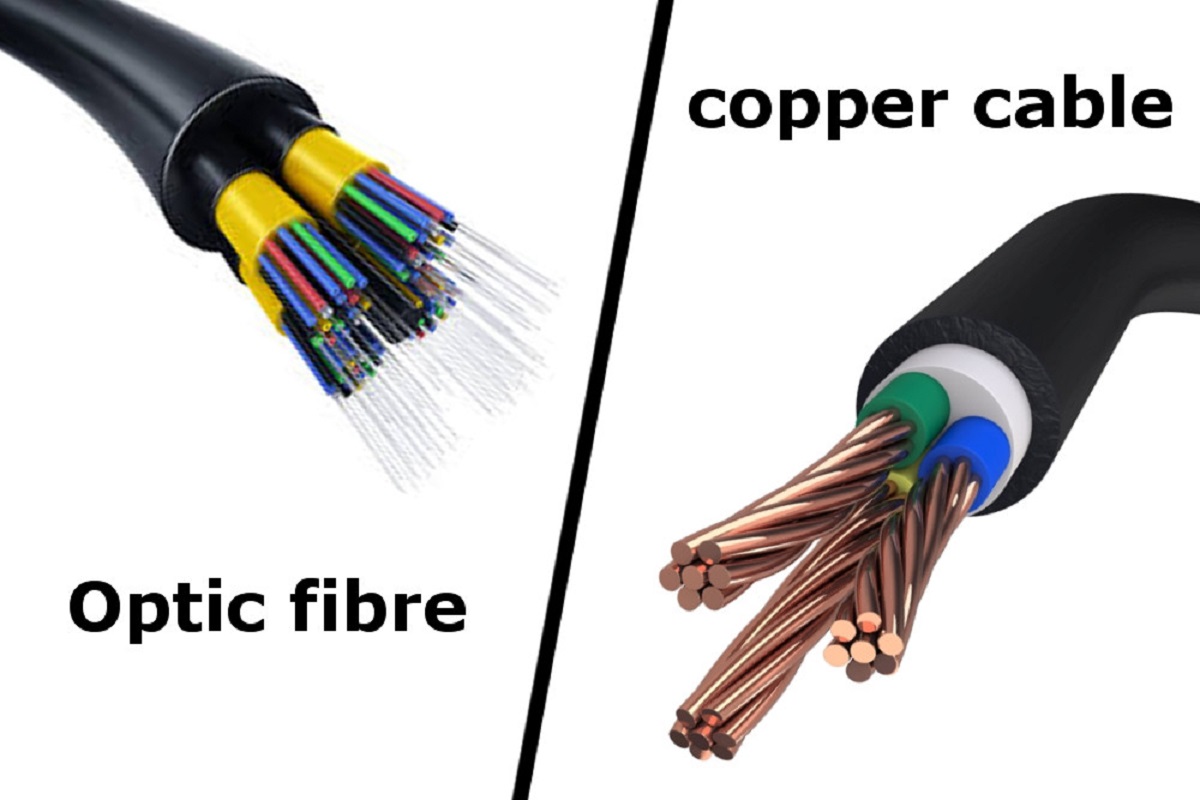
Everything you need to know about copper and fiber cabling — from the desk to the data center — plus the commands you’ll actually use to troubleshoot them.
Why Cabling Still Matters
It’s tempting to think wireless has made cabling an afterthought. In reality, every enterprise network — no matter how much Wi-Fi it runs — still rests on a foundation of physical cabling. Structured cabling is what makes networks reliable, secure, and fast enough to keep up with modern workloads.
Choosing the right cabling technology isn’t just about grabbing the fastest cable on the shelf. Network engineers weigh several factors before running a single foot of cable:
- Required bandwidth — what the link needs to carry today, and tomorrow
- Transmission distance — how far the signal has to travel without degrading
- Installation cost — materials, labor, and the hardware on each end
- Environmental conditions — heat, electrical interference, moisture
- Future scalability — will this cabling still make sense in five years?
- Maintenance requirements — how easy it is to troubleshoot and repair
In a well-designed enterprise network, copper Ethernet and fiber optics aren’t rivals — they’re teammates, each doing the job it’s best suited for.
A typical enterprise design layers the two together:
- Copper Ethernet at the access layer, connecting users and edge devices
- Fiber optics at the backbone layer, connecting switches, buildings, servers, and storage
                     Internet
                        |
                     Firewall
                        |
                   Core Switch
                        |
          =========================
                Fiber Backbone
          =========================
                        |
                Distribution Switch
                        |
          =========================
                Copper Ethernet
          =========================
             |          |          |
            PC        Phone       AP
This guide walks through both technologies — their categories, connectors, real-world deployment scenarios, and the troubleshooting commands engineers reach for when something isn’t lighting up the way it should.
Part 1: Copper Ethernet Cabling
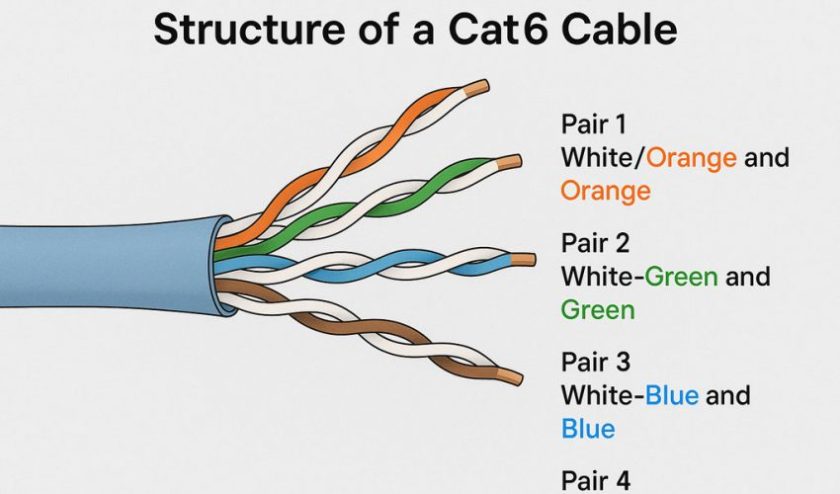
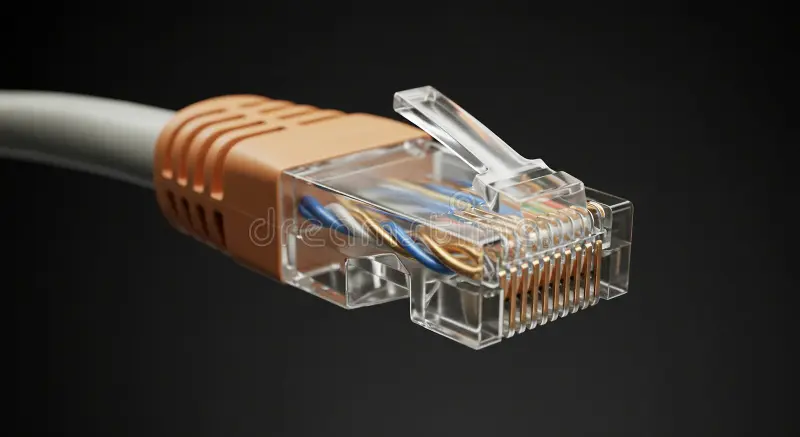
Ethernet copper cabling is the workhorse of every Local Area Network (LAN). It carries data as electrical signals across twisted pairs of copper wire, terminated with the familiar RJ45 connector you’ll find on nearly every piece of network gear:
- Computers and laptops
- Network switches
- Printers and IP phones
- Wireless access points
- Servers
Copper has stuck around for decades for good reason. It offers:
- Low installation cost — cheaper materials and simpler termination
- Straightforward troubleshooting — a cable tester tells you almost everything you need to know
- Universal compatibility — virtually every device speaks RJ45
- Power delivery — Power over Ethernet (PoE) lets a single cable carry both data and power to phones, cameras, and access points
Understanding MDI and MDIX
Before diving into cable categories, it helps to understand how Ethernet devices actually talk to each other. Every Ethernet port falls into one of two camps:
| Interface Type | Meaning | Typical Devices |
|---|---|---|
| MDI | Medium Dependent Interface | Computers, routers, printers, access points, servers |
| MDIX | Medium Dependent Interface Crossover | Switches |
MDI devices are the endpoints — the laptop on your desk, the printer down the hall, the server in the rack. MDIX devices are the switches that pull all of those endpoints together onto one network.
Historically this distinction mattered a lot: connecting two MDI devices (like two computers) required a crossover cable, while connecting an MDI device to an MDIX device (like a computer to a switch) required a straight-through cable.
Straight-Through (different device types)          Crossover (same device type)

MDI                    MDIX                        MDI                MDI
Computer  ----------->  Switch                     Computer <-------> Computer

Router    ----------->  Switch                     MDIX               MDIX
                                                   Switch <---------> Switch
The good news: modern equipment supports Auto-MDI/MDIX, which detects the cable type automatically and adjusts the connection on the fly. In practice, you can plug in almost any cable and it will just work.
Ethernet Cable Categories, Compared
Every generation of Ethernet cable pushes bandwidth and frequency a little higher. Here’s how the major categories stack up:
| Category | Max Bandwidth | Frequency | Max Distance | Typical Use |
|---|---|---|---|---|
| Cat 5 | 100 Mbps | 100 MHz | 100 m | Legacy networks (largely retired) |
| Cat 5e | 1 Gbps | 100 MHz | 100 m | Office networks, user devices |
| Cat 6 | 10 Gbps* | 250 MHz | 100 m | Enterprise LANs |
| Cat 6A | 10 Gbps | 500 MHz | 100 m | Data centers, high-performance networks |
| Cat 7 | 10 Gbps | 600 MHz | 100 m | Shielded enterprise environments |
| Cat 7A | 10 Gbps | 1000 MHz | 100 m | Specialized installations |
| Cat 8.1 | 25/40 Gbps | 2000 MHz | 30 m | Data center rack-to-rack connections |
*Cat 6 can reach 10 Gb Ethernet, but usually only over shorter runs and with good-quality installation.
How these play out in practice:
- Cat 5 is essentially retired for new installs — most shops have already migrated to Cat5e or Cat6.
- Cat 5e remains common on the office floor, connecting desktop PCs, IP phones, and printers to a wall outlet and back to an access switch.
- Cat 6 shows up in enterprise LANs, server rooms, and anywhere you need better resistance to interference than Cat5e offers.
- Cat 6A is the go-to for modern installs that need 10 Gb Ethernet — data centers and high-density office spaces benefit from its improved shielding and higher frequency ceiling.
- Cat 8.1 is a specialist’s tool: short, blazing-fast rack-to-rack links inside a data center, capped at around 30 meters.
Part 2: Fiber Optic Cabling
Where copper moves electrons, fiber moves light. Fiber optic cable carries data as pulses of light through strands of glass or plastic, which gives it a fundamental advantage: it’s completely immune to electromagnetic interference (EMI) and radio frequency interference (RFI). No electrical noise, no crosstalk — just light.
That immunity makes fiber the natural choice for:
- Network backbones
- Data centers
- Storage networks (SANs)
- Long-distance links between buildings or campuses
A fiber connection, simplified:
Network Device → Optical Transceiver → Light Signal Through Fiber → Receiving TransceiverSingle Mode vs. Multi Mode Fiber
Fiber splits into two main families, and picking the right one comes down to distance:
| Feature | Single Mode Fiber (SMF) | Multi Mode Fiber (MMF) |
|---|---|---|
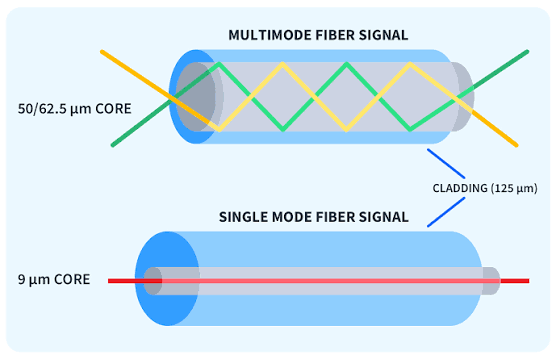
| Core diameter | ~9 microns | 50/62.5 microns |
| Distance | Several kilometers | Short to medium distance |
| Light source | Laser | LED / VCSEL |
| Cost | Higher | Lower |
| Common use | WAN, backbone links | LAN, data centers |
Single Mode Fiber uses a very narrow core, so light travels in essentially one straight path with minimal loss — ideal for connecting buildings, campuses, or even cities apart. Runs of 10, 20, or even 50+ kilometers are routine.
Multi Mode Fiber trades distance for cost and simplicity. It’s the fiber you’ll find inside data centers and SAN environments, linking servers to storage switches over shorter, cheaper runs.
Fiber Connector Types
The connector on the end of a fiber cable matters just as much as the fiber itself — it determines what equipment you can plug into.
| Connector | Where You’ll Find It |
|---|---|
| ST | Older, legacy fiber installations |
| SC | General-purpose fiber networks |
| FC | Fiber Channel and storage environments |
| MT-RJ | High-density fiber installations |
| LC | Modern switches and SFP modules |
LC connectors have become the de facto standard in modern networking — they’re compact enough to fit the small form factor of SFP and SFP+ modules used throughout data center switching:
Cisco Switch → SFP Module → LC FiberFC connectors, by contrast, are the standard in storage networking:
MDS Switch → Fiber Channel → Server / Storage System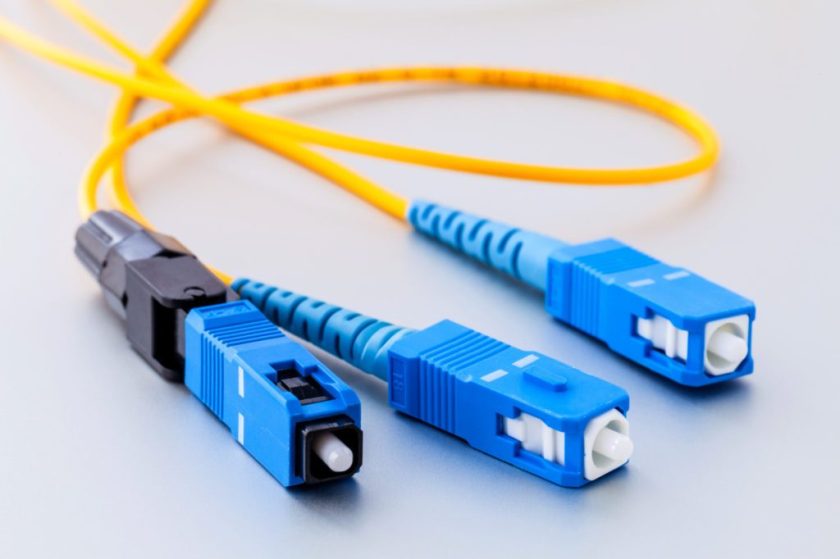
Part 3: Which One Should You Choose?
In most real deployments, the answer isn’t “copper or fiber” — it’s “copper and fiber, in the right place.”
| Requirement | Recommended Solution |
|---|---|
| Office computers | Cat5e / Cat6 |
| IP phones | Cat5e / Cat6 with PoE |
| Wireless access points | Cat6 |
| Server room connections | Cat6A / Fiber |
| Building backbone | Fiber |
| Data center backbone | Fiber |
| Storage networks | Fiber |
The pattern holds across almost every enterprise: copper at the edge, fiber at the core.
Troubleshooting: Commands Every Engineer Should Know
When a link isn’t behaving, these are the first commands to reach for — on Cisco gear and on Linux hosts alike.
On Cisco Switches
Check installed SFP modules
show inventoryLists installed hardware and transceiver details, e.g.:
NAME: "SFP Module"
PID: GLC-SX-MMD
Check interface status
show interfaces statusShows port status, speed, duplex, and VLAN assignment:
Gi1/0/48 connected 1000Check optical power levels
show interfaces transceiver detailDisplays transmit/receive power, temperature, and voltage — critical for diagnosing a “link up but flaky” fiber connection:
Tx Power: -2.5 dBm
Rx Power: -3.1 dBm
On Linux Hosts
List network interfaces
ip link showeth0
ens33
loCheck link speed and duplex
ethtool eth0Speed: 1000Mb/s
Duplex: Full
Link detected: yesCommon Cabling Mistakes (and How to Avoid Them)
| Mistake | Impact | Fix |
|---|---|---|
| Running copper beyond 100m | Signal degradation | Switch to fiber for the run |
| Mismatched SFP type | No optical link at all | Match single-mode/multi-mode modules to the fiber |
| Dirty fiber connectors | High packet loss | Clean connectors before every mate |
| Poor labeling | Long, painful troubleshooting | Invest in proper cable management and labeling |
| Wrong cable category for the job | Performance bottleneck | Follow category standards for the intended speed |
Conclusion
Copper Ethernet and fiber optics aren’t competing for the same job — they’re built for different ones, and a well-designed network leans on both. Copper keeps costs down and delivers power to phones, access points, and desktops. Fiber carries the heavy traffic across backbones, data centers, and long-distance links where copper simply can’t compete.
The engineers who design the most resilient networks aren’t the ones who pick a favorite — they’re the ones who know exactly when to reach for each one, and how to prove a link is healthy the moment something looks wrong.
The rule of thumb worth remembering: copper at the edge, fiber at the core.
Want more articles and tutorials like this?
Get new tutorials, security alerts, and IT tips straight to your inbox.