How to Learn Bash Scripting: A Step-by-Step Guide for Absolute Beginners

Bash scripting turns repetitive terminal work into one-click automation. If you have ever typed the same sequence of commands more than twice, you need a script. This guide assumes you have never written one before. We will build your skills one step at a time, from your first “Hello World” to a script you can actually use at work.
By the end of this guide, you will write, run, and debug Bash scripts using variables, conditionals, loops, arrays, and safe error handling.
Table of Contents
- Step 1: Write and Run Your First Script
- Step 2: Store Data with Variables
- Step 3: Ask the User for Input
- Step 4: Check Files Before You Touch Them
- Step 5: Make Decisions with If Statements
- Step 6: Repeat Tasks with Loops
- Step 7: Control Streams and Redirection
- Step 8: Pass Arguments to Your Script
- Step 9: Work with Arrays
- Step 10: Add Safety and Best Practices
- Build Your First Real Script
- Conclusion and Next Steps
Step 1: Write and Run Your First Script
A Bash script is just a text file that lists commands the shell runs in order. Open any text editor and create a file named hello.sh.
Add the Shebang
The first line tells the system which interpreter to use. This line is called the shebang.
#!/bin/bash
echo "Hello, World!"
Save the file. Before you run it, give the file permission to execute:
chmod +x hello.sh
./hello.sh
The ./ tells the shell to look for the script in the current folder. If you skip chmod +x, the shell refuses to run the file because it does not trust unknown code by default.
Beginner tip: If
#!/bin/bashdoes not work on your system, runwhich bashto find the correct path and use that instead.
Step 2: Store Data with Variables
Variables let your script remember values and reuse them later. You do not declare types. You just assign a value.
#!/bin/bash
username="alex"
echo "Welcome, $username"
The $ sign tells Bash to replace the variable name with its value. Without the $, Bash prints the word “username” literally.
Variables with Command Output
You can also store the result of a command inside a variable:
#!/bin/bash
current_date=$(date)
echo "Today is $current_date"
The $( ) syntax runs the command inside and captures whatever it prints. This technique powers almost every real-world script you will write.
Step 3: Ask the User for Input
Scripts become interactive when they pause and wait for the user to type something.
#!/bin/bash
read -p "Enter your project name: " project_name
echo "Creating folder for $project_name..."
mkdir "$project_name"
The read command stores whatever the user types into the variable project_name. The -p flag shows a prompt so the user knows what to type.
Reading Secret Input
When you ask for passwords, hide the characters:
#!/bin/bash
read -sp "Enter your API key: " api_key
echo ""
echo "Key stored securely."
The -s flag suppresses the characters on screen. The empty echo moves the cursor to a new line after the hidden input.
Step 4: Check Files Before You Touch Them
Scripts crash when they assume files exist. Bash gives you built-in tests to verify paths before acting.
Common File Tests
| Test | What It Checks |
|---|---|
-f | Path exists and is a regular file |
-d | Path exists and is a directory |
-r | File is readable |
-w | File is writable |
-x | File is executable |
-s | File exists and is not empty |
-e | Path exists (any type) |
Here is a safe backup pattern:
#!/bin/bash
source_file="/etc/nginx/nginx.conf"
backup_dir="/backup/nginx"

if [[ -f "$source_file" ]]; then
    echo "Source file found."

    if [[ ! -d "$backup_dir" ]]; then
        mkdir -p "$backup_dir"
        echo "Created backup directory."
    fi

    cp "$source_file" "$backup_dir/nginx.conf.backup"
    echo "Backup completed."
else
    echo "ERROR: $source_file not found." >&2
    exit 1
fi
This script validates every assumption. It checks that the source file exists, creates the destination directory only when needed, and exits with a clear error message when something goes wrong.
Checking File Age
Use -nt and -ot to compare timestamps:
#!/bin/bash
if [[ "app.log" -nt "app.log.1" ]]; then
    echo "Rotating logs..."
    mv app.log app.log.1
    touch app.log
fi
This prevents overwriting fresh data with stale backups.
Step 5: Make Decisions with If Statements
Conditionals let your script choose different paths based on tests.
Always Use Double Brackets
Write [[ ]] instead of [ ]. The double bracket is a Bash built-in that handles strings safely and supports pattern matching.
#!/bin/bash
filename="report.csv"

if [[ "$filename" == *.csv ]]; then
    echo "Processing CSV file..."
fi
Full If-Else Structure
#!/bin/bash
usage=$(df / | awk 'NR==2 {print $5}' | tr -d '%')

if [[ "$usage" -gt 90 ]]; then
    echo "CRITICAL: Disk at ${usage}%." >&2
    exit 1
elif [[ "$usage" -gt 75 ]]; then
    echo "WARNING: Disk at ${usage}%."
else
    echo "OK: Disk at ${usage}%."
fi
This function returns different messages based on severity. The calling script can decide whether to alert, page, or continue.
Combining Conditions
#!/bin/bash
if [[ -f "$config_file" ]] && [[ -r "$config_file" ]]; then
    source "$config_file"
elif [[ ! -f "$config_file" ]]; then
    echo "Config missing. Using defaults."
else
    echo "Config exists but is not readable." >&2
    exit 1
fi
The && operator requires both conditions to pass. The || operator passes if either condition passes.
Step 6: Repeat Tasks with Loops
Loops process collections and repeat tasks without copy-pasting code.
For Loops with Ranges
Generate sequences without external tools:
#!/bin/bash
for instance in {1..5}; do
    echo "Provisioning worker-${instance}..."
done
This creates worker-1 through worker-5. The brace expansion happens before the loop runs.
For Loops with Files
Process files found by another command:
#!/bin/bash
OLDIFS="$IFS"
IFS=$'\n'

for config in $(find /etc/nginx/sites-enabled -maxdepth 1 -type f); do
    echo "Testing $config..."
    nginx -t -c "$config" || echo "FAILED: $config" >&2
done

IFS="$OLDIFS"
The IFS change prevents splitting on spaces within filenames. Always save the old value and restore it after the loop.
While Loops with Counters
#!/bin/bash
retry_count=0
max_retries=5

while [[ "$retry_count" -lt "$max_retries" ]]; do
    if curl -sf http://api.service/health > /dev/null; then
        echo "Service is healthy."
        break
    fi

    retry_count=$((retry_count + 1))
    echo "Attempt $retry_count failed. Retrying in 5 seconds..."
    sleep 5
done

if [[ "$retry_count" -eq "$max_retries" ]]; then
    echo "ERROR: Service failed after $max_retries attempts." >&2
    exit 1
fi
This implements a retry pattern. The loop continues until the service responds or the limit exhausts.
Infinite Loops with Break
#!/bin/bash
while true; do
    queue_size=$(redis-cli LLEN job_queue)

    if [[ "$queue_size" -eq 0 ]]; then
        echo "Queue empty. Exiting."
        break
    fi

    echo "Processing $queue_size items..."
    sleep 1
done
Infinite loops work well for daemons. Always include a clear exit condition.
Step 7: Control Streams and Redirection
Every program connects to three channels. Bash gives you direct control over all of them.
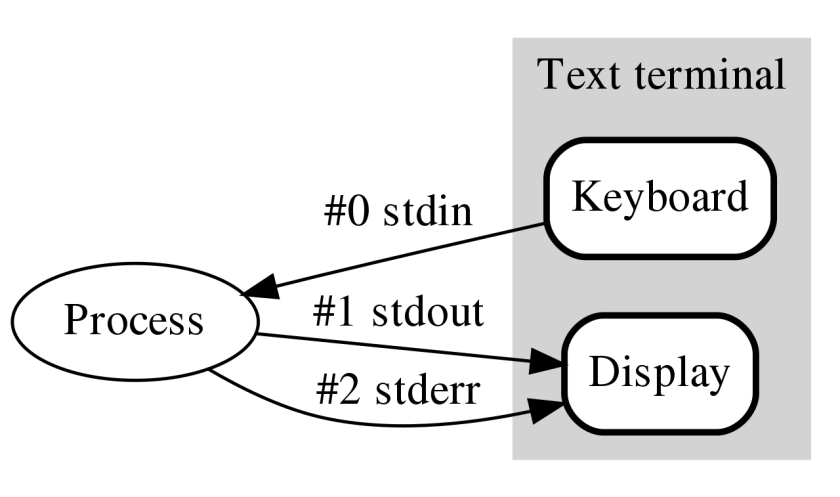
| Stream | File Descriptor | What It Carries |
|---|---|---|
| Standard Input (STDIN) | 0 | Data entering the program |
| Standard Output (STDOUT) | 1 | Normal output |
| Standard Error (STDERR) | 2 | Error messages |
Redirection Operators
| Operator | Action |
|---|---|
> | Redirect STDOUT to a file (overwrite) |
>> | Redirect STDOUT to a file (append) |
2> | Redirect STDERR to a file |
&> | Redirect both STDOUT and STDERR |
< | Feed a file into STDIN |
| | Pipe STDOUT into another command |
Split output and errors into separate files:
#!/bin/bash
bash deploy.sh > build.log 2> errors.log
The > captures normal output. The 2> captures only error messages. This separation saves hours during debugging.
Piping Between Commands
#!/bin/bash
cat access.log | grep "404" | wc -l
This counts 404 errors without temporary files. Data flows from left to right.
Appending to Logs
#!/bin/bash
echo "Build started at $(date)" >> build.log
./run_tests.sh >> build.log 2>> error.log
This preserves history. Your log grows instead of resetting every run.
Step 8: Pass Arguments to Your Script
Hardcoded values make scripts fragile. Arguments let you reuse the same script across tasks.
Positional Parameters
Bash stores arguments in numbered variables:
#!/bin/bash
echo "First argument: $1"
echo "Second argument: $2"
echo "Total arguments: $#"
echo "All arguments: $@"
Run it with:
./backup.sh production /data /backupThe script receives production as $1, /data as $2, and /backup as $3.
Name Your Arguments Immediately
Raw positional parameters become unreadable. Assign them to descriptive variables:
#!/bin/bash
set -euo pipefail

readonly env="${1:?Usage: $0 <env> <source> <dest>}"
readonly source_dir="${2:?Usage: $0 <env> <source> <dest>}"
readonly dest_dir="${3:?Usage: $0 <env> <source> <dest>}"

echo "Backing up $source_dir to $dest_dir for $env..."
The :? syntax exits with your error message if the argument is missing.
Self-Deleting Scripts
For one-time setup scripts, remove the file after execution:
#!/bin/bash
echo "Installing dependencies..."
apt-get update && apt-get install -y curl jq
rm -f "$0"
The $0 variable holds the script’s own filename.
Step 9: Work with Arrays
Space-separated strings break when filenames contain spaces. Arrays solve this.
Declaring and Accessing Arrays
#!/bin/bash
servers=("web01" "web02" "db01" "db02")

echo "First server: ${servers[0]}"
echo "All servers: ${servers[@]}"
echo "Total count: ${#servers[@]}"
The @ symbol expands to all elements, preserving each as a separate word.
Looping Through Arrays Safely
#!/bin/bash
log_files=("/var/log/nginx/access.log" "/var/log/app.log")

for log_file in "${log_files[@]}"; do
    if [[ -f "$log_file" ]]; then
        size=$(du -h "$log_file" | cut -f1)
        echo "$log_file size: $size"
    else
        echo "WARNING: $log_file not found." >&2
    fi
done
Quoting "${log_files[@]}" prevents word splitting. Without quotes, a filename like /var/log/my app.log splits into two broken paths.
Building Arrays Dynamically
#!/bin/bash
set -euo pipefail

matching_files=()

for file in /var/log/*.log; do
    if [[ -s "$file" ]]; then
        matching_files+=("$file")
    fi
done

echo "Found ${#matching_files[@]} non-empty log files"
This starts with an empty array and adds elements conditionally.
Step 10: Add Safety and Best Practices
Silent failures destroy systems. A script that continues after an error might delete the wrong files
The Safety Trio
Add these three settings to every script:
#!/bin/bash
set -euo pipefail
set -e: Exits immediately when any command failsset -u: Treats unset variables as fatal errorsset -o pipefail: Makes pipelines fail if any command fails
Together they flip Bash from “keep going” to “stop at the first sign of trouble.”
Trapping Cleanup Code
Use trap to run cleanup whether your script succeeds or crashes:
#!/bin/bash
set -euo pipefail

work_dir=$(mktemp -d)

cleanup() {
    local exit_code=$?
    rm -rf "$work_dir"
    exit "$exit_code"
}

trap cleanup EXIT SIGINT SIGTERM

echo "Working in $work_dir..."
The trap registers cleanup to run on exit, interruption, or termination.
Structured Logging
Replace plain echo with functions that include timestamps:
bash
#!/bin/bash
log_info() { echo "[INFO] $(date '+%Y-%m-%d %H:%M:%S') $*"; }
log_warn() { echo "[WARN] $(date '+%Y-%m-%d %H:%M:%S') $*" >&2; }
log_error() { echo "[ERROR] $(date '+%Y-%m-%d %H:%M:%S') $*" >&2; }
Warnings and errors go to STDERR. This lets you pipe normal output to files while keeping diagnostics visible.
Validate Dependencies
Check that required tools exist before using them:
#!/bin/bash
check_dependency() {
    local cmd="$1"
    if ! command -v "$cmd" > /dev/null 2>&1; then
        echo "ERROR: '$cmd' not found. Please install it." >&2
        exit 1
    fi
}

check_dependency "docker"
check_dependency "jq"
This fails fast with a helpful message instead of cryptic errors halfway through execution.
Build Your First Real Script
Combine everything into a project that actually does something useful. This script backs up a directory, checks disk space, and logs everything:
#!/bin/bash
set -euo pipefail

readonly source_dir="${1:?Usage: $0 <source_dir> <backup_dir>}"
readonly backup_dir="${2:?Usage: $0 <source_dir> <backup_dir>}"
readonly timestamp=$(date +%Y%m%d_%H%M%S)
readonly log_file="$backup_dir/backup_$timestamp.log"

log_info() { echo "[INFO] $(date '+%H:%M:%S') $*" | tee -a "$log_file"; }
log_error() { echo "[ERROR] $(date '+%H:%M:%S') $*" >&2 | tee -a "$log_file"; }

if [[ ! -d "$source_dir" ]]; then
    log_error "Source directory $source_dir does not exist."
    exit 1
fi

if [[ ! -d "$backup_dir" ]]; then
    log_info "Creating backup directory..."
    mkdir -p "$backup_dir"
fi

log_info "Starting backup of $source_dir..."
tar -czf "$backup_dir/backup_$timestamp.tar.gz" -C "$source_dir" .
log_info "Backup completed: $backup_dir/backup_$timestamp.tar.gz"

usage=$(df "$backup_dir" | awk 'NR==2 {print $5}' | tr -d '%')
if [[ "$usage" -gt 90 ]]; then
    log_error "Disk usage critical at ${usage}%."
    exit 1
fi

log_info "Disk usage OK at ${usage}%."
Run it with:
bash
./backup.sh /home/alex/projects /backup/alexThis script validates inputs, creates missing directories, compresses data, checks disk space, and logs every step. It is a real tool you can use today.
Conclusion
You started with a single echo command and ended with a production-style backup script. The ten steps in this guide give you a foundation that most working developers use daily. Practice each step on your own machine before moving to the next one.
Want more articles and tutorials like this?
Get new tutorials, security alerts, and IT tips straight to your inbox.
That makes so much sense, I’ve definitely struggled with those repetitive tasks and wish I’d known where to start.