Understanding Core Windows Processes: A Complete Guide for IT Professionals and Security Analysts
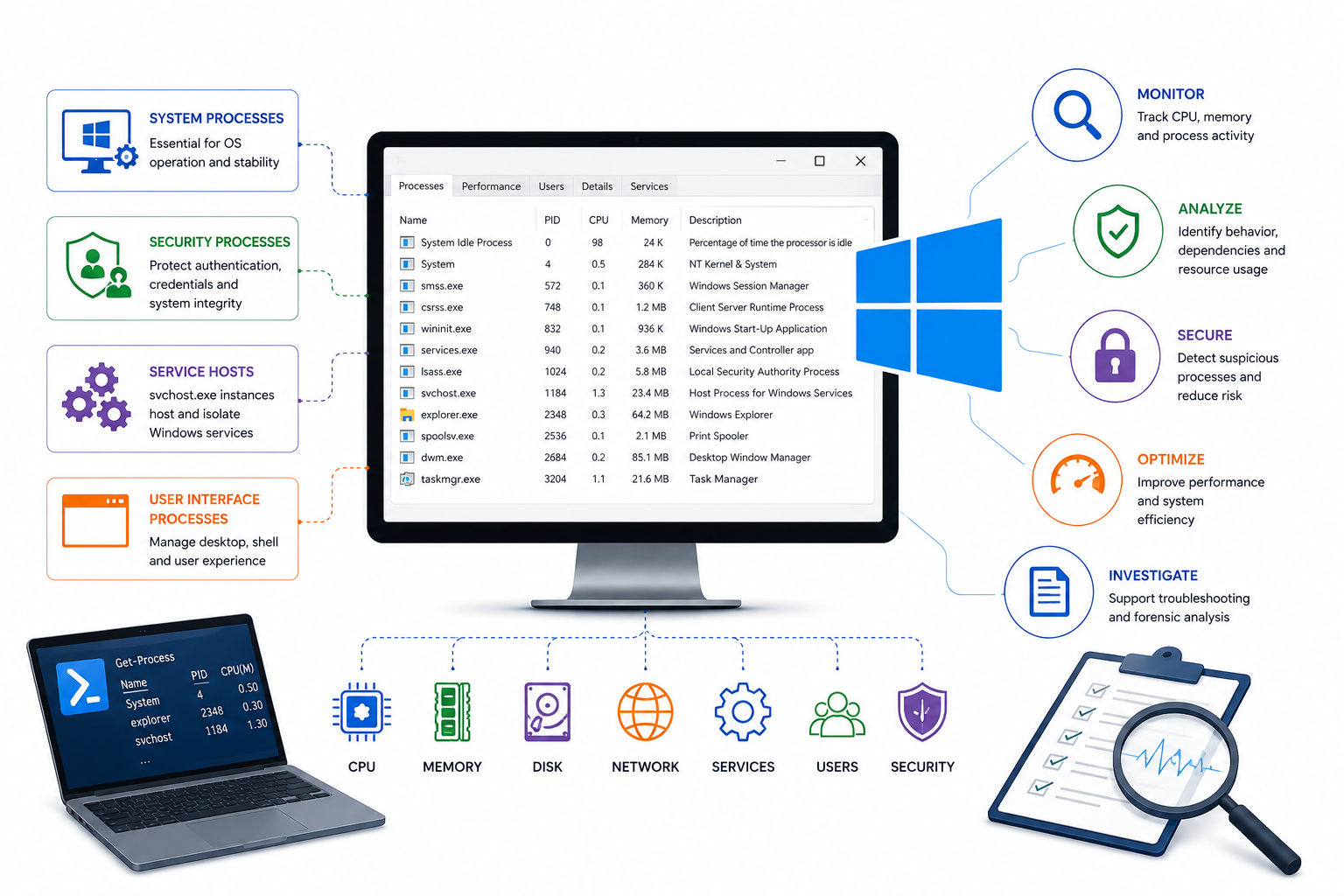
Every Windows system runs dozens of processes behind the scenes, yet most users never peek under the hood. For IT professionals and security analysts, understanding these core processes is not optional—it is essential. This guide breaks down the Windows process hierarchy from boot to desktop, showing you what normal looks like so you can spot malicious activity fast.
This guide explains the complete Windows process hierarchy from smss.exe through explorer.exe, including how each process functions, what its normal behavior looks like, and how attackers abuse these processes—plus practical PowerShell and command-line techniques to inspect, verify, and secure them.
Table of Contents
- Why Windows Process Knowledge Matters
- The Windows Boot-to-Desktop Process Flow
- smss.exe: The Session Manager Subsystem
- csrss.exe: The Client Server Runtime Process
- wininit.exe: The Windows Initialization Process
- services.exe: The Service Control Manager
- svchost.exe: The Service Host Process
- lsass.exe: The Local Security Authority Subsystem
- winlogon.exe: The Windows Logon Process
- explorer.exe: The Windows Shell
- How to Inspect Processes Like a Pro
- Red Flags: Spotting Malicious Process Behavior
- Conclusion
Why Windows Process Knowledge Matters
Attackers love to hide in plain sight. They name their malware svchost.exe or csrss.exe and hope nobody notices. In 2025, corporate networks faced over 560,000 new malware samples daily, and many of these threats targeted low-level Windows components. When you know what normal process behavior looks like, anomalies stand out immediately.
Malware like Cobalt Strike, Mimikatz, and TrickBot routinely abuse these core processes. Mimikatz dumps credentials straight from lsass.exe memory. Fake svchost.exe processes host malicious services. Typosquatted process names like scvhost.exe or csrsss.exe slip past casual observers.
Understanding the process tree also helps with troubleshooting. A slow boot, a frozen login screen, or a service that refuses to start often traces back to one of these core processes misbehaving. Whether you are hunting threats or fixing a broken system, this knowledge pays dividends.
The Windows Boot-to-Desktop Process Flow
Before diving into individual processes, you need to see the big picture. Windows moves through several stages from power-on to desktop:
- Firmware Phase: BIOS or UEFI runs POST, checks hardware, and locates the boot device.
- Boot Manager:
BOOTMGRreads the Boot Configuration Data (BCD) and loadswinload.exe. - OS Loader:
winload.exeloads the kernel (ntoskrnl.exe), essential drivers, and the Hardware Abstraction Layer (hal.dll). - Kernel Initialization: The kernel spawns the System process (PID 4), then launches
smss.exe. - Session Creation:
smss.execreates Session 0 (system services) and Session 1 (user interface). - User Logon:
winlogon.exehandles authentication, then loadsexplorer.exe.
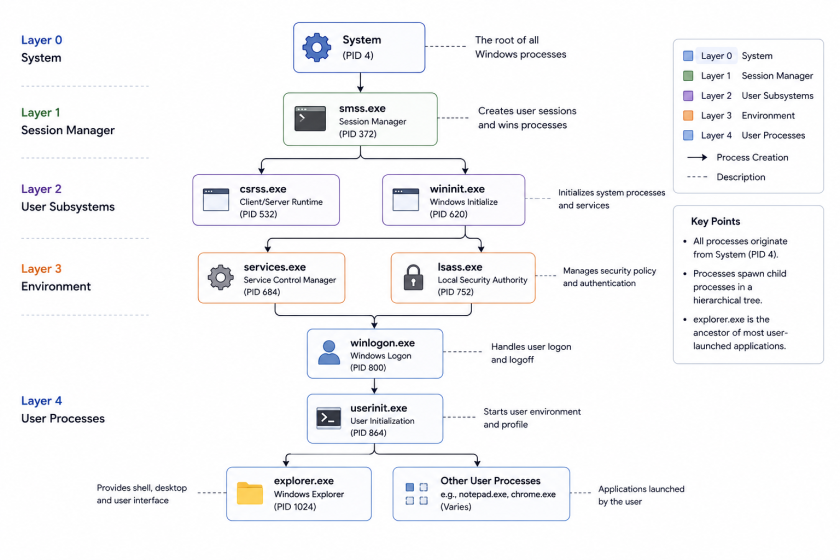
This flow matters because each process has a specific parent. When you see services.exe running under something other than wininit.exe, that is a red flag. When explorer.exe claims a parent other than userinit.exe, investigate immediately.
smss.exe: The Session Manager Subsystem
What It Does
The Session Manager Subsystem (smss.exe) is the first user-mode process the kernel creates. Think of it as the stage crew that sets up everything before the show begins. It creates new Windows sessions, sets environment variables like %COMPUTERNAME% and %APPDATA%, and launches the critical processes that follow.
smss.exe starts csrss.exe and wininit.exe for Session 0, the isolated session reserved for the operating system itself. It also starts csrss.exe and winlogon.exe for Session 1, the first interactive user session. Once a child session is ready, the smss.exe instance that created it terminates. This is why process monitoring tools sometimes show csrss.exe with no visible parent—the parent already exited.
Normal Behavior Profile
| Attribute | Expected Value |
|---|---|
| Image Path | %SystemRoot%\System32\smss.exe |
| Parent Process | System (PID 4) |
| Instances | One master instance, plus one child per session |
| User Account | Local System |
| Start Time | Within seconds of boot |
How to Inspect It
Open PowerShell as Administrator and run:
Get-Process smss | Select-Object Name, Id, Path, ParentId, StartTimeTo see the parent process name:
Get-WmiObject Win32_Process -Filter "Name='smss.exe'" | Select-Object Name, ProcessId, ParentProcessId, CommandLineSecurity Notes
Attackers rarely target smss.exe directly because it exits quickly after creating sessions. However, malware that runs extremely early in the boot sequence might try to interfere before smss.exe launches. Bootkits and rootkits operate at this level. If you suspect boot-level compromise, check the Master Boot Record (MBR) or EFI partition for unauthorized changes.
csrss.exe: The Client Server Runtime Process
What It Does
The Client Server Runtime Subsystem (csrss.exe) handles the Win32 subsystem. Without it, your console windows, process threads, and shutdown sequences would break. It manages the creation and deletion of processes and threads, handles console windows (Command Prompt and PowerShell), and runs critical background tasks during system shutdown.
Every Windows session needs its own csrss.exe instance. Session 0 has one for system services, and each interactive user session gets another. You will typically see at least two instances running on any modern Windows machine.
Normal Behavior Profile
| Attribute | Expected Value |
|---|---|
| Image Path | %SystemRoot%\System32\csrss.exe |
| Parent Process | Created by an instance of smss.exe (which may have exited) |
| Instances | Two or more |
| User Account | Local System |
| Start Time | Within seconds of boot for Sessions 0 and 1 |
How to Inspect It
List all csrss.exe instances with their session details:
Get-Process csrss | Select-Object Name, Id, Path, StartTimeTo map each instance to its Windows session:
tasklist /svc /fi "imagename eq csrss.exe"Security Notes
Because csrss.exe is critical to system stability, Windows protects it heavily. Terminating it triggers an immediate Blue Screen of Death (BSOD). Attackers sometimes name their malware csrss.exe or csrsss.exe to blend in. Always verify the image path. The real file lives only in C:\Windows\System32. Anything running from C:\Windows\Temp, C:\Users\, or an unusual directory is suspicious.
wininit.exe: The Windows Initialization Process
What It Does
wininit.exe kicks off the heart of the Windows service infrastructure. It marks itself as a critical process, initializes the Windows temporary directory, and then launches three essential components:
services.exe(Service Control Manager)lsass.exe(Local Security Authority Subsystem)lsaiso.exe(only when Credential Guard is active)
lsaiso.exe deserves special mention. It appears only when Windows Defender Credential Guard is enabled. This feature uses virtualization-based security to isolate credential storage, splitting lsass.exe functionality between the main process and this protected companion.
Normal Behavior Profile
| Attribute | Expected Value |
|---|---|
| Image Path | %SystemRoot%\System32\wininit.exe |
| Parent Process | Created by an instance of smss.exe |
| Instances | Exactly one |
| User Account | Local System |
| Start Time | Within seconds of boot |
How to Inspect It
Verify wininit.exe and its children:
Get-Process wininit, services, lsass | Select-Object Name, Id, Path, ParentId | Format-Table -AutoSizeCheck if Credential Guard is running by looking for lsaiso.exe:
Get-Process lsaiso -ErrorAction SilentlyContinue | Select-Object Name, Id, PathIf lsaiso.exe is missing, Credential Guard is likely disabled. You can check the status with:
Get-WmiObject -Namespace "root\cimv2\security\MicrosoftTpm" -Class Win32_Tpm | Select-Object IsActivated_InitialValueOr more directly:
Get-CimInstance -ClassName Win32_DeviceGuard -Namespace root\Microsoft\Windows\DeviceGuard | Select-Object SecurityServicesRunningSecurity Notes
wininit.exe should never have a visible parent process in your monitoring tools because the smss.exe instance that created it exits immediately. If you see a parent process listed for wininit.exe, investigate. The image path must be exactly C:\Windows\System32\wininit.exe. Any deviation, including subtle misspellings like winlnit.exe (with a lowercase L), signals potential malware.
services.exe: The Service Control Manager
What It Does
The Service Control Manager (services.exe) acts as the central nervous system for Windows services. It maintains the service database in the registry at HKLM\System\CurrentControlSet\Services, loads auto-start services, and handles start, stop, pause, and resume requests. It also sets the Last Known Good Configuration value during user login.
You can query the service database anytime using the built-in sc.exe utility. services.exe spawns child processes including svchost.exe, spoolsv.exe, msmpeng.exe (Windows Defender), and dllhost.exe.
Normal Behavior Profile
| Attribute | Expected Value |
|---|---|
| Image Path | %SystemRoot%\System32\services.exe |
| Parent Process | wininit.exe |
| Instances | Exactly one |
| User Account | Local System |
| Start Time | Within seconds of boot |
How to Inspect It
List all services and their statuses:
sc query type= service state= allQuery a specific service:
sc query wuauservIn PowerShell, use the more modern approach:
Get-Service | Where-Object {$_.Status -eq 'Running'} | Select-Object Name, DisplayName, Status | Format-Table -AutoSizeView the service database registry path:
Get-ChildItem HKLM:\System\CurrentControlSet\Services | Select-Object Name | Format-Wide -Column 3Security Notes
Malicious services almost always spawn as children of services.exe. Tools like Cobalt Strike and Impacket create services to execute payloads. Monitor for unusual child processes under services.exe, especially ones with random names or paths outside C:\Windows\System32. Application control solutions like Windows Defender Application Control can block unauthorized service installation, though they require upfront configuration.
svchost.exe: The Service Host Process
What It Does
svchost.exe is a generic host process for Windows services. Instead of every service running as its own executable, Windows groups related services together under shared svchost.exe instances. This saves memory and simplifies management. You will always see multiple svchost.exe processes running—this is completely normal.
Each svchost.exe instance hosts services that share the same security requirements and dependencies. For example, one instance might handle networking services while another manages remote procedure calls.
Normal Behavior Profile
| Attribute | Expected Value |
|---|---|
| Image Path | %SystemRoot%\System32\svchost.exe |
| Parent Process | services.exe |
| Instances | Multiple (varies by system configuration) |
| User Account | Local System, Network Service, or Local Service |
| Start Time | Within seconds of boot, with additional instances as services start |
How to Inspect It
See which services live inside each svchost.exe instance:
tasklist /svc /fi "imagename eq svchost.exe"In PowerShell, get detailed service group information:
Get-Process svchost | Select-Object Id, @{Name='Services';Expression={(Get-WmiObject Win32_Service -Filter "ProcessId=$($_.Id)").Name -join ', '}} | Format-ListList all running services grouped by their host process:
Get-WmiObject Win32_Service | Where-Object {$_.ProcessId -ne 0} | Group-Object ProcessId | Select-Object Name, @{Name='Services';Expression={$_.Group.Name -join ', '}} | Format-Table -WrapSecurity Notes
svchost.exe is a favorite target for attackers because multiple instances running simultaneously make it easy to hide. Attackers rename their malware to svchost.exe, place it in unusual directories, or inject malicious DLLs into legitimate svchost.exe processes.
Watch for these warning signs:
svchost.exerunning from any path other thanC:\Windows\System32svchost.exewith a parent other thanservices.exe- Instances with no associated services (use
tasklist /svcto verify) - Typosquatted names like
scvhost.exe,svch0st.exe, orsvchosl.exe
Security researcher Hexacorn maintains an extensive list of typosquatted Windows process names that attackers use. Reviewing this list regularly helps you recognize subtle naming tricks.
lsass.exe: The Local Security Authority Subsystem
What It Does
lsass.exe enforces security policy on your system. It verifies user logons, handles password changes, creates access tokens for single sign-on (SSO), and writes authentication events to the Windows Security Log. Without lsass.exe, Windows cannot authenticate users or enforce security boundaries.
Because lsass.exe stores authentication tokens and credential material in memory, it is the crown jewel for attackers. Tools like Mimikatz, Cobalt Strike, and Dumpert specifically target this process to extract passwords, hashes, and Kerberos tickets.
Normal Behavior Profile
| Attribute | Expected Value |
|---|---|
| Image Path | %SystemRoot%\System32\lsass.exe |
| Parent Process | wininit.exe |
| Instances | Exactly one |
| User Account | Local System |
| Start Time | Within seconds of boot |
How to Inspect It
Check lsass.exe details:
Get-Process lsass | Select-Object Name, Id, Path, ParentId, StartTime, PagedMemorySizeEnable LSASS SACL auditing to log access attempts:
# Check if LSASS is running as a Protected Process Light (PPL)
Get-ItemProperty -Path "HKLM:\SYSTEM\CurrentControlSet\Control\Lsa" -Name "RunAsPPL"
If the value is 1, PPL is enabled. Windows 11 22H2 and later enable this by default for enterprise-joined devices.
Check Credential Guard status:
Get-CimInstance -ClassName Win32_DeviceGuard -Namespace root\Microsoft\Windows\DeviceGuard | Select-Object SecurityServicesRunningA value of 1 means Credential Guard is running. A value of 0 means it is disabled.
Security Notes
Microsoft reports that the LSASS Attack Surface Reduction (ASR) rule successfully blocks all tested credential dumping techniques when enabled. Enable this rule through Microsoft Defender for Endpoint or Group Policy.
Additional hardening steps include:
- Enable PPL for LSASS: Prevents non-protected processes from injecting code or reading memory.
- Enable Credential Guard: Isolates credentials using virtualization-based security.
- Disable WDigest plaintext credentials: Set
UseLogonCredentialto0inHKLM\SYSTEM\CurrentControlSet\Control\SecurityProviders\WDigest. - Use Restricted Admin Mode for RDP: Prevents credential exposure during remote sessions.
- Apply least privilege: Limit administrative access to reduce attack vectors.
Monitor for these suspicious behaviors:
- Child processes spawning from
lsass.exe(legitimate instances rarely do this) - Cross-process access events targeting
lsass.exe .dmpfiles created nearlsass.exe(credential dump artifacts)- Unexpected registry modifications to WDigest settings
winlogon.exe: The Windows Logon Process
What It Does
winlogon.exe manages the Secure Attention Sequence (SAS), which is the Ctrl+Alt+Delete key combination you press to reach the login screen. It handles user authentication, locks the workstation, runs the screensaver, and loads the user profile. After successful authentication, winlogon.exe starts userinit.exe, which in turn launches explorer.exe.
Normal Behavior Profile
| Attribute | Expected Value |
|---|---|
| Image Path | %SystemRoot%\System32\winlogon.exe |
| Parent Process | Created by an instance of smss.exe (which exits) |
| Instances | One per interactive session |
| User Account | Local System |
| Start Time | Within seconds of boot for Session 1 |
How to Inspect It
View winlogon.exe instances:
Get-Process winlogon | Select-Object Name, Id, Path, StartTimeCheck which session each instance belongs to:
Get-WmiObject Win32_Process -Filter "Name='winlogon.exe'" | Select-Object ProcessId, SessionId, CommandLineSecurity Notes
Attackers sometimes replace or hook into winlogon.exe to capture credentials or maintain persistence. Malicious logon providers registered in the registry can intercept authentication data. Check these registry locations for unauthorized providers:
Get-ChildItem "HKLM:\SOFTWARE\Microsoft\Windows NT\CurrentVersion\Winlogon" | Select-Object NameLook for suspicious values in Userinit, Shell, or Notify keys. The Userinit value should point only to userinit.exe. The Shell value should point only to explorer.exe.
explorer.exe: The Windows Shell
What It Does
explorer.exe provides the graphical interface you interact with daily. It renders the desktop, Start Menu, Taskbar, File Explorer, and notification area. It also manages folder navigation and file operations. Each interactive user session gets its own explorer.exe instance.
Normal Behavior Profile
| Attribute | Expected Value |
|---|---|
| Image Path | %SystemRoot%\explorer.exe |
| Parent Process | Created by userinit.exe (which exits after launching it) |
| Instances | One or more per logged-in user |
| User Account | Logged-in user account |
| Start Time | When the first interactive user logs on |
How to Inspect It
Check explorer.exe instances and their owners:
Get-Process explorer | Select-Object Name, Id, Path, @{Name='User';Expression={(Get-WmiObject Win32_Process -Filter "ProcessId=$($_.Id)").GetOwner().User}}Restart explorer.exe gracefully (useful when the shell freezes):
Stop-Process -Name explorer -Force; Start-Process explorerOr the classic method:
taskkill /f /im explorer.exe && start explorer.exeSecurity Notes
Malware sometimes injects code into explorer.exe because it runs continuously and has broad system access. Attackers also create fake explorer.exe processes. Verify the image path carefully—the legitimate file resides at C:\Windows\explorer.exe, not in user directories or temp folders.
If explorer.exe shows a parent process other than userinit.exe, or if it runs under the SYSTEM account instead of a user account, investigate immediately.
How to Inspect Processes Like a Pro
Using Built-in Windows Tools
Task Manager gives you a basic view, but it hides parent-child relationships. Press Ctrl+Shift+Esc, click “More details,” then right-click column headers to add “Command line” and “Image path name.”
Process Explorer from Sysinternals provides a far richer view. Download it from Microsoft Learn, then enable these columns:
- Process Command Line
- Image Path
- Parent PID
- Session
- User Name
PowerShell offers scriptable deep inspection. Here is a comprehensive one-liner to audit all core processes:
$coreProcesses = @("smss.exe","csrss.exe","wininit.exe","services.exe","svchost.exe","lsass.exe","winlogon.exe","explorer.exe")
foreach ($proc in $coreProcesses) {
    Get-WmiObject Win32_Process -Filter "Name='$proc'" | Select-Object Name, ProcessId, ParentProcessId, CommandLine, @{Name='ParentName';Expression={(Get-Process -Id $_.ParentProcessId -ErrorAction SilentlyContinue).Name}}
}
Using Process Hacker
Process Hacker is a powerful open-source alternative to Task Manager. Right-click any process and select “Properties” to view:
- Full image path and verification status
- Parent process tree
- Loaded modules and DLLs
- Network connections
- Memory regions and strings
This tool is especially useful for spotting unsigned binaries masquerading as system processes.
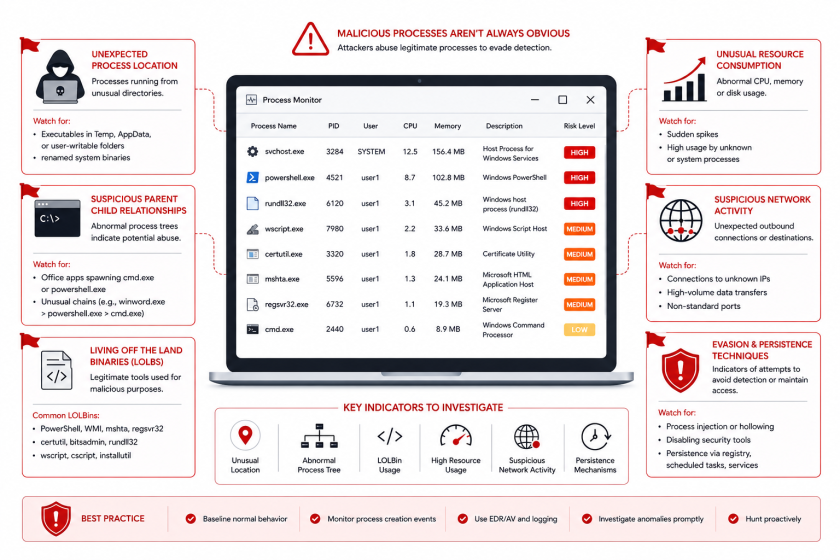
Red Flags: Spotting Malicious Process Behavior
Use this checklist when auditing Windows processes:
| Red Flag | What to Check |
|---|---|
| Wrong parent process | services.exe should parent only to wininit.exe; svchost.exe should parent only to services.exe |
| Wrong image path | All core processes must run from C:\Windows\System32 (or C:\Windows for explorer.exe) |
| Typosquatted names | Look for scvhost.exe, csrsss.exe, winlnit.exe, lsasss.exe |
| Wrong user account | lsass.exe, services.exe, and wininit.exe must run as SYSTEM; explorer.exe must run as the logged-in user |
| Multiple instances | wininit.exe and lsass.exe should have exactly one instance each |
| No associated services | Every svchost.exe must host at least one service (check with tasklist /svc) |
| Unexpected start time | Core processes should start within seconds of boot; late-starting lsass.exe is suspicious |
Here is a PowerShell script to automate basic process verification:
# Windows Core Process Verification Script
$findings = @()

# Check lsass.exe
$lsass = Get-Process lsass -ErrorAction SilentlyContinue
if ($lsass) {
    $lsassPath = $lsass.Path
    $lsassParent = (Get-WmiObject Win32_Process -Filter "ProcessId=$($lsass.Id)").ParentProcessId
    $parentName = (Get-Process -Id $lsassParent -ErrorAction SilentlyContinue).Name

    if ($lsassPath -ne "C:\Windows\System32\lsass.exe") {
        $findings += "ALERT: lsass.exe running from unexpected path: $lsassPath"
    }
    if ($parentName -ne "wininit") {
        $findings += "ALERT: lsass.exe parent is $parentName, expected wininit"
    }
}

# Check wininit.exe
$wininit = Get-Process wininit -ErrorAction SilentlyContinue
if ($wininit -and $wininit.Path -ne "C:\Windows\System32\wininit.exe") {
    $findings += "ALERT: wininit.exe running from unexpected path: $($wininit.Path)"
}

# Check services.exe
$services = Get-Process services -ErrorAction SilentlyContinue
if ($services -and $services.Path -ne "C:\Windows\System32\services.exe") {
    $findings += "ALERT: services.exe running from unexpected path: $($services.Path)"
}

# Output results
if ($findings.Count -eq 0) {
    Write-Host "No anomalies detected in core processes." -ForegroundColor Green
} else {
    $findings | ForEach-Object { Write-Host $_ -ForegroundColor Red }
}
Save this script as Verify-CoreProcesses.ps1 and run it regularly as part of your security baseline checks.
Conclusion
Windows core processes form the backbone of every system you manage. From smss.exe creating sessions to explorer.exe rendering your desktop, each process plays a specific, predictable role. When you understand what normal looks like—image paths, parent processes, user accounts, and instance counts—you gain the ability to spot malware instantly.
Attackers rely on administrators not knowing the difference between svchost.exe and scvhost.exe. They count on security teams overlooking a lsass.exe process with the wrong parent. By mastering these fundamentals, you remove that advantage.
Start with the PowerShell commands and verification script in this guide. Add Process Explorer or Process Hacker to your toolkit. Enable LSASS protections like PPL and Credential Guard. Most importantly, make process inspection a habit, not a one-time task.
Want more articles and tutorials like this?
Get new tutorials, security alerts, and IT tips straight to your inbox.
That’s a really useful breakdown – I’ve been trying to wrap my head around the process hierarchy for ages!