Linux for Beginners: It is the Perfect Time to Make the Switch
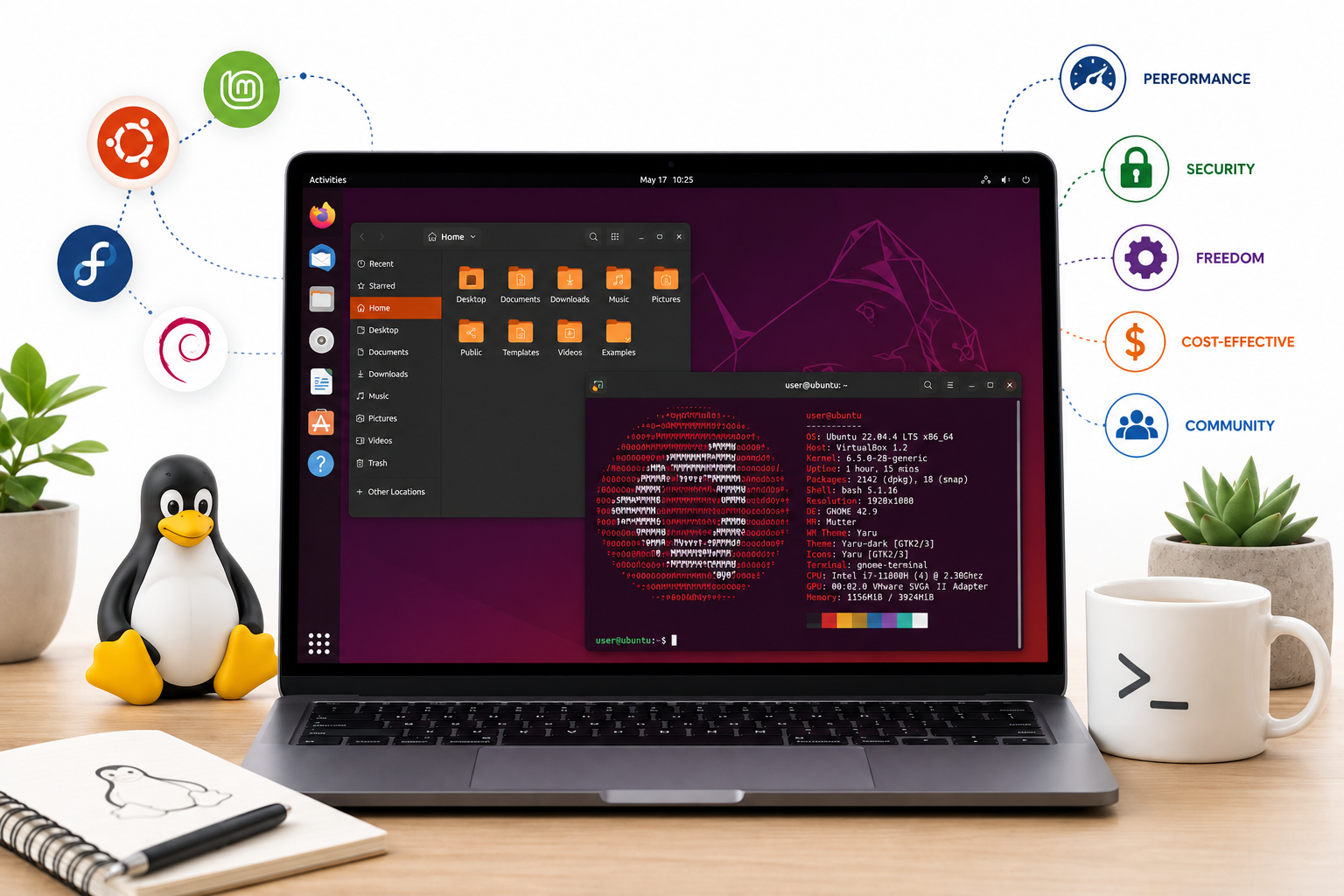
Every year, thousands of people ditch their old operating system and try Linux for the first time. Some do it to revive an aging laptop. Others want more control over their privacy. And many simply refuse to pay for another Windows license. In 2026, Linux has never been more beginner-friendly. Modern distributions look familiar, install in minutes, and handle everyday tasks without forcing you into a terminal. This post explains what Linux actually is, how it compares to Windows, and why developers and cybersecurity professionals treat it as essential. By the end, you will know which distro fits your goals and how to take your first steps.
Table of Contents
- A Brief History of Linux
- Linux vs Windows: What Actually Changes for You
- Why Linux Deserves Your Attention: The Real Advantages
- Linux Architecture: How the Pieces Fit Together
- Why Developers Choose Linux
- Why Cybersecurity Professionals Live on Linux
- Picking Your First Linux Distro
- Getting Started: Your First Terminal Commands
- Conclusion
A Brief History of Linux
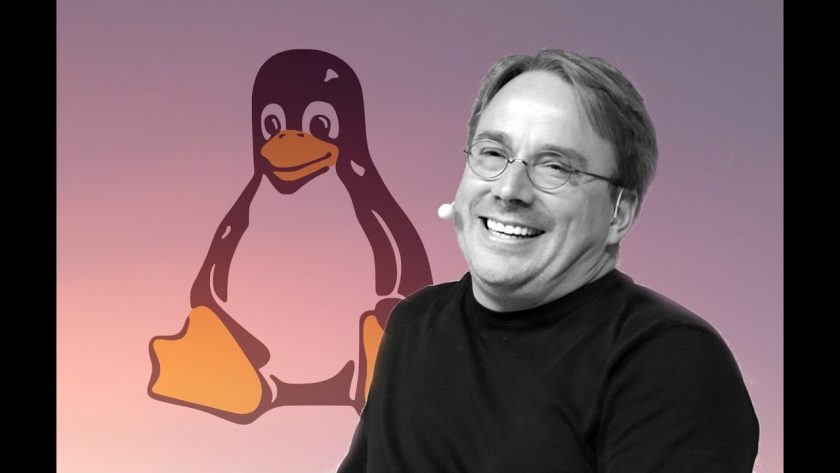
In 1991, a Finnish computer science student named Linus Torvalds released a free operating system kernel as a personal project. He never intended to challenge Microsoft. He simply wanted a Unix-like system that ran on affordable hardware. That kernel, combined with GNU tools from the Free Software Foundation, became what we now call Linux.
Over three decades, Linux quietly took over the world. It powers Android phones, the world’s top supercomputers, most web servers, cloud infrastructure, and even the International Space Station. On the desktop, it remained a niche choice for years. But by 2026, distributions like Ubuntu and Linux Mint have matured into genuine alternatives to Windows. The old stereotype of Linux as a hobbyist-only system no longer holds up.
Linux vs Windows: What Actually Changes for You
Switching operating systems sounds intimidating. In practice, modern Linux distributions feel surprisingly familiar. Still, a few key differences matter.
Cost and Licensing
Windows 11 Home costs around $139, and Windows 11 Pro runs closer to $200. Linux costs nothing. You download it, install it, and use it forever without entering a product key or worrying about activation. This matters for students, small businesses, and anyone building a second machine.
Linux also does not push subscription services at you. You will not see prompts to sign up for OneDrive, Microsoft 365, or Copilot Pro. The operating system exists to serve you, not to upsell you.
Performance and Hardware Requirements
Microsoft now recommends 32 GB of RAM for a smooth Windows 11 experience, especially with AI features enabled. Linux distributions like Linux Mint or MX Linux run comfortably on 4 GB. If your laptop struggles with Windows 11’s TPM 2.0 requirements, Linux breathes new life into it.
Boot times improve too. A fresh Linux install on modest hardware often reaches the desktop in under 20 seconds. Updates install faster and rarely demand a full restart.
Privacy and Data Control
Windows 11 collects telemetry by default. Features like Recall log your screen activity to make it searchable. Disabling all data collection requires digging through multiple settings menus. Linux takes the opposite approach. Telemetry is opt-in, not opt-out. No AI layer watches your screen unless you deliberately install one. You own your data from the first boot.
Software, Gaming, and Compatibility
Windows still wins on raw software compatibility. Adobe Creative Suite, AutoCAD, and many niche business apps have no native Linux version. However, alternatives like GIMP, Kdenlive, and LibreOffice handle most creative and office tasks well. For gaming, Steam’s Proton compatibility layer now runs thousands of Windows games on Linux with minimal setup. The gap has never been smaller.
| Feature | Linux | Windows | What It Means for You |
|---|---|---|---|
| Cost | Free forever | \$139–\$200+ for a license | Linux saves you money immediately. No subscriptions, no upsells. |
| Licensing | Open source (GPL/MIT) | Proprietary, closed source | You own the code with Linux. You can inspect, modify, or redistribute it. |
| Hardware Requirements | Runs on 2–4 GB RAM comfortably | Recommends 32 GB RAM for smooth AI features | Linux revives old laptops. Windows 11 often forces hardware upgrades. |
| Privacy | Telemetry is opt-in | Telemetry is opt-out; Recall logs screen activity | Linux respects your data by default. Windows monetizes your usage patterns. |
| Security Model | Permission-based; root access required for system changes | User Account Control (UAC) prompts | Linux malware struggles to install silently. Windows remains a primary malware target. |
| Antivirus Needed? | Rarely | Strongly recommended | Linux users typically skip antivirus. Windows users cannot afford to. |
| Software Availability | ~30,000+ packages via repositories; alternatives for most apps | Largest commercial software catalog | Windows wins on niche business apps (Adobe, AutoCAD). Linux covers 90% of daily needs free. |
| Gaming | Steam Proton runs 90%+ of titles; native support growing | Native support for virtually all games | Windows still leads for AAA day-one releases. Linux has closed the gap dramatically since 2024. |
| Customization | Unlimited: swap desktop environments, themes, kernels | Limited to themes and Start menu tweaks | Linux lets you rebuild the entire interface. Windows lets you change the wallpaper. |
| Terminal / Command Line | Powerful, central to the OS | PowerShell exists but is secondary | Linux terminals automate entire workflows. Windows GUI remains the primary interaction method. |
| Package Management | One command installs software from verified repos | Manual downloads, installers, app stores | On Linux, sudo apt install chrome handles everything. On Windows, you hunt for .exe files. |
| System Updates | Fast, rarely requires reboot | Frequent, often forces restart | Linux updates in the background. Windows interrupts your work with “Update and Restart.” |
| Development Environment | Native: matches 96% of production servers | Requires WSL or VMs for Linux parity | Developers on Linux deploy with zero environment mismatch. Windows developers fight path and permission issues. |
| Cybersecurity Tools | Native: Kali, Parrot, BlackArch built for security work | Secondary support via VMs | Security professionals boot Linux to do their job. Windows is the target, not the toolkit. |
| Support & Community | Massive volunteer forums, wikis, IRC, Discord | Official Microsoft support, paid tiers | Linux help is free and searchable. Windows help often routes you to a paid support line. |
| Stability & Uptime | Servers run for years without rebooting | Regular reboots required for updates and performance | Linux desktops stay responsive for months. Windows benefits from weekly restarts. |
| File System | Ext4, Btrfs, XFS (journaling, no defrag needed) | NTFS (requires periodic maintenance) | Linux file systems self-maintain. Windows still needs disk cleanup and defragmentation. |
| Target Audience | Developers, sysadmins, privacy advocates, security pros, hobbyists | General consumers, enterprise offices, gamers | Linux rewards curiosity. Windows prioritizes convenience for non-technical users. |
Why Linux Deserves Your Attention: The Real Advantages
Beyond the Windows comparison, Linux offers genuine strengths that improve how you use a computer.
Open Source Freedom
Linux gives you access to the source code. You can inspect it, modify it, or simply trust that thousands of developers worldwide already have. Bugs get found and fixed faster because the community reviews the code openly. You are not waiting for a corporation to patch a vulnerability on its own schedule.
Security Built Into the Design
Linux uses a permission model that separates user actions from system-level changes. Malware cannot silently install itself the way it often does on Windows. You rarely need antivirus software. The system architecture simply does not allow random programs to modify critical files without explicit permission.
Customization Without Limits
On Windows, you accept the interface Microsoft gives you. On Linux, you choose your desktop environment. Want something that looks like Windows 7? Try Linux Mint with Cinnamon. Prefer a macOS-style dock? Elementary OS delivers that. Want to build a minimalist setup with only the tools you need? Arch Linux lets you start from scratch. The choice belongs to you.
The Terminal: Your Hidden Superpower
The terminal intimidates newcomers for about a week. Then it becomes the fastest way to do almost everything. A single command updates your entire system. Another command installs software. A short script automates a repetitive task that would take ten clicks in a GUI. Learning the terminal pays off immediately.
Linux Architecture: How the Pieces Fit Together
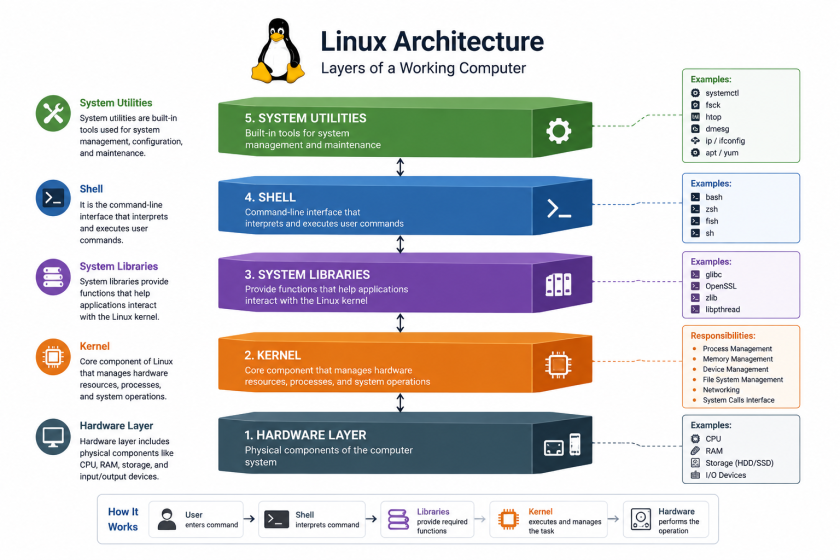
Linux is not a single program. It is a stack of layers, each with a specific job. Understanding this stack helps you troubleshoot problems, choose the right tools, and appreciate why Linux behaves the way it does. The architecture breaks down into five core components.
The Hardware Layer
At the bottom sits your physical hardware. The CPU processes instructions. RAM stores temporary data. Your SSD or hard drive holds files permanently. Input and output devices—keyboards, mice, monitors, network cards—connect you to the machine. Linux communicates with all of this through standardized drivers. Most hardware works out of the box in 2026, but proprietary devices like some NVIDIA GPUs may need extra configuration.
The Kernel
The kernel is the brain of the operation. It sits directly above the hardware and manages every critical resource. When you open an application, the kernel allocates memory. When you save a file, the kernel talks to your storage device. When two programs want CPU time, the kernel decides who goes first.
Linux uses a monolithic kernel, which means the core services—process management, memory management, file systems, and device drivers—run in a single space for speed. You can check your current kernel version with one command:
uname -rThis prints something like 6.8.0-40-generic. That number tells you exactly which kernel powers your system.
System Libraries
Applications do not talk to the kernel directly. They use system libraries as translators. These libraries contain pre-written functions for common tasks like opening files, creating network connections, or drawing windows on screen.
The GNU C Library (glibc) is the most important one on most distributions. When you compile a program or run a pre-built binary, glibc handles the low-level conversations with the kernel so the developer does not have to write them from scratch.
The Shell
The shell is your direct line to the kernel. It takes the commands you type in plain English (or close to it) and translates those instructions into system calls the kernel understands.
Bash remains the default on most systems, though Zsh and Fish have gained popularity. When you type ls, the shell finds the ls program, executes it, and displays the results. When you write a script, you are essentially writing a list of shell commands that the system executes in sequence.
Here is a simple script that reports which layers are active on your machine:
#!/bin/bash
echo "Kernel version: $(uname -r)"
echo "Shell: $SHELL"
echo "System library path: $(ldd /bin/ls | head -n 2)"
Save this as layers.sh, make it executable with chmod +x layers.sh, and run it with ./layers.sh. You will see the kernel, shell, and library paths all in one view.
System Utilities
On top of the shell sit the system utilities. These are the everyday tools that manage files, configure networks, monitor performance, and maintain your installation. Commands like cp, mv, ps, top, ssh, and systemctl all fall into this category.
Together, these utilities form the userland—the environment where you actually work. Distributions differentiate themselves mainly by which utilities they include by default and how they package them.
How the Layers Work Together
Imagine you open a web browser and visit a website. Your keyboard press travels through the hardware layer. The kernel notices the input and passes it to the system libraries. The shell does not need to intervene here because the desktop environment handles graphical input. The browser application, using system libraries, requests a network connection. The kernel negotiates that connection through your network card hardware. Data flows back up through the same chain, and the website appears on your screen. Every layer plays a role, and no layer skips its turn.
Why Developers Choose Linux
If you write code, Linux removes friction. Here is why so many developers run it as their primary operating system.
Your Local Machine Matches Production
Over 96% of web servers run Linux. When you develop on Linux, your local environment behaves almost identically to the servers that will eventually host your application. You avoid the classic “works on my machine” problem caused by path separators, file permissions, and line ending differences between Windows and Linux.
Package Management That Just Works
Linux distributions include package managers that install programming languages, libraries, and tools in seconds. On Ubuntu, you install Python and pip like this:
sudo apt update
sudo apt install python3 python3-pip
On Fedora, you use dnf instead:
bash
sudo dnf install python3 python3-pipThese commands fetch the software from verified repositories, handle dependencies automatically, and keep everything updated. No manual downloads, no installer wizards, no PATH variable headaches.
Containers and DevOps
Docker and Kubernetes were built for Linux. While Docker Desktop exists on Windows, it runs through a virtual machine layer that adds overhead. On Linux, containers use native kernel features. They start faster, use less memory, and behave exactly as they will in production. If your workflow involves microservices, CI/CD pipelines, or cloud deployment, Linux gives you a genuine advantage.
Here is a simple Dockerfile example you might write on Linux:
dockerfile
FROM python:3.12-slim
WORKDIR /app
COPY requirements.txt .
RUN pip install -r requirements.txt
COPY . .
CMD ["python", "app.py"]
Build and run it with:
docker build -t myapp .
docker run -p 5000:5000 myapp
Why Cybersecurity Professionals Live on Linux
Cybersecurity and Linux go hand in hand. If you plan to work in security, you will spend most of your time on Linux systems.
The Tools Run Here First
Industry-standard security tools were built for Linux. Nmap, Metasploit, Wireshark, Aircrack-ng, John the Ripper, and Hydra all run natively. Kali Linux ships with hundreds of these tools pre-installed. You simply boot the system and start working.
Forensics and Incident Response
When attackers breach a server, that server usually runs Linux. Security analysts need to examine log files, review running processes, check file permissions, and hunt for persistence mechanisms. The Linux command line makes this efficient. A single command like this lists every network connection on the system:
ss -tulnpAnother command shows every process running as root:
bash
ps aux | grep "^root"These tools let investigators move fast during an incident.
Penetration Testing
Professional penetration testers almost exclusively use Linux distributions like Kali Linux or Parrot Security OS. These systems include everything needed for vulnerability scanning, wireless security testing, web application testing, and digital forensics. Without Linux skills, a penetration tester cannot perform a comprehensive assessment.
Here is a simple Bash script that automates a basic network scan across a subnet:
bash
#!/bin/bash
# Simple network sweep script
SUBNET="192.168.1"
for i in {1..254}; do
    ping -c 1 -W 1 $SUBNET.$i | grep "64 bytes" &
done
wait
echo "Scan complete."
Save it as sweep.sh, make it executable with chmod +x sweep.sh, and run it. You now have a custom network discovery tool.
Picking Your First Linux Distro
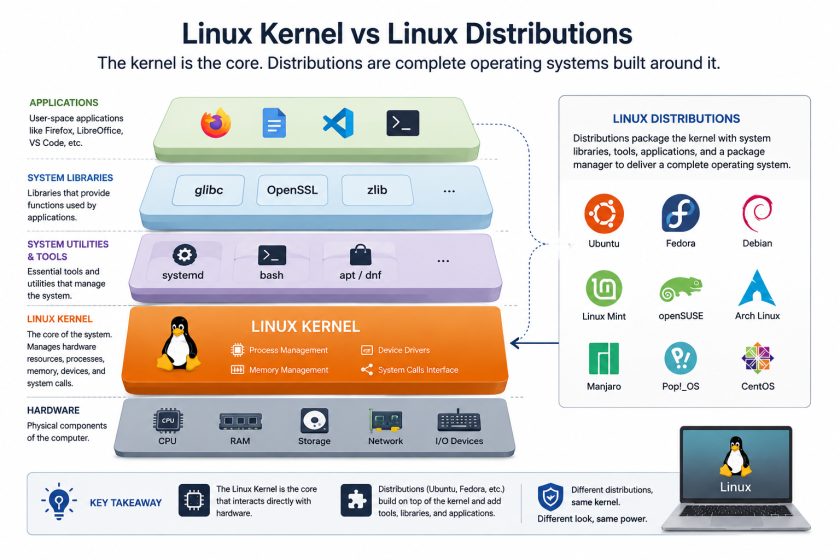
A “distro” is a complete operating system built around the Linux kernel. Hundreds exist, but a handful suit beginners particularly well.
Ubuntu
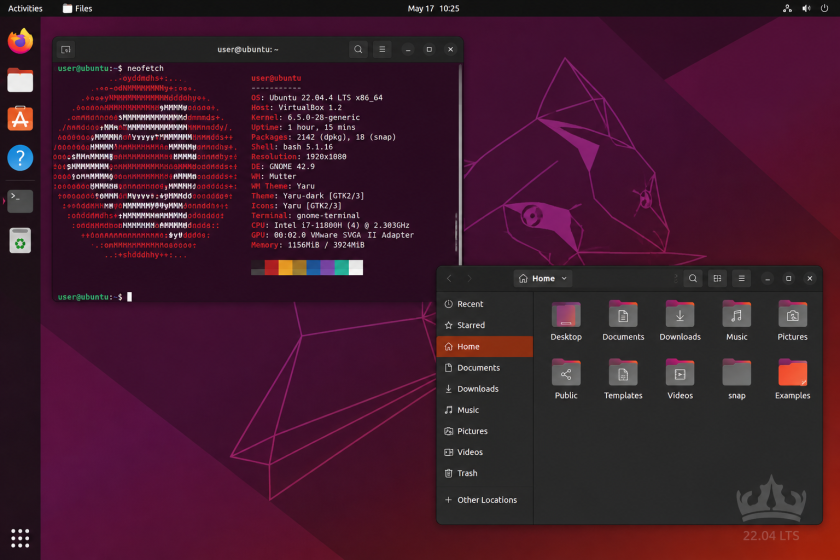
Ubuntu remains the most popular starting point. It has the largest community, the most tutorials, and excellent hardware support. The GNOME desktop takes a day to get used to if you come from Windows, but the Software Center handles app installations without touching the terminal. Stick to an LTS (Long Term Support) release for stability. Ubuntu 26.04 LTS offers five years of updates.
Linux Mint
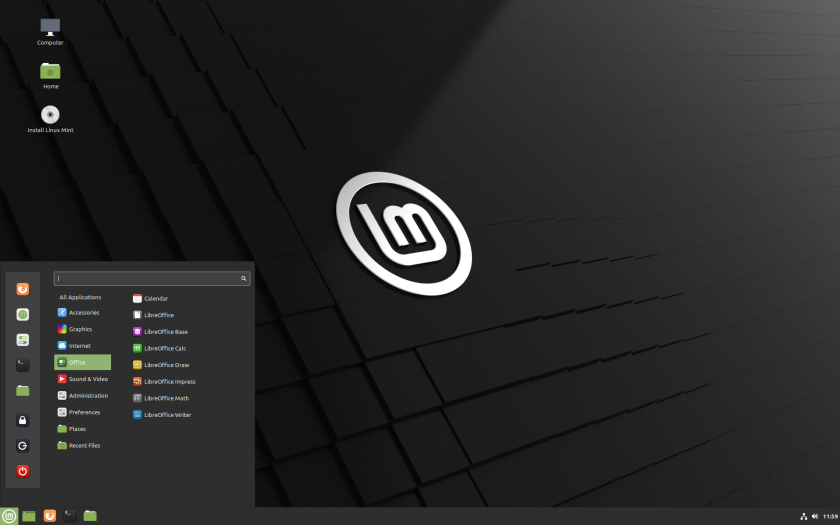
Mint feels the most like Windows out of the box. The Cinnamon desktop includes a bottom taskbar, a start menu, and a system tray in familiar places. It builds on Ubuntu underneath, so it inherits the same software library. Mint also pre-installs media codecs and drivers that other distributions leave out. For anyone nervous about the transition, Mint removes the friction.
Fedora
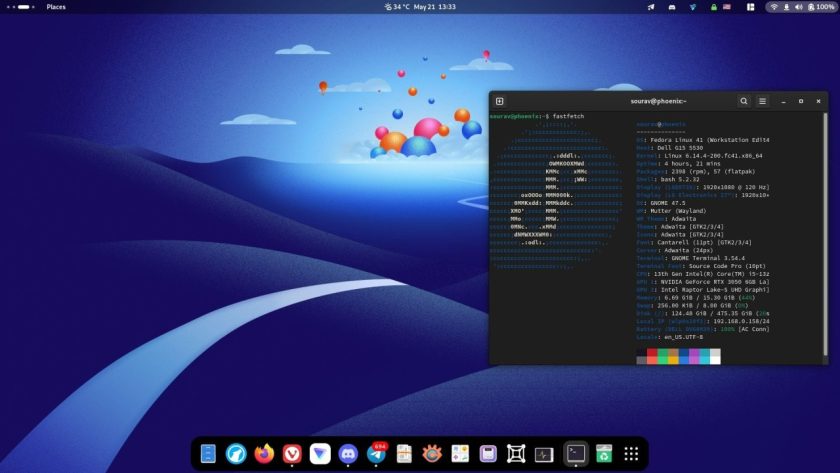
Fedora ships newer software than Ubuntu. It gets the latest kernels, the newest GNOME releases, and updated development tools first. Red Hat backs it, so skills you build here transfer directly to enterprise environments using RHEL. The tradeoff is slightly less hand-holding with proprietary drivers. You may need to add the RPM Fusion repository for NVIDIA support.
Zorin OS
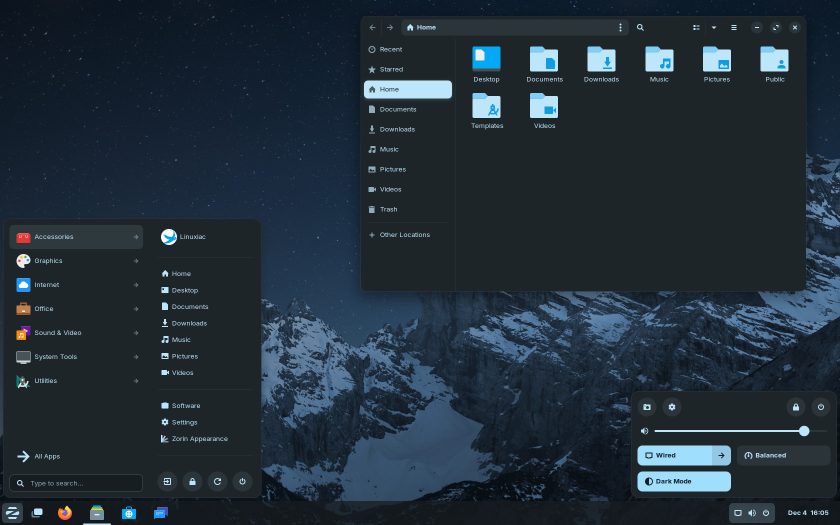
Zorin OS targets Windows refugees specifically. Its layout switcher lets you make the desktop resemble Windows 11, Windows 7, or macOS with a couple of clicks. The free Core edition covers everything a beginner needs. The Pro tier adds extra layouts, but you lose nothing functional by staying on the free version.
Pop!_OS
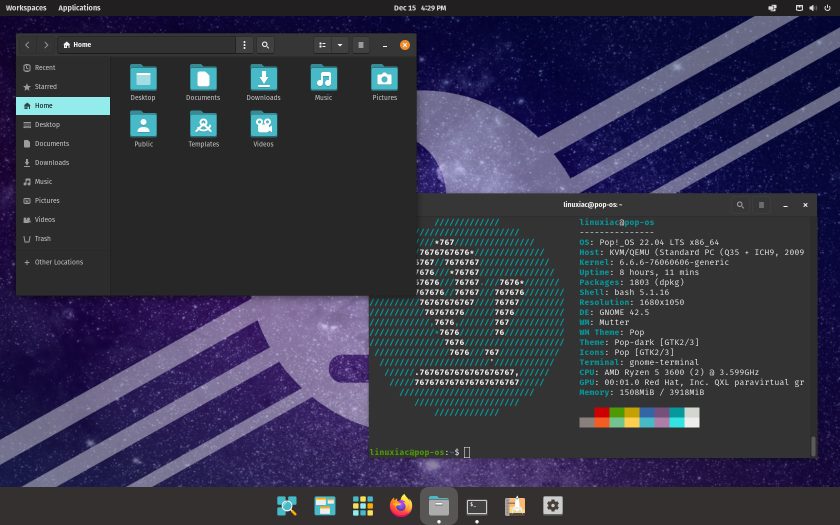
System76 builds Pop!_OS around productivity. The COSMIC desktop includes auto-tiling window management that helps organize multiple apps without manual resizing. It handles NVIDIA GPUs smoothly and supports high-resolution multi-monitor setups with minimal configuration. If you do creative or technical work, Pop!_OS rewards keyboard shortcuts once you learn them.
Kali Linux and Parrot OS
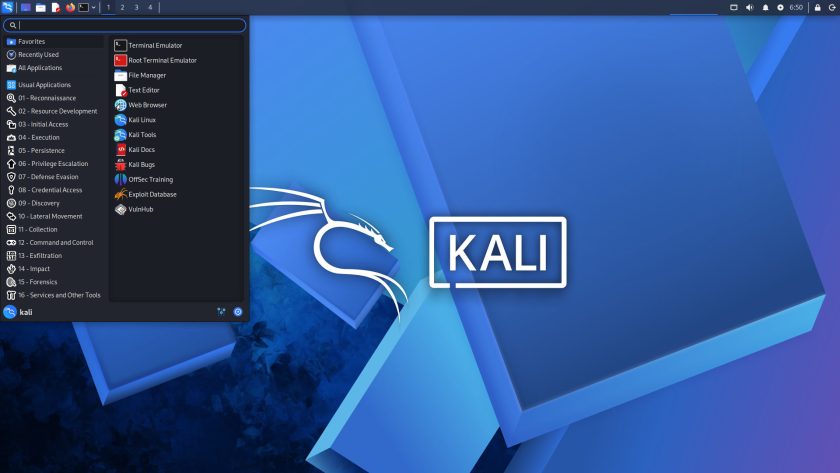
These are not daily-driver operating systems. Kali Linux and Parrot Security OS exist for cybersecurity work. They include hundreds of pre-installed security tools for penetration testing, forensics, and reverse engineering. Beginners should learn Linux basics on Ubuntu or Mint first, then explore these specialized distributions once they are comfortable.
How to Choose
Ask yourself three questions. What does your hardware look like? If you have an older machine with 4 GB of RAM, choose something lightweight like Linux Mint with XFCE or MX Linux. What operating system are you leaving? Windows users feel at home on Mint or Zorin. Mac users should try elementary OS. Do you want stability or the newest software? Pick Ubuntu LTS or Mint for stability. Pick Fedora or Manjaro if you want fresh releases.
Every distro on this list offers a live USB mode. You can boot from a USB stick, browse the web, and test the desktop without installing anything. Tools like Ventoy, Rufus, or balenaEtcher create the bootable USB in minutes. Try before you commit.
Getting Started: Your First Terminal Commands
You do not need the terminal to start using Linux. But learning a handful of commands early makes everything faster. Open a terminal and try these:
Navigate to your home directory:
cd ~List files with details:
ls -laUpdate your system (Ubuntu/Debian):
sudo apt update && sudo apt upgradeCheck disk space:
df -hSee your current user:
whoamiSearch for a file by name:
find /home -name "*.txt"These seven commands handle most day-to-day tasks. From here, you can build scripts, automate backups, and manage servers. The terminal becomes your ally, not your enemy.
Conclusion
Linux in 2026 is not the intimidating system it once was. Modern distributions install easily, look familiar, and handle everyday computing without drama. Compared to Windows, Linux costs nothing, respects your privacy, runs better on older hardware, and gives you control over your machine. Developers prefer it because their local environment matches the servers they deploy to. Cybersecurity professionals depend on it because the tools of their trade were built for Linux first.
You do not need to abandon Windows entirely. Many people dual-boot both systems. Others run Linux in a virtual machine to test the waters. The point is to start. Pick a distro, create a live USB, and spend an hour clicking around. You might discover that the operating system you assumed was only for experts actually fits your needs better than what you are using now.
Want more articles and tutorials like this?
Get new tutorials, security alerts, and IT tips straight to your inbox.