Microsoft Entra ID Is Killing the memberOf Operator: What Admins Must Do Before November 2026
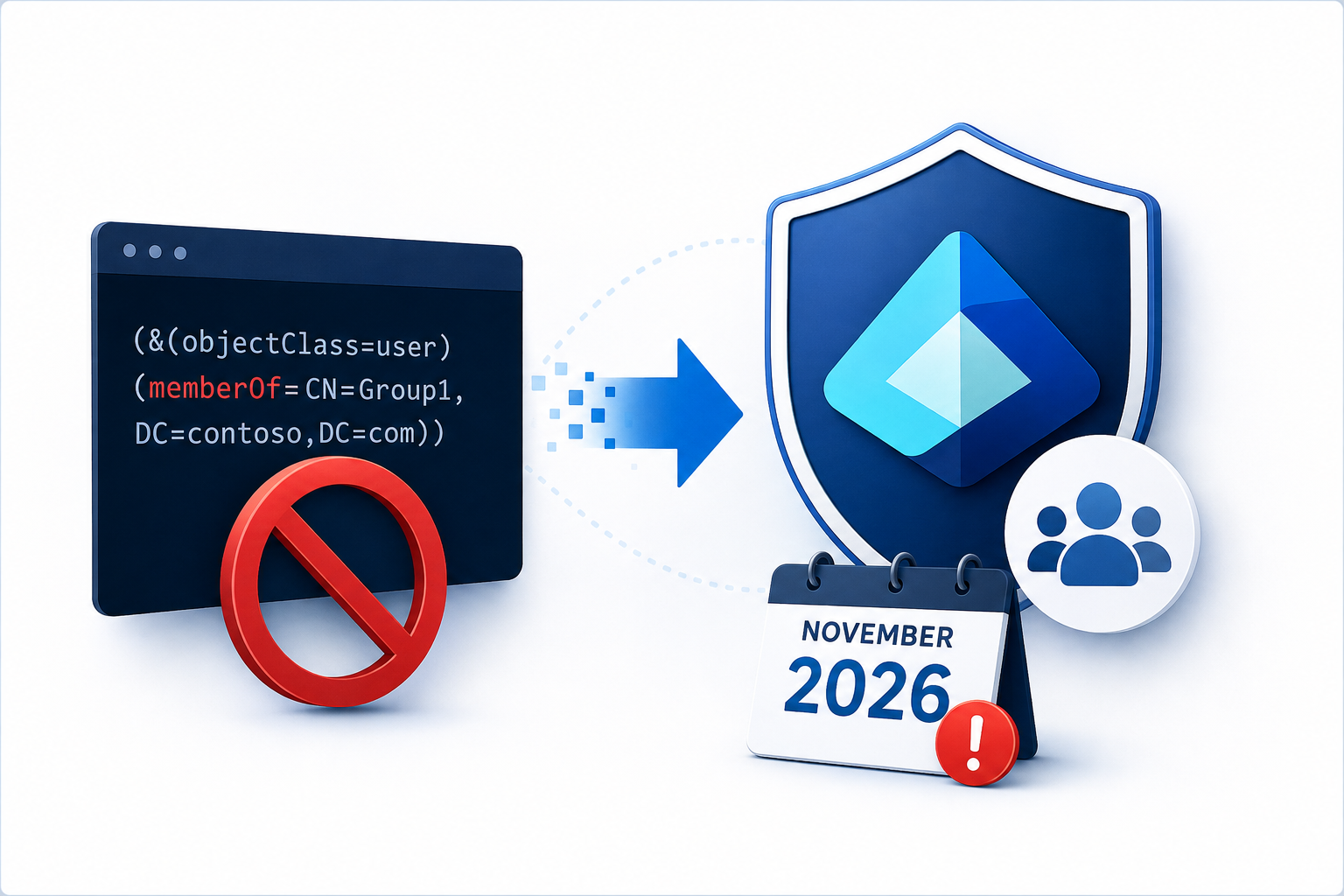
If you manage identity in Microsoft Entra ID, you need to read this. Microsoft announced the retirement of the memberOf rule operator for dynamic groups, and the deadline is firm. After November 3, 2026, any dynamic membership group, administrative unit, or entitlement management policy that still uses memberOf stops updating entirely. Membership freezes in place. New hires miss access. Departed users keep it. This post explains what is changing, how to find affected rules in your tenant, and exactly how to migrate before your access governance quietly breaks.
Table of Contents
- What Is the memberOf Operator and Why Did Admins Rely On It?
- What Exactly Is Changing and When
- How This Impacts Your Organization
- How to Find memberOf Rules in Your Tenant
- Migration Strategies That Actually Work
- Real-World Scenario: Fixing Group-Based Licensing
- What About On-Premises Groups?
- Timeline and Deadlines You Cannot Miss
- Conclusion
What Is the memberOf Operator and Why Did Admins Rely On It?
The memberOf operator let you build dynamic membership rules that pulled users or devices directly from other groups. Instead of writing a rule based on user attributes like department or job title, you could point a dynamic group at one or more existing groups and say: “Give me everyone who is already a member of Group A or Group B.”
This solved a real problem. Many applications that integrate with Microsoft Entra ID do not support nested group memberships. Power Platform environments, certain SaaS apps, and even some Microsoft services struggle when you try to assign access through nested groups. The memberOf operator was the closest thing Entra ID had to proper nested group support without manual membership management.
Admins also used it for licensing. You could maintain a clean department group manually or through on-premises Active Directory sync, then use a dynamic group with memberOf to assign licenses automatically. It felt like a shortcut that just worked, and many organizations deployed it in production even though Microsoft kept it in public preview.
The operator had clear limitations even during preview. You could not combine memberOf with other attributes in the same rule. You could not use it in the rule builder UI; you had to write the advanced syntax manually. And Microsoft explicitly warned that it could slow dynamic group processing across your entire tenant, not just the groups using it. Despite these limits, the utility was strong enough that plenty of identity teams built critical workflows around it.
What Exactly Is Changing and When
Microsoft is ending the public preview of the memberOf operator and retiring it completely. After the deadline, Entra ID will stop evaluating any dynamic membership rule, administrative unit rule, or entitlement management auto-assignment policy that contains memberOf. The group or policy itself does not get deleted. It simply stops updating. Members who were in the group stay there. New members who should join never arrive. Members who should leave remain indefinitely.
Microsoft observed during the preview that memberOf created scale and reliability problems. Even a single memberOf rule in a tenant could degrade dynamic membership processing performance for every other dynamic group. Because of this, Microsoft decided not to promote the feature to general availability. Instead, they are pulling it entirely and working on a future alternative that scales properly. No replacement feature exists today, and Microsoft has not announced a timeline for one.
The official retirement date is November 3, 2026. However, there is an earlier quarantine date for entitlement management auto-assignment policies. Those policies stop processing on October 27, 2026, even though the policy object remains in place. Treat October 27 as your hard deadline for entitlement management scenarios and November 3 for everything else.
How This Impacts Your Organization
The impact depends on what you currently use memberOf for, but the risks are serious across every scenario. Here is what happens when these rules stop updating.
Stale Access and Security Risks
When a dynamic group freezes, its membership becomes a snapshot of whatever existed on the retirement date. If you use these groups to control access to Microsoft Teams, SharePoint sites, or third-party applications, new employees will not receive access automatically. More dangerously, employees who transfer out of a role or leave the organization will keep their access until someone manually removes them. This creates a classic identity governance gap where access drifts away from your intended policy.
Licensing Headaches
Group-based licensing is one of the most common memberOf use cases. Organizations often maintain a source group for a department or role, then use a dynamic group with memberOf to assign Microsoft 365 licenses. When the dynamic rule stops working, new hires in that department will not receive their license. Former employees will keep theirs, potentially costing you money and creating compliance issues during audits. License reconciliation becomes a manual process again.
Conditional Access Gaps
If you scope Conditional Access policies to dynamic groups that rely on memberOf, those policies will target the wrong population after retirement. A policy meant to require multi-factor authentication for your finance team might miss new finance hires while still enforcing on people who moved to other departments. Your security posture weakens without any obvious alert or error message.
Entitlement Management Breakdown
Auto-assignment policies in Entra ID Entitlement Management that use memberOf will stop adding or removing access package assignments. Users who should receive access to resources through those packages will not get it. Users who should lose access will retain it. This directly affects your identity governance lifecycle.
How to Find memberOf Rules in Your Tenant
Microsoft does not provide a single dashboard that lists every configuration using memberOf. You need to hunt through dynamic groups, administrative units, and entitlement management policies manually or, more realistically, with PowerShell. Below are practical scripts you can run today to build a complete inventory.
Discover Dynamic Groups Using memberOf
Connect to Microsoft Graph PowerShell and run this script to export all dynamic membership groups that contain memberOf in their rule:
# Requires Microsoft.Graph.Groups module
# Install-Module Microsoft.Graph.Groups -Scope CurrentUser

Connect-MgGraph -Scopes "Group.Read.All"

$groups = Get-MgGroup -Filter "groupTypes/any(c:c eq 'DynamicMembership')" -All

$affectedGroups = foreach ($group in $groups) {
    if ($group.MembershipRule -match "memberOf") {
        [PSCustomObject]@{
            GroupName      = $group.DisplayName
            GroupId        = $group.Id
            MembershipRule = $group.MembershipRule
            GroupType      = $group.GroupTypes -join ", "
            CreatedDate    = $group.CreatedDateTime
        }
    }
}

$affectedGroups | Export-Csv -Path "DynamicGroups_memberOf_Report.csv" -NoTypeInformation

Write-Host "Found $($affectedGroups.Count) dynamic groups using memberOf."
Write-Host "Report saved to DynamicGroups_memberOf_Report.csv"
This script connects to Microsoft Graph, retrieves all dynamic membership groups, checks each rule for the string memberOf, and exports the results to a CSV file. Review this CSV carefully. For each group, note what the group controls, which source groups it references, and whether the group is still needed at all.
Discover Dynamic Administrative Units Using memberOf
Administrative units with dynamic membership rules also support memberOf. Use this script to find them:
# Requires Microsoft.Graph.Identity.DirectoryManagement module

Connect-MgGraph -Scopes "AdministrativeUnit.Read.All"

$adminUnits = Get-MgDirectoryAdministrativeUnit -All

$affectedUnits = foreach ($unit in $adminUnits) {
    if ($unit.MembershipRule -match "memberOf") {
        [PSCustomObject]@{
            UnitName       = $unit.DisplayName
            UnitId         = $unit.Id
            MembershipRule = $unit.MembershipRule
            Description    = $unit.Description
        }
    }
}

$affectedUnits | Export-Csv -Path "AdminUnits_memberOf_Report.csv" -NoTypeInformation

Write-Host "Found $($affectedUnits.Count) administrative units using memberOf."
Write-Host "Report saved to AdminUnits_memberOf_Report.csv"
Administrative units often control delegated admin scope. If these freeze with outdated membership, your help desk or regional admins might retain or lose access to manage the wrong users.
Discover Entitlement Management Auto-Assignment Policies Using memberOf
Auto-assignment policies in Entitlement Management are harder to spot because they sit inside access packages. This script finds policies that reference memberOf:
# Requires Microsoft.Graph.Identity.Governance module

Connect-MgGraph -Scopes "EntitlementManagement.Read.All"

$accessPackages = Get-MgEntitlementManagementAccessPackage -All

$affectedPolicies = foreach ($package in $accessPackages) {
    $policies = Get-MgEntitlementManagementAccessPackageAssignmentPolicy -AccessPackageId $package.Id -All

    foreach ($policy in $policies) {
        if ($policy.AutoAssignmentPolicy -and ($policy.AutoAssignmentPolicy.ToString() -match "memberOf")) {
            [PSCustomObject]@{
                PackageName   = $package.DisplayName
                PackageId     = $package.Id
                PolicyName    = $policy.DisplayName
                PolicyId      = $policy.Id
                AutoAssignment = $policy.AutoAssignmentPolicy
            }
        }
    }
}

$affectedPolicies | Export-Csv -Path "Entitlement_memberOf_Report.csv" -NoTypeInformation

Write-Host "Found $($affectedPolicies.Count) auto-assignment policies using memberOf."
Write-Host "Report saved to Entitlement_memberOf_Report.csv"
Run all three scripts in your tenant. The combined CSV reports give you a complete picture of what needs attention before the deadline.
Migration Strategies That Actually Work
Once you know what you are dealing with, you need a migration plan. Microsoft officially recommends two paths: rewrite the rule using supported operators, or convert the group to assigned membership. In practice, most organizations will use a mix of approaches depending on the scenario.
Rewrite Rules Using User Attributes
This is the cleanest replacement when your user or device attributes actually describe the population you want. Instead of saying “Include members of the Sales group,” you say “Include users where department equals Sales.”
For example, if your old rule looked like this:
user.memberof -any (group.objectId -in ['12345678-1234-1234-1234-123456789012'])You might replace it with:
user.department -eq "Sales"If you have multiple departments that need the same access, use the -in operator:
Text
user.department -in ["Sales", "Marketing", "Finance"]You can also combine conditions for more precise targeting:
Text
(user.department -eq "Sales") -and (user.country -eq "United States")The extensionAttribute1 through extensionAttribute15 properties are especially useful here. If your on-premises Active Directory populates these attributes and syncs them through Entra Connect, you can build rules that match your internal classification without depending on group membership:
user.extensionAttribute1 -eq "E3-License"The challenge with this approach is data quality. If your department attribute is empty, inconsistent, or out of date for half your users, the dynamic group will miss people. Before you rewrite a rule, spot-check a sample of users to confirm the attribute is populated correctly. If it is not, you have a data cleanup project to complete before November.
Convert to Assigned Membership
Sometimes no attribute accurately captures the population you need. Maybe the group represents a cross-functional project team, a hand-picked committee, or a population defined by business logic that does not map to any directory property. In these cases, convert the dynamic group to assigned membership and manage it manually or through automation.
To convert a group in the Entra Admin Center:
- Open Microsoft Entra ID > Groups > All Groups
- Select the affected group
- Change Membership type from Dynamic User or Dynamic Device to Assigned
- Save the change
Critical warning: Converting from dynamic to assigned removes all existing members. Export the current member list first so you can re-add the correct people after conversion. You can export members through the admin center or with this quick PowerShell snippet:
$members = Get-MgGroupMember -GroupId "your-group-id" -All
$members | Select-Object Id, @{N="Type";E={$_.AdditionalProperties."@odata.type"}} |
    Export-Csv -Path "GroupMembers_Backup.csv" -NoTypeInformation
After conversion, assign members manually or build a scheduled PowerShell script that syncs membership from a source group or HR system. This gives you full control, but it also creates an ongoing maintenance task. For small groups that rarely change, manual assignment is fine. For larger groups, consider automation.
Automate Membership with PowerShell and Graph API
For groups where manual assignment is too burdensome but attribute-based rules are too imprecise, you can script membership updates. This approach keeps the Entra group as assigned but updates its membership automatically based on your own logic.
Here is a basic example that syncs members from a source group to a target assigned group:
# Requires Microsoft.Graph.Groups and Microsoft.Graph.Users modules

Connect-MgGraph -Scopes "Group.Read.All", "GroupMember.ReadWrite.All"

$sourceGroupId = "source-group-object-id"
$targetGroupId = "target-group-object-id"

# Get current members of both groups
$sourceMembers = Get-MgGroupMember -GroupId $sourceGroupId -All
$targetMembers = Get-MgGroupMember -GroupId $targetGroupId -All

$sourceIds = $sourceMembers.Id
$targetIds = $targetMembers.Id

# Add missing members
foreach ($userId in $sourceIds) {
    if ($userId -notin $targetIds) {
        New-MgGroupMember -GroupId $targetGroupId -DirectoryObjectId $userId
        Write-Host "Added $userId to target group"
    }
}

# Remove extra members
foreach ($userId in $targetIds) {
    if ($userId -notin $sourceIds) {
        Remove-MgGroupMemberByRef -GroupId $targetGroupId -DirectoryObjectId $userId
        Write-Host "Removed $userId from target group"
    }
}

Write-Host "Sync complete."
You can schedule this script to run daily through Azure Automation, a scheduled task on a management server, or Azure Functions. This gives you dynamic-like behavior without relying on Entra’s dynamic membership engine. The trade-off is that you now own the logic and must maintain the automation.
Real-World Scenario: Fixing Group-Based Licensing
Group-based licensing is probably the most painful use case to fix because it is so common. Let me walk through a realistic example.
Current setup:
Dept-Salesis an assigned security group containing your sales team, maintained manually or synced from on-premises AD.License-E3-Salesis a dynamic group with this rule:Textuser.memberof -any (group.objectId -in ['<Dept-Sales-Group-ID>'])- You assigned Microsoft 365 E3 licenses to
License-E3-Sales.
The problem: After November 3, 2026, License-E3-Sales stops updating. New sales hires do not get an E3 license. Departed sales staff keep theirs.
The fix:
- Create a new dynamic security group called
License-E3-Sales-Active(or convert the existing one). - Replace the
memberOfrule with a direct attribute rule:Textuser.department -eq "Sales" - If multiple departments get E3, use:Text
user.department -in ["Sales", "Marketing", "Finance"] - Assign the E3 license to the new group.
- Remove the license assignment from the old group once you validate membership.
If your department attribute is unreliable, use an extension attribute instead. Populate extensionAttribute1 with the license tier in your on-premises AD, sync it to Entra ID, then write:
user.extensionAttribute1 -eq "E3"This gives you a single, clean licensing group that does not depend on memberOf and updates reliably based on directory attributes.
What About On-Premises Groups?
A common question is whether this retirement affects groups synced from on-premises Active Directory through Entra Connect. The answer is no, with an important distinction.
If you have an on-premises security group called LIC-E3 with direct members, and that group syncs to Entra ID, the membership is calculated by your on-premises Active Directory, not by Entra ID dynamic rules. You can assign licenses or access to that synced group, and nothing changes. The retirement only affects dynamic groups in Entra ID that use the memberOf operator in their membership rule.
What breaks is when you have a dynamic group in Entra ID with a memberOf rule that references a synced on-prem group. The on-prem group itself is fine. The Entra dynamic group that reads from it is not. You need to replace that dynamic group with one of the migration strategies above.
Timeline and Deadlines You Cannot Miss
| Date | What Happens |
|---|---|
| October 27, 2026 | Entitlement management auto-assignment policies using memberOf are quarantined. Processing stops immediately. |
| November 3, 2026 | Dynamic membership groups and dynamic administrative units using memberOf stop updating. Membership freezes in its last known state permanently. |
There is no opt-out, no extension, and no automatic migration tool from Microsoft. Your groups will not break visibly; they will simply stop updating silently. That silence is what makes this dangerous. An outdated group looks exactly like a current one until someone notices a new hire cannot access Teams or a former employee still has a license.
Start your inventory now. Run the discovery scripts this week. For each affected group, document what it controls, who it is meant to contain, and which replacement strategy fits best. Test your new rules in a separate group before cutting over. Validate membership carefully. The organizations that handle this smoothly are the ones that start early and treat it as a governance improvement project, not just a rule replacement chore.
Conclusion
The retirement of the memberOf operator in Microsoft Entra ID is frustrating because it removes a genuinely useful capability without offering a direct replacement. But it is also an opportunity to clean up your dynamic group strategy, improve attribute data quality, and build more explicit membership policies that do not depend on nested group relationships.
Start by discovering every memberOf rule in your tenant with the PowerShell scripts provided. For each one, ask what business purpose it serves and whether user attributes can describe that population more directly. Where attributes fall short, convert to assigned membership and automate updates with Graph API scripts. Test everything before the October and November deadlines.
Dynamic groups should make identity management easier, not create invisible governance gaps. Take action now, and you will enter 2027 with a cleaner, more reliable Entra ID environment.
Want more articles and tutorials like this?
Get new tutorials, security alerts, and IT tips straight to your inbox.