How to Reset a Cisco Switch Password Without Losing Your Configuration
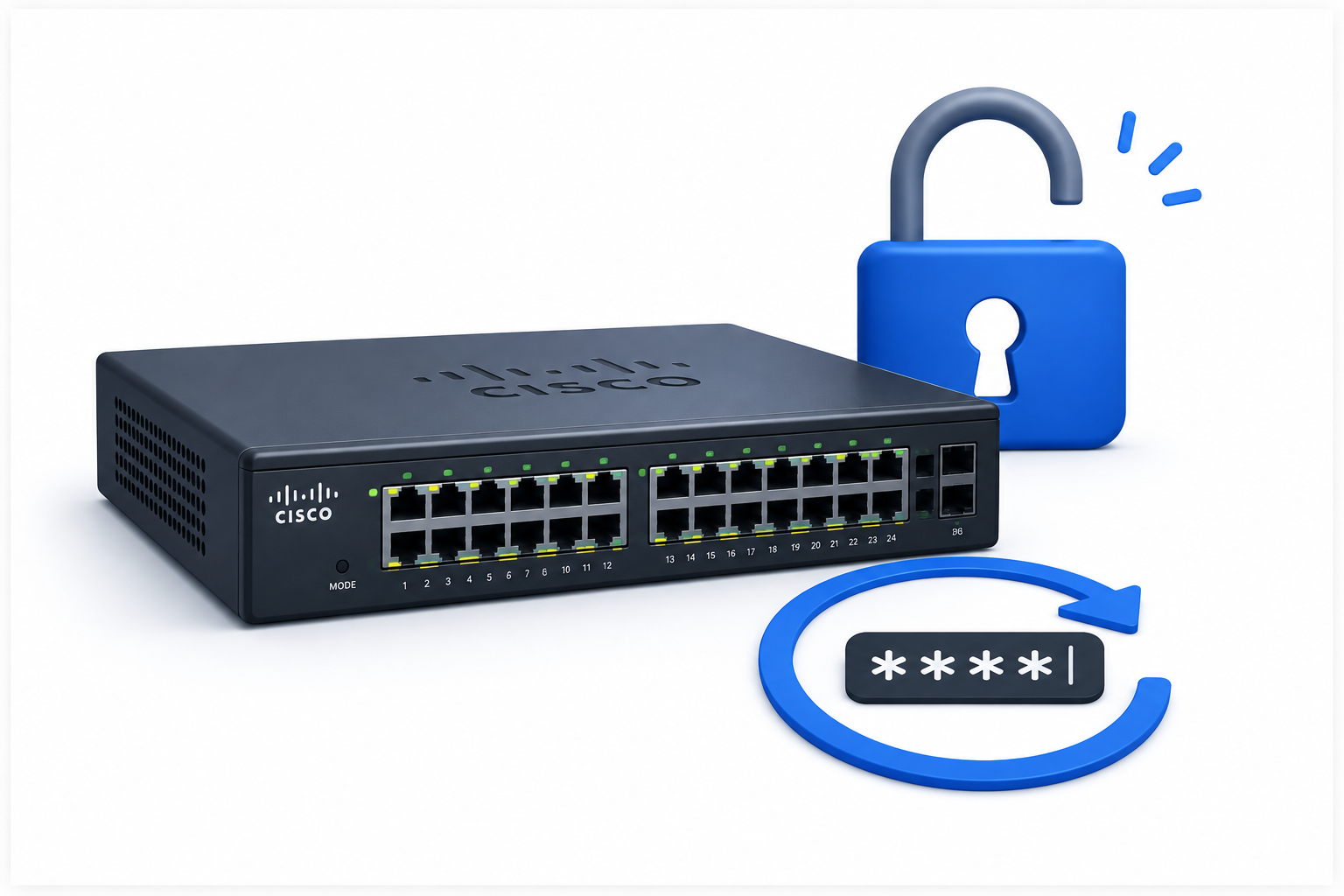
Getting locked out of a Cisco switch is one of those moments that makes every network engineer’s stomach drop. Whether you inherited a device from a former colleague, misplaced the documentation, or simply forgot that complex password you set six months ago, the panic feels the same. The good news? You don’t need to factory reset and rebuild everything from scratch. This guide walks you through the exact steps to regain access while keeping your VLANs, ACLs, and routing protocols completely intact.
Table of Contents
- Why This Happens (And Why It’s Not the End of the World)
- What You Need Before You Start
- Understanding ROMMON Mode
- Method 1: Legacy IOS Switches (Catalyst 2960, 3560, 3750)
- Method 2: Modern IOS-XE Switches (Catalyst 9200, 9300, 3850)
- Method 3: StackWise Deployments
- What If Password Recovery Is Disabled?
- Troubleshooting Common Problems
- After You Regain Access: Security Hardening Checklist
- Frequently Asked Questions
- Conclusion
Why This Happens (And Why It’s Not the End of the World)
Password lockouts happen more often than most engineers admit. Maybe your team rotated passwords last quarter and the spreadsheet got lost. Maybe a contractor set up the switch and never shared the credentials. Or perhaps you enabled AAA authentication pointed at a RADIUS server that no longer exists.
Whatever the cause, Cisco designed a hardware-level recovery path into nearly every switch they sell. This isn’t a bug or a backdoor. It’s a deliberate feature that recognizes physical access to the device already implies a high level of trust. Someone standing in your data center with a console cable poses a different threat model than a remote attacker.
The key thing to remember: your configuration lives in a file called config.text stored in flash memory. The password recovery process temporarily hides this file from the boot loader, starts the switch with a blank config, then lets you reload your original settings and overwrite the old password. Your network design survives completely untouched.
What You Need Before You Start
Gather these items before you touch the power button:
- Physical access to the switch. You cannot perform password recovery over SSH, Telnet, or the web interface. Console access is mandatory.
- A rollover console cable (RJ-45 to DB-9 or USB, depending on your laptop) connected to the switch’s console port.
- Terminal emulation software such as PuTTY, Tera Term, or SecureCRT. Use these settings: 9600 baud, 8 data bits, no parity, 1 stop bit, no flow control.
- A laptop or desktop with a working serial port or USB adapter.
- 10-15 minutes of maintenance window, though the actual process takes far less time.
Pro tip: If you manage multiple sites, keep a console cable in your go-bag. Password recovery always requires physical presence, and hunting for a cable during an outage only adds stress.
Understanding ROMMON Mode
ROMMON (ROM Monitor) is the bootstrap program that runs before the main Cisco IOS or IOS-XE operating system loads. Think of it as the BIOS of your switch. When you interrupt the normal boot process, ROMMON gives you a low-level command prompt where you can manipulate files, change boot variables, and diagnose hardware issues.
Different switch families use slightly different ROMMON behaviors:
- Legacy IOS switches (Catalyst 2960, 3560, 3750) present a
switch:prompt and let you run basic file system commands likeflash_initandrename. - Modern IOS-XE switches (Catalyst 9200, 9300, 3850) also use the
switch:prompt but rely on environment variables likeSWITCH_IGNORE_STARTUP_CFGrather than file renaming. - Routers and older gear typically show a
rommon 1>prompt and use commands likeconfreg 0x2142.
Knowing which platform you have determines which recovery path to follow. Check the model number on the chassis before you begin.
Method 1: Legacy IOS Switches (Catalyst 2960, 3560, 3750)
This method works for the vast majority of Cisco access switches deployed over the past two decades. If your switch runs classic IOS and has a Mode button on the front panel, follow these steps exactly.
Step 1: Enter ROMMON Mode Using the Mode Button
- Power off the switch by unplugging the power cable.
- Connect your console cable and open your terminal emulator.
- Hold down the Mode button on the left side of the front panel.
- While holding the Mode button, reconnect the power cable.
- Keep holding the Mode button for approximately 10 to 15 seconds.
- Release the button when the SYST LED turns solid amber or green (depending on your model).
You should now see the switch: prompt in your terminal window.
Image suggestion: A close-up photo of a Cisco Catalyst 2960 front panel with an arrow pointing to the Mode button. Alt tag: “Cisco Catalyst 2960 Mode button location for password recovery”
Step 2: Initialize the Flash File System
At the switch: prompt, type the following command and press Enter:
switch: flash_initThis command mounts the flash memory so you can view and manipulate files. You will see several lines of output as the file system initializes. Wait for the prompt to return before proceeding.
Step 3: Locate and Rename the Configuration File
List the contents of flash memory to confirm the configuration file exists:
switch: dir flash:Look for a file named config.text. This file contains your startup configuration, including the password you forgot. Rename it so the boot loader skips it:
switch: rename flash:config.text flash:config.oldThis rename operation takes less than a second. Your configuration is now safely tucked away under a different filename.
Step 4: Boot the Switch
Issue the boot command to start the operating system:
switch: bootThe switch loads IOS normally but starts with a completely blank configuration. After the boot process completes, you will see the initial configuration dialog prompt. Type no and press Enter to skip it.
Step 5: Restore Your Original Configuration
At the Switch> prompt, enter privileged mode without any password:
Switch> enable
Switch#
Now rename your configuration file back to its original name:
Switch# rename flash:config.old flash:config.textCopy the startup configuration into running memory:
Switch# copy flash:config.text system:running-config
Destination filename [running-config]?
Press Enter to accept the default destination. Your original configuration now lives in RAM, and you have full privileged access.
Step 6: Set New Passwords
Enter global configuration mode and overwrite the old credentials:
Switch# configure terminal
Switch(config)# enable secret MyN3wP@ssw0rd!
Set a new console password:
Switch(config)# line con 0
Switch(config-line)# password ConsoleP@ss123
Switch(config-line)# login
Switch(config-line)# exit
If you use VTY lines for remote access, update those too:
Switch(config)# line vty 0 15
Switch(config-line)# password VtyP@ss456
Switch(config-line)# login
Switch(config-line)# exit
Step 7: Save and Verify
Write the running configuration back to flash:
Switch# write memoryOr use the longer form:
Switch# copy running-config startup-configVerify your new password works by exiting privileged mode and logging back in:
Switch# disable
Switch> enable
Password: MyN3wP@ssw0rd!
Switch#
Image suggestion: A terminal screenshot showing the switch: prompt and the flash_init command sequence. Alt tag: “Cisco switch ROMMON mode password recovery commands in terminal”
Method 2: Modern IOS-XE Switches (Catalyst 9200, 9300, 3850)
Newer Catalyst switches run IOS-XE, a Linux-based operating system with a different recovery mechanism. Instead of renaming files in ROMMON, you manipulate environment variables that tell the boot loader to ignore the startup configuration.
Step 1: Interrupt the Boot Sequence
- Power cycle the switch.
- Within the first few seconds of booting, press Ctrl-C repeatedly until you see the ROMMON prompt.
- Alternatively, press the Mode button repeatedly until the
switch:prompt appears.
Step 2: Set the Ignore Variable
At the switch: prompt, view the current ROMMON variables:
switch: setSet the environment variable that bypasses the startup config:
switch: SWITCH_IGNORE_STARTUP_CFG=1Step 3: Boot and Restore
Boot the switch:
switch: bootAfter IOS-XE loads, enter privileged mode and copy your configuration:
Switch> enable
Switch# copy startup-config running-config
Step 4: Change Passwords and Clean Up
Set your new credentials:
Switch# configure terminal
Switch(config)# enable secret MyN3wP@ssw0rd!
Switch(config)# username admin privilege 15 secret AdminP@ss789
Critical: Remove the ignore flag or the switch will boot without configuration every time:
Switch(config)# no system ignore startupconfig switch all
Switch(config)# end
Save the configuration:
Switch# write memoryVerify the variable cleared properly:
Switch# show romvarConfirm SWITCH_IGNORE_STARTUP_CFG shows a value of 0 or does not appear at all.
Image suggestion: A side-by-side comparison of a Catalyst 3750 and Catalyst 9300 front panel showing the Mode button differences. Alt tag: “Cisco Catalyst 3750 versus 9300 Mode button comparison for password recovery”
Method 3: StackWise Deployments
Recovering a password on a switch stack requires extra care. If you boot the entire stack normally after bypassing the startup config on one member, the stack master may push its blank configuration to all members, wiping your entire stack’s settings.
For 3750-X and 3850 Stacks
- Power off all switches in the stack.
- Disconnect stack cables and stack power cables.
- Power on only the master switch (identify it by the green Master LED).
- Perform the password recovery procedure on the master using Method 1 or 2 above.
- After saving the new configuration on the master, power on the remaining stack members one by one.
- Reconnect stack cables once all members have booted and joined the stack.
This isolation prevents configuration synchronization from wiping your settings during the recovery window.
What If Password Recovery Is Disabled?
Some security-conscious administrators disable password recovery using this command:
Switch(config)# no service password-recoveryIf someone attempts ROMMON recovery on a switch with this feature enabled, the device detects the interruption and automatically erases its flash contents. You get back in, but every VLAN, port setting, and routing table entry vanishes permanently.
How to Tell If Recovery Is Disabled
When you enter ROMMON mode and run flash_init, you may see a warning message stating that password recovery functionality is disabled. At that point, you have two options:
- Proceed with the recovery, knowing the switch will factory reset itself.
- Power cycle normally and accept that you cannot recover the password without erasing the configuration.
For organizations under strict compliance requirements (PCI-DSS, HIPAA, government contracts), this trade-off makes sense. For everyone else, enabling password recovery is the pragmatic choice.
Troubleshooting Common Problems
The Mode Button Does Nothing
Older switches sometimes develop sticky or broken Mode buttons. If pressing the button yields no response, try these alternatives:
- Send a break signal from your terminal emulator. In PuTTY, right-click the title bar and select Special Command > Break.
- Change your terminal baud rate to 1200, power cycle the switch, hold the Spacebar for 15 seconds, then switch back to 9600 baud.
- Use Ctrl-Break or Ctrl-C during the first 60 seconds of boot.
The Switch Boots Straight to IOS
You missed the ROMMON window. Power cycle and try again, pressing the interrupt key combination earlier in the boot sequence. Some switches give you only 5-10 seconds to interrupt.
Interfaces Show Shutdown After Recovery
When you copy the startup config to running config, some interfaces may appear administratively down even though your config says no shutdown. This happens because IOS applies the shutdown state from the default interface template before merging your saved configuration. Simply enter interface configuration mode and issue no shutdown on any affected ports.
VLAN Database Missing
If you recover a legacy switch and notice VLANs are gone, check for vlan.dat in flash:
Switch# dir flash:If vlan.dat exists but VLANs don’t appear, the file may have become corrupted during the recovery. In most cases, the VLAN database remains intact because you only renamed config.text, not vlan.dat.
After You Regain Access: Security Hardening Checklist
Resetting the password gets you back into the switch, but smart engineers treat this incident as a wake-up call. Harden your device before you close the ticket.
1. Use Type 9 Password Hashing
Modern IOS and IOS-XE support strong SCRYPT hashing for passwords. Avoid weak Type 7 encryption:
Switch(config)# enable algorithm-type scrypt secret MyN3wP@ssw0rd!
Switch(config)# username admin algorithm-type scrypt secret AdminP@ss789
2. Create a Local Backup User
Add a secondary admin account so one lost password doesn’t lock everyone out:
Switch(config)# username backupadmin privilege 15 algorithm-type scrypt secret BackupP@ss3213. Document Passwords Securely
Store credentials in a password manager or enterprise vault. Never leave them in unencrypted text files on shared drives.
4. Enable AAA with Fallback
If you use RADIUS or TACACS+, configure local fallback authentication so a dead authentication server doesn’t lock you out:
Switch(config)# aaa authentication login default group radius local
Switch(config)# aaa authentication enable default group radius enable
5. Restrict Console Access Physically
Place switches in locked racks or data centers. Password recovery requires physical access, so controlling who can touch the hardware is your first line of defense.
6. Schedule Regular Configuration Backups
Automate config backups to a TFTP or SCP server:
Switch# copy running-config scp://backupuser@10.1.1.100/switch-configs/With a recent backup, you could simply factory reset the switch and restore the configuration in minutes instead of performing password recovery.
Image suggestion: A network engineer organizing labeled console cables in a server rack. Alt tag: “Network engineer organizing console cables for Cisco switch maintenance access”
Frequently Asked Questions
Can I recover a Cisco switch password remotely?
No. Password recovery requires physical console access and a power cycle. You cannot enter ROMMON mode over SSH, Telnet, SNMP, or the web interface.
Will I lose my configuration during password recovery?
Not if you follow the steps correctly. The process temporarily bypasses the startup config, then reloads it after you regain access. Only if password recovery is explicitly disabled (no service password-recovery) will the switch erase its configuration.
How long does the recovery process take?
The actual recovery takes 5 to 10 minutes. The switch boot process accounts for most of that time. Planning and gathering tools beforehand saves additional minutes.
Does this work on all Cisco switch models?
The general concept applies across Catalyst switches, but the exact commands vary. Legacy IOS models use file renaming. Modern IOS-XE models use environment variables. Nexus data center switches use yet another procedure. Always verify your specific model’s documentation.
What is the difference between enable password and enable secret?
Always use enable secret. The enable password command stores the password in weak, reversible encryption (Type 7). The enable secret command uses strong hashing (MD5 or SCRYPT) and takes precedence if both are configured.
Can I decrypt a Type 7 password from a config backup?
Yes. Type 7 encryption is trivial to reverse using freely available online tools. If you have a backup of your configuration file and the password uses Type 7, you can recover the plaintext without touching the switch. Type 5 and Type 9 passwords use strong hashing and cannot be decrypted.
Conclusion
Losing the password to a Cisco switch feels catastrophic in the moment, but the recovery process is straightforward once you understand the mechanics. Whether you manage legacy Catalyst 2960s in a branch office or modern Catalyst 9300s in a enterprise core, the principle remains the same: interrupt the boot, bypass the config, restore your settings, and lock the door behind you with a new password.
The most important takeaway isn’t the exact sequence of commands. It’s the reminder that physical security and configuration backups matter just as much as strong passwords. Keep a console cable handy, back up your configs regularly, and store credentials in a secure vault. The ten minutes you spend on prevention will save you hours of recovery work down the road.
If you found this guide helpful, bookmark it for your next late-night emergency. And if you’re building out a new network, take the extra five minutes to create a backup admin account and enable strong password hashing. Future you will be grateful.
Want more articles and tutorials like this?
Get new tutorials, security alerts, and IT tips straight to your inbox.
That’s a really useful guide – I’ve definitely been there with older devices. Losing the credentials is always a stressful situation, especially when you need to get back online quickly.