Backup vs Replication: What’s the Real Difference? A Practical Guide for Businesses
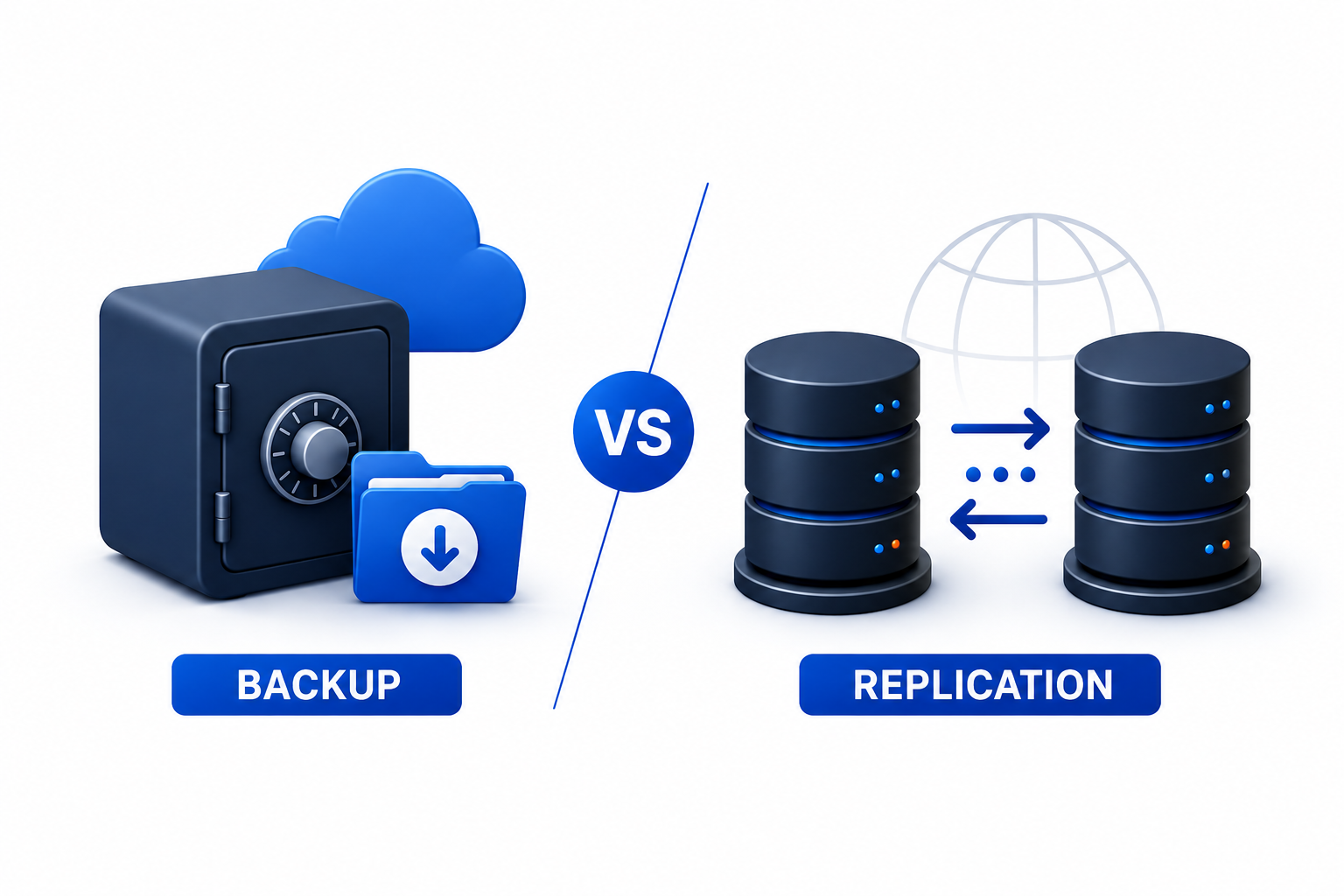
Every business depends on data. When systems fail, files vanish, or cyberattacks strike, your recovery strategy determines whether you bounce back in minutes or struggle for days. Yet many organizations confuse two critical tools: backup and replication. They sound similar, but they solve completely different problems. This post breaks down the real difference between backup and replication, shows you when each one matters, and helps you build a data protection plan that actually works under pressure.
Table of Contents
- What Is Data Backup?
- What Is Data Replication?
- Backup vs Replication: The Core Differences
- Side-by-Side Comparison Table
- Real-World Scenarios: Which One Do You Need?
- Can Replication Replace Backup?
- Building a Smart Data Protection Strategy
- Image Suggestions for Your Blog Post
- Conclusion
What Is Data Backup?
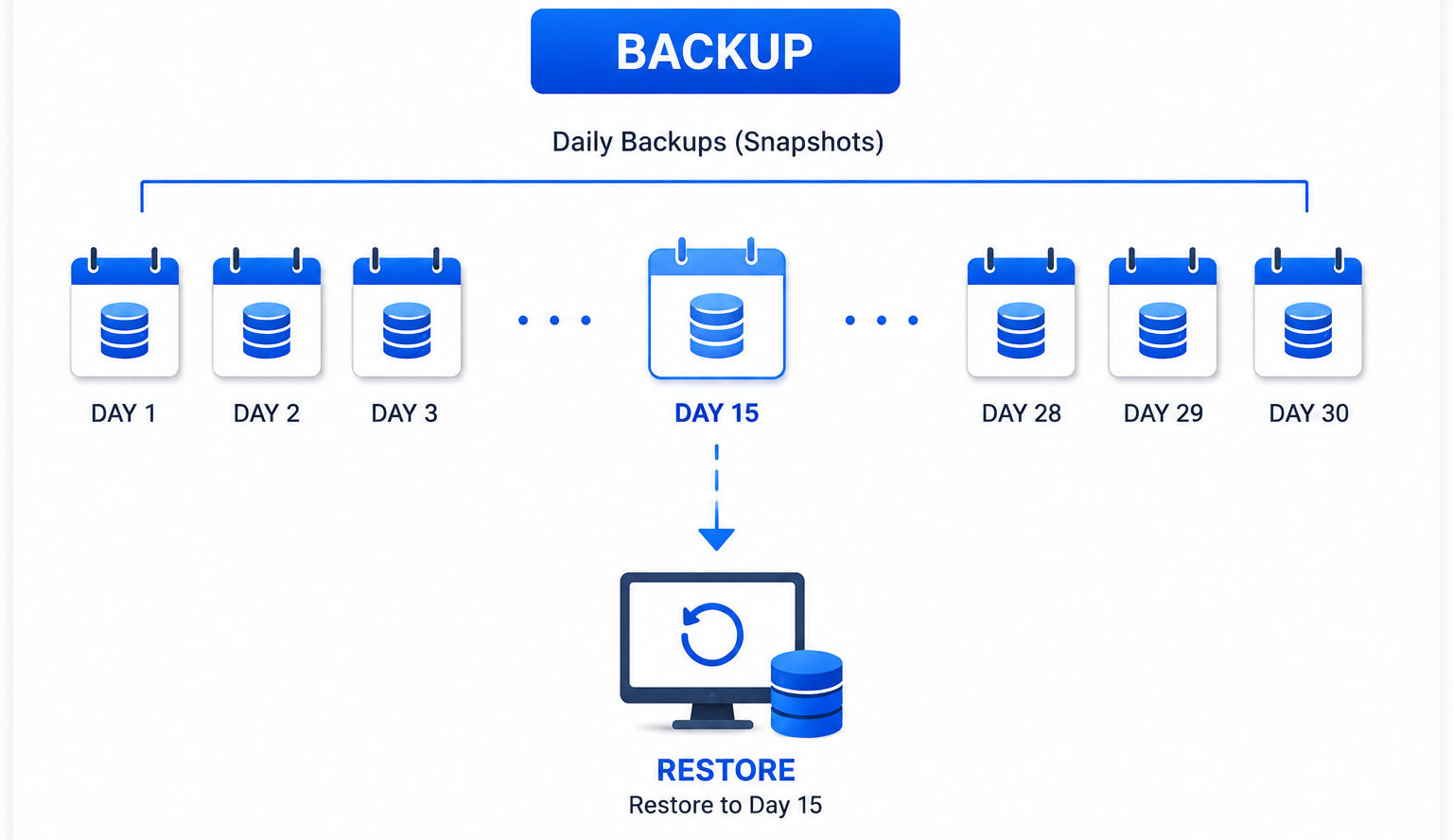
Data backup means taking snapshots of your information at scheduled intervals and storing them separately from your production systems. Think of it as taking photographs of your data every few hours, days, or weeks. Each photograph captures the exact state of your files at that moment.
When something goes wrong, you flip back through these snapshots and restore the version you need. Maybe a developer deleted a customer database by mistake. Maybe ransomware encrypted your files last Tuesday. Backup gives you a clean copy from before the disaster happened.
The process usually involves copying data to secondary storage, such as external drives, network-attached storage, tape libraries, or cloud repositories. Modern backup tools compress and deduplicate data to save space, but the core idea remains simple: preserve historical copies you can retrieve later.
How Backup Works in Simple Terms
Imagine you write a report in a word processor. Every evening, you save a copy to a USB drive with the date in the filename. On Friday, you accidentally delete half the report. You grab Wednesday’s USB copy, and you only lose two days of work. That is backup in action.
In a business setting, backup software automates this process. It runs on a schedule, captures changed data, and stores it safely. Administrators set policies that define how long to keep each snapshot. Some businesses retain daily backups for a month, monthly backups for a year, and yearly backups for seven years to meet compliance rules.
Common Backup Types
Businesses use three main backup approaches. Each one balances speed, storage space, and recovery complexity differently.
Full backup copies every file every time. It creates the most complete snapshot but consumes the most storage and takes the longest to run.
Incremental backup copies only the files that changed since the last backup, regardless of type. It runs faster and uses less space, but recovery takes longer because you must restore the last full backup plus every incremental backup that followed.
Differential backup copies all changes since the last full backup. It strikes a middle ground: more storage than incremental, but faster recovery because you only need the last full backup plus the latest differential.
When Backup Saves the Day
Backup shines when you need to recover old data or undo changes. If a finance team discovers that someone entered incorrect figures three weeks ago, backup lets you retrieve the ledger from before the error appeared. If auditors demand files from two years ago, your long-term backup retention delivers them.
Backup also protects against human error and malicious acts. When an employee accidentally wipes a shared folder, or when a cybercriminal locks your systems with ransomware, replication cannot help because those changes would have already spread to the secondary copy. Only backup provides a clean, isolated snapshot from a safer time.
What Is Data Replication?
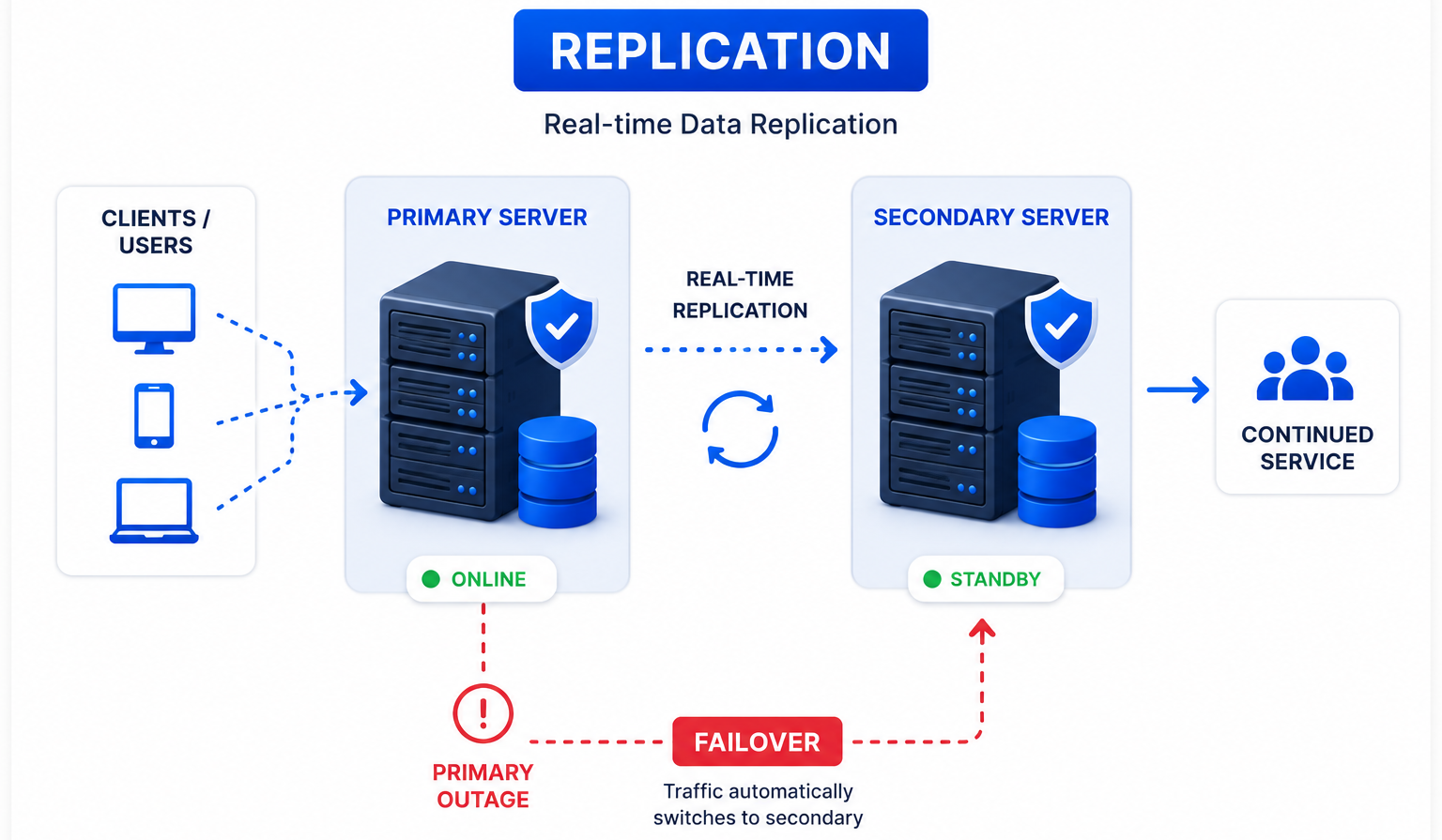
Data replication means creating and maintaining a live copy of your data that stays synchronized with the original in real time or near real time. Instead of periodic snapshots, replication continuously mirrors changes from your primary system to a secondary location.
Think of replication as a shadow that follows your data everywhere. Every edit, every new file, every database transaction gets copied instantly to another server, another site, or the cloud. If your primary system goes dark, the replica stands ready to take over immediately.
Organizations use replication to keep mission-critical applications running during hardware failures, power outages, or maintenance windows. The goal is not to preserve history but to ensure continuity.
How Replication Works in Simple Terms
Picture two whiteboards in different rooms. Every time someone writes on the first whiteboard, an assistant instantly copies that writing onto the second whiteboard. If the first room floods, you walk into the second room and continue working without rewriting anything.
In technical terms, replication software monitors your primary storage for changes. It transmits those changes across a network to a secondary system that applies them immediately. The replica stays in lockstep with production, so failover happens in minutes or even seconds.
Synchronous vs Asynchronous Replication
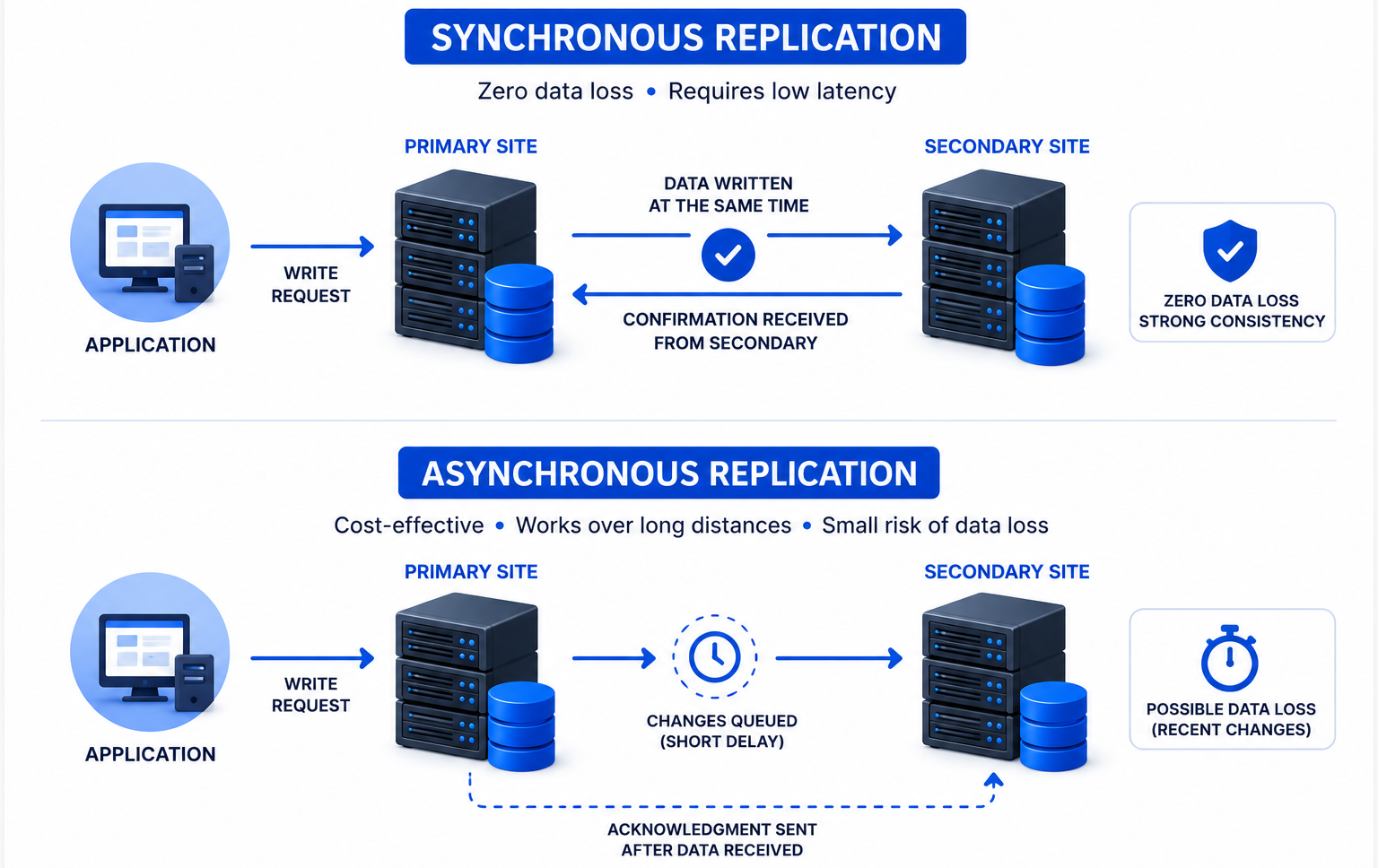
Replication comes in two flavors, and the difference matters for your budget and your risk tolerance.
Synchronous replication writes data to both the primary and secondary systems at the same time before confirming success. It guarantees zero data loss but demands a fast, low-latency network link between sites. Financial trading platforms and hospital emergency systems often choose this approach because they cannot afford to lose even a single transaction.
Asynchronous replication batches changes and sends them at scheduled intervals or after a short delay. It costs less and works over longer distances, but you might lose a few minutes of data if the primary site fails between sync cycles. Most businesses find this trade-off acceptable for everyday operations.
When Replication Saves the Day
Replication proves its worth when downtime costs more than data loss. An e-commerce site on Black Friday cannot afford to stay offline for hours while technicians restore from backup. A hospital patient monitoring system must stay active around the clock. A global SaaS platform serving thousands of customers needs instant failover.
In these cases, replication switches operations to the secondary site so quickly that users barely notice the interruption. The business keeps running, revenue keeps flowing, and customer trust stays intact.
Backup vs Replication: The Core Differences
Now that you understand each concept, let us explore how they differ across the dimensions that matter most to your business.
Purpose and Goal
Backup aims to preserve history. It protects you against logical problems like corruption, deletion, and ransomware by letting you roll back to a known good state. Its purpose is recoverability.
Replication aims to maintain availability. It protects you against physical problems like server crashes, network outages, and datacenter failures by keeping a live standby ready to take over. Its purpose is continuity.
Recovery Speed (RTO)
Recovery Time Objective, or RTO, measures how quickly you must restore operations after an incident. Backup typically delivers RTOs measured in hours or days because you must locate the right snapshot, transfer data back to production, and verify everything works.
Replication delivers RTOs measured in minutes because the secondary system already runs and holds current data. You simply redirect users to the replica and resume operations.
Data Loss Window (RPO)
Recovery Point Objective, or RPO, measures how much data you can afford to lose. If you run daily backups, your RPO sits at roughly twenty-four hours. In a worst-case scenario, you lose everything created since the last backup.
Replication shrinks that window to seconds or minutes because it copies changes continuously. The replica always reflects recent data, so you lose very little, if anything, during a failover.
Storage and Cost
Backup accumulates multiple snapshots over time. If you keep thirty daily backups plus twelve monthly backups, your storage footprint grows continuously. However, backup targets often use cheaper, slower storage because speed matters less than capacity.
Replication typically maintains one synchronized copy that matches your production environment in size and performance. You essentially double your infrastructure investment. The replica needs fast storage, capable servers, and robust network links to handle production workloads during a failover.
Versioning and History
Backup excels at versioning. You can retrieve a file from last Tuesday, compare it against last month, or trace when corruption first appeared. This historical depth supports compliance, auditing, and forensic investigation.
Replication offers no meaningful versioning. The replica mirrors your current state. If ransomware encrypts your primary data and replication syncs before you catch it, your replica carries the same encrypted files. Without backup, you have no clean copy to restore.
Side-by-Side Comparison Table
| Factor | Data Backup | Data Replication |
|---|---|---|
| Primary Goal | Recover lost or corrupted data | Keep systems running during outages |
| How It Works | Takes scheduled point-in-time snapshots | Continuously syncs changes to a secondary copy |
| Typical RTO | Hours to days | Minutes to seconds |
| Typical RPO | Hours to days (based on backup frequency) | Seconds to minutes |
| Versioning | Multiple historical versions available | Usually one current copy only |
| Protection Against | Human error, ransomware, corruption, deletion | Hardware failure, site outages, disasters |
| Storage Needs | Grows over time with each snapshot | Roughly equals production storage size |
| Cost Profile | Lower ongoing cost, scales with retention | Higher ongoing cost, doubles infrastructure |
| Best For | Compliance, long-term retention, point-in-time recovery | High availability, disaster recovery, minimal downtime |
| Failover Speed | Requires full restore process | Near-instant switchover |
Real-World Scenarios: Which One Do You Need?
Let us walk through four common situations to see how backup and replication perform in practice.
Scenario 1: Accidental File Deletion
An employee deletes a shared folder containing six months of client contracts. The deletion happens at 2:00 PM.
If you rely only on replication, the deletion syncs to your secondary site within minutes. Both copies lose the folder. You have no way to retrieve it.
If you run daily backups, you restore yesterday’s snapshot. You lose any contracts added today, but you recover months of work. Backup wins this scenario decisively.
Scenario 2: Server Hardware Failure
Your primary database server suffers a motherboard failure at 9:00 AM on a Monday. Hundreds of employees cannot access the customer relationship management system.
If you only have backups, your team spends hours provisioning a replacement server, restoring the latest snapshot, and verifying data integrity. Users wait half a day or longer.
If you have replication, you fail over to the replica in under ten minutes. Users reconnect automatically and keep working while technicians repair the primary server. Replication wins here.
Scenario 3: Ransomware Attack
A phishing email tricks an employee into installing malware that encrypts every file on your network share. The attack spreads overnight.
Replication copies the encrypted files to your secondary site before anyone notices. Your replica now holds useless data. Without backup, you face a ransom payment or permanent data loss.
Your backup system, however, holds clean snapshots from before the infection. You wipe the infected systems, restore from backup, and resume operations without paying criminals. Backup proves essential in this scenario.
Scenario 4: Natural Disaster
A flood destroys your primary datacenter. Power lines are down, servers are underwater, and the building is inaccessible.
Replication fails over to your secondary site in another city. Critical applications stay online, and customers never experience an outage.
Meanwhile, backup provides the historical records you need to rebuild completely. You restore non-critical systems from offsite backups once you establish new hardware. Both technologies work together to save your business.
Can Replication Replace Backup?
No, and treating them as interchangeable creates dangerous gaps in your protection strategy. Replication keeps your current operations alive, but it cannot roll back time. When logical corruption, ransomware, or accidental deletion strikes, replication propagates the damage almost instantly.
Microsoft explicitly warns that replication synchronizes all changes among copies and does not maintain old versions. If you delete data accidentally, the deletion replicates everywhere. In that moment, you need backup, not replication.
Smart organizations layer both technologies. They use replication for high availability and backup for long-term protection. This combination covers physical failures, logical errors, compliance requirements, and disaster recovery in one coherent strategy.
Building a Smart Data Protection Strategy
You do not need to choose between backup and replication. You need to assign each one to the right job based on your business priorities.
Step 1: Classify Your Applications
Start by ranking your systems by criticality. Tier-one applications, such as customer-facing websites, payment processors, and healthcare monitors, demand replication because downtime costs thousands of dollars per minute. Tier-two and tier-three applications, such as internal wikis or development servers, often survive on backup alone.
Step 2: Set Your RTO and RPO Targets
Work with business leaders to define acceptable downtime and data loss for each system. A marketing blog might tolerate twenty-four hours of downtime. An online store cannot. These targets directly inform whether you deploy backup, replication, or both.
Step 3: Layer Protection
Deploy replication for systems that need instant failover. Then add backup behind that replication to protect against logical corruption and meet retention requirements. Never assume replication alone keeps you safe.
Step 4: Test Recovery Regularly
A protection strategy you never test is just a theory. Schedule quarterly failover tests for replicated systems and semi-annual restore tests for backups. Verify that your RTO and RPO targets hold up in practice, not just on paper.
Step 5: Follow the 3-2-1 Rule
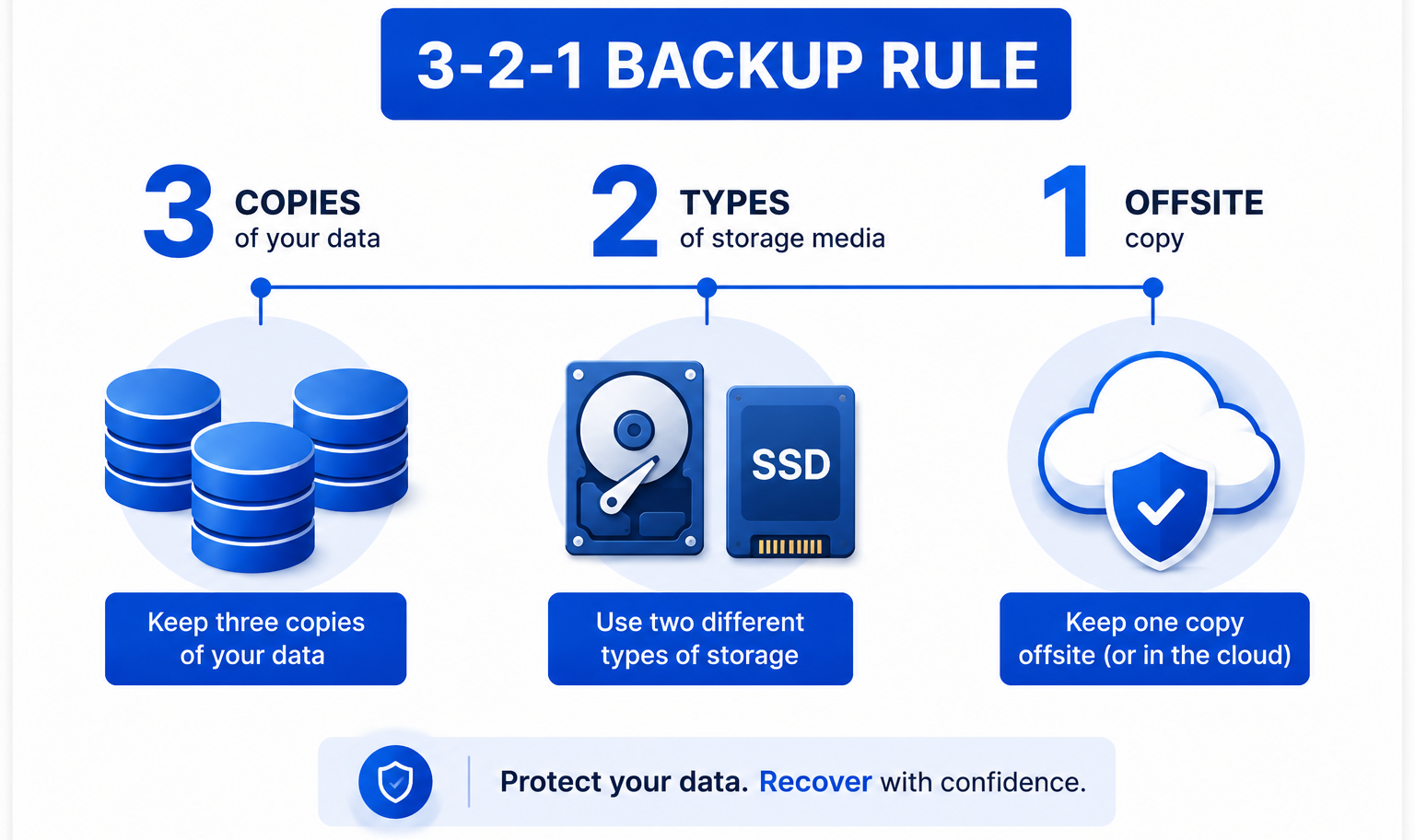
The industry-standard 3-2-1 rule states that you should keep three copies of critical data on two different media types, with one copy stored offsite. Replication handles the live copy, while backup provides the historical copies on different media. Together, they satisfy this rule comprehensively.
Conclusion
Backup and replication both protect your data, but they tackle different risks with different tools. Backup preserves historical snapshots so you can recover from corruption, deletion, and ransomware. Replication maintains a live standby so you can fail over instantly during hardware failures and outages.
Relying on just one leaves your business exposed. Replication cannot turn back the clock when someone deletes a file. Backup cannot keep your online store running during a server crash. The smartest approach combines both: replication for high availability, backup for recoverability and compliance.
Want more articles and tutorials like this?
Get new tutorials, security alerts, and IT tips straight to your inbox.