Windows 10 Is Officially Dead — Here’s How to Upgrade to Windows 11 Pro for $10
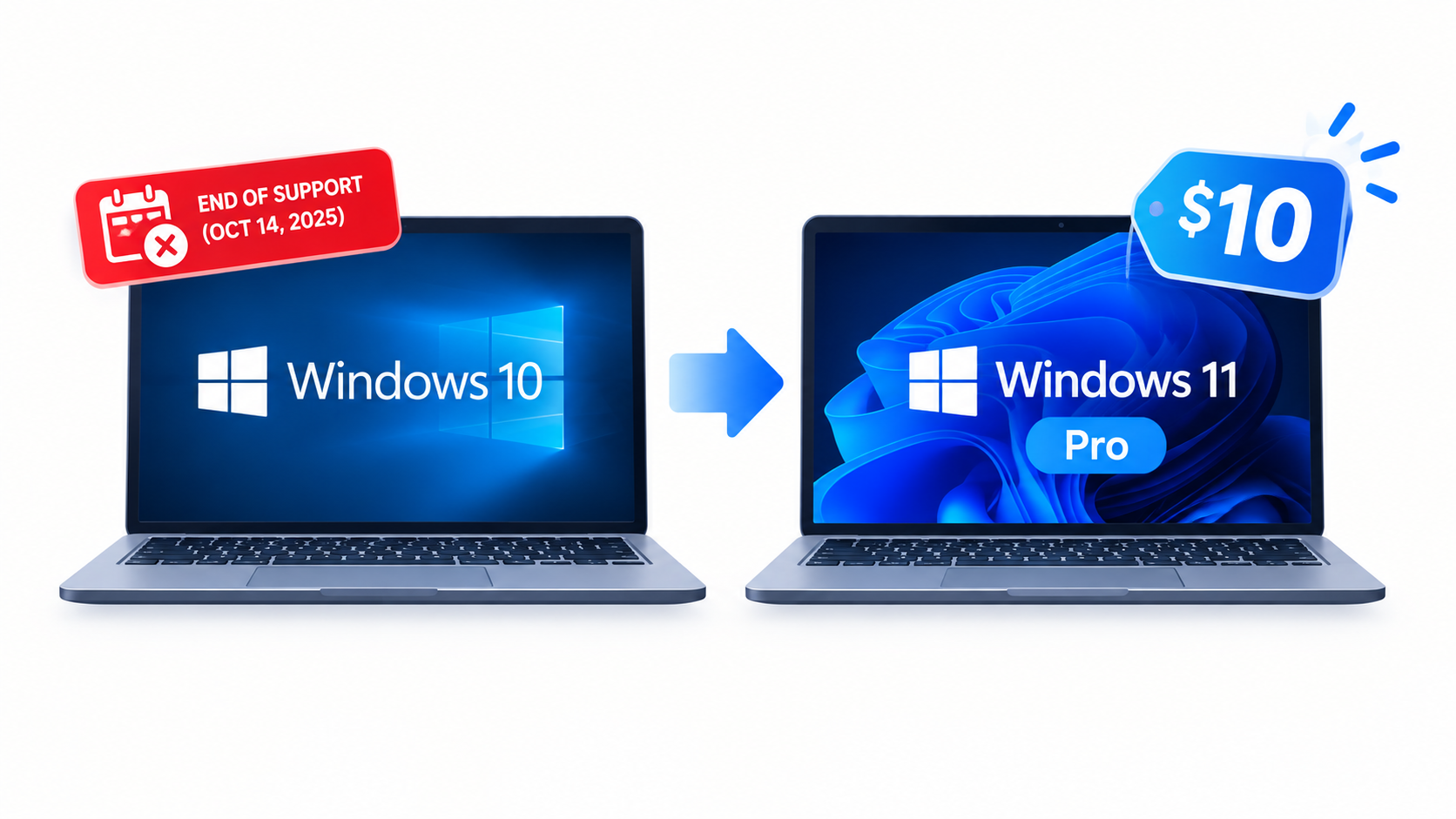
Windows 10 stopped receiving security updates in October 2025, and millions of PCs are still running it. That leaves you three options: pay Microsoft for extended patches, buy a new machine, or move to Windows 11. Right now, a limited-time deal drops a genuine Windows 11 Pro license to around $10 — a fraction of the $199 Microsoft charges. In this guide, I’ll explain what that license gets you, whether it’s legit, and exactly how to install and activate it.
Table of Contents
- Why Windows 10’s End of Support Changes Everything
- What a $10 Windows 11 Pro License Actually Includes
- Windows 11 Home vs. Pro: Which One Do You Need?
- Is a Cheap Windows Key Legit? What to Watch Out For
- How to Check If Your PC Can Run Windows 11
- Step-by-Step: Clean Install and Activate Windows 11 Pro
- Other Microsoft Software Deals Worth Knowing
- Final Thoughts
Why Windows 10’s End of Support Changes Everything
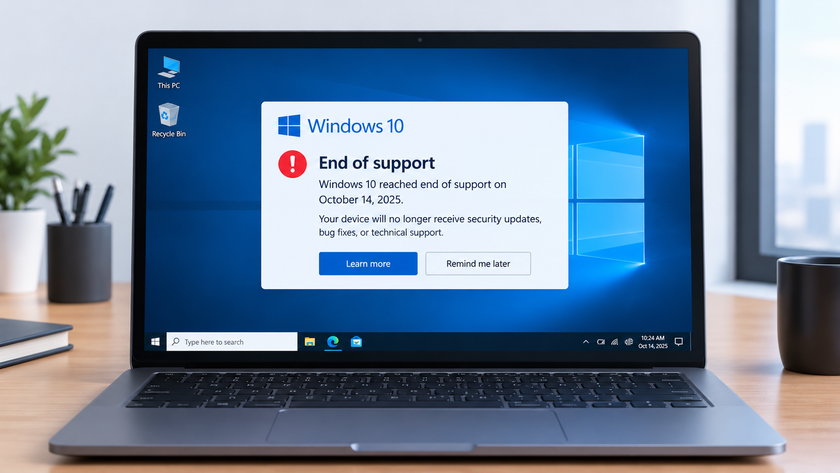
Microsoft ended Windows 10 support on October 14, 2025. Your PC still boots, your apps still open — but the security patches stopped. Every new vulnerability discovered from that date forward stays unpatched, and researchers warn that attackers actively reverse-engineer Windows 11 fixes to exploit the same flaws in Windows 10.
Microsoft does offer an Extended Security Updates (ESU) program that keeps critical patches flowing until October 2027. You can enroll for free by syncing your settings through a Microsoft account, redeem 1,000 Rewards points, or pay $30. But here’s the catch: ESU is a stopgap. It buys you time — it doesn’t move you forward. You get no new features, no performance improvements, and no technical support.
For most people, the smarter long-term play is upgrading the OS itself. If your hardware qualifies, Microsoft still upgrades eligible Windows 10 machines to Windows 11 for free. But that free path only covers machines that already have a valid license and pass the hardware checks. Anyone building a new PC, running an unactivated copy, or wanting a clean break needs a proper license — and that’s where this deal earns its keep.
What a $10 Windows 11 Pro License Actually Includes
Let’s put the price in perspective. Microsoft sells Windows 11 Pro for $199 and Windows 11 Home for $139. This promotion drops a full Pro license to about $10 — less than a movie ticket, and less than Microsoft’s own $30 ESU stopgap.
So what does Pro give you over Home? Quite a lot, actually:
Security That Goes Deeper Than Antivirus
Windows 11 Pro builds on what Microsoft calls a chip-to-cloud security model. The OS works with modern processors (TPM 2.0 and Secure Boot capable) to protect your data from the firmware level upward. BitLocker encrypts your entire drive, so a lost or stolen laptop doesn’t hand over your files to whoever finds it. Windows Hello replaces passwords with face, fingerprint, or PIN sign-in, and Smart App Control plus AI-enhanced phishing protection in Microsoft Defender help stop malware and scam pages before they reach you.
Tools for Power Users and Small Businesses
Pro unlocks features Home simply doesn’t have: Hyper-V for running virtual machines, Remote Desktop for connecting to your PC from anywhere, domain join and Group Policy for managed environments, Windows Sandbox for testing sketchy software safely, and BitLocker to Go for encrypting USB drives. Pro also supports up to 2TB of RAM and two CPU sockets, versus Home’s 128GB and single socket.
A Modern, Faster Everyday Experience
Beyond the security story, Windows 11 brings a redesigned interface with a centered taskbar, a cleaner Start menu, Snap Layouts for multitasking, and an improved Widgets board for weather, calendar, and news at a glance. Copilot — Microsoft’s built-in AI assistant — integrates directly into the OS to help with summaries, settings, and everyday tasks. Gamers benefit too: Auto HDR, DirectStorage support for faster game loading on NVMe drives, and DirectX 12 Ultimate all ship with the OS.
Windows 11 Home vs. Pro: Which One Do You Need?
Not everyone needs Pro. Here’s an honest breakdown:
| Feature | Windows 11 Home | Windows 11 Pro |
|---|---|---|
| BitLocker device encryption | No (device encryption on some devices) | Yes |
| Windows Hello sign-in | Yes | Yes |
| Hyper-V virtualization | No | Yes |
| Remote Desktop (host) | No | Yes |
| Group Policy / domain join | No | Yes |
| Windows Sandbox | No | Yes |
| Max RAM | 128GB | 2TB |
| Microsoft’s retail price | $139 | $199 |
If you just browse, stream, and play games, Home covers you. But when a Pro license costs less than a pizza during this promotion, the question answers itself. Take Pro. Even if you never touch Hyper-V or Remote Desktop, BitLocker alone justifies the upgrade — and you’ll have the headroom if your needs grow.
Is a Cheap Windows Key Legit? What to Watch Out For
Fair question — $10 for software that normally costs $199 raises eyebrows. Here’s the honest landscape.
Third-party key marketplaces generally source licenses through bulk channels: leftover OEM stock, volume licensing, regional pricing arbitrage, or recycled business licenses. Keys from reputable storefronts usually activate fine and stay activated. Keys from random sellers on auction sites carry real risk — they may be stolen or volume keys that Microsoft later revokes, leaving you with a deactivated OS.
A few practical rules:
- Buy from an established storefront, not an anonymous marketplace seller. The deal linked here comes through a known software retailer.
- Retail beats OEM. A retail license transfers to a future PC; an OEM key dies with the motherboard.
- Pay with a method that offers buyer protection (PayPal or a credit card), just in case.
- Activate immediately after purchase so any problem surfaces while you can still get support.
At $10, even a small risk is tolerable for most people — but buying smart removes most of it.
How to Check If Your PC Can Run Windows 11
Windows 11 has stricter hardware requirements than Windows 10. Before spending anything, confirm your machine qualifies. You’ll need a compatible 64-bit processor (generally Intel 8th gen or newer, or AMD Ryzen 2000 series and up), 4GB of RAM, 64GB of storage, TPM 2.0, Secure Boot capability, and a DirectX 12 compatible GPU.
The Fast Way: Check TPM and Secure Boot Yourself
Open PowerShell as Administrator and run:
# Check TPM version and status
Get-Tpm

# Quick system spec summary
Get-ComputerInfo | Select-Object CsSystemFamily, OsName, OsVersion, CsTotalPhysicalMemory
Look for TpmPresent: True and TpmVersion starting with 2.0. You can also press Win + R, type tpm.msc, and hit Enter for a graphical view. For Secure Boot, press Win + R, type msinfo32, and check the “Secure Boot State” line.
The Easy Way: Microsoft’s PC Health Check App
Download Microsoft’s PC Health Check tool, run it, and click “Check now.” It gives you a plain yes-or-no answer in seconds and lists anything that falls short. If your PC fails on CPU compatibility but has TPM 2.0, you still have options — but weigh the hassle against putting that $10 toward newer hardware instead.
Step-by-Step: Clean Install and Activate Windows 11 Pro
A clean install beats an in-place upgrade almost every time. You start fresh, leave behind years of clutter, and avoid the weird bugs that migration sometimes drags along. Here’s the whole process.
1. Back Up Everything First
Copy your important files to an external drive or cloud storage. A clean install wipes the target drive completely. There’s no undo.
2. Create Installation Media
On any working PC, download the Media Creation Tool from Microsoft’s website, or grab the Windows 11 ISO directly. Use a tool like Rufus to build a bootable USB drive (8GB or larger). Rufus also lets you strip the Microsoft account requirement if you prefer a local account during setup.
3. Boot From the USB and Install
Restart your PC and press the boot menu key (usually F12, F2, Esc, or Del — it varies by manufacturer). Select your USB drive, then follow the installer: choose “Custom: Install Windows only,” delete the old partitions, and install to the unallocated space.
4. Activate With Your New Key
Once you’re on the desktop, activation takes seconds. Either enter the key during setup when prompted, or do it afterward via Settings → System → Activation → Change product key. Prefer the command line? Open an elevated Command Prompt:
:: Install the product key
slmgr /ipk XXXXX-XXXXX-XXXXX-XXXXX-XXXXX

:: Activate against Microsoft's servers
slmgr /ato

:: Check activation status and license details
slmgr /dli
If activation fails, run slmgr /ato again after confirming your internet connection — and keep your proof of purchase handy in case you need the seller’s support.
5. Run Windows Update and Restore Your Files
Before reinstalling apps, run Windows Update until nothing remains. Then move your files back, sign in to your accounts, and enjoy a machine that finally gets security patches again.
Other Microsoft Software Deals Worth Knowing
If you’re refreshing your setup, this same storefront currently has several Microsoft titles at steep discounts — useful if your Office situation also needs attention, since Office 2016 and 2019 support has ended and Office 2021 support wraps up in October 2026:
- Microsoft Office 2021 Pro — around $32 (lifetime license)
- Microsoft Office 2019 Pro — around $19
- Microsoft Visual Studio Professional 2026 — around $35
- Microsoft Project 2021 — around $15
- Microsoft Visio 2021 — around $15
One caution: if you rely on Office for work, compare the lifetime-license route against a Microsoft 365 subscription before buying. Lifetime licenses skip ongoing updates and cloud features, while 365 adds them for a recurring fee. Pick based on how you actually work, not just the sticker price.
Final Thoughts
The end of Windows 10 support isn’t a crisis — your computer didn’t stop working on October 14. But every month without patches raises the risk, and ESU only delays the decision. A $10 Windows 11 Pro license removes the biggest excuse for waiting: cost. You get a supported, more secure OS with BitLocker, Windows Hello, virtualization tools, and years of updates ahead of it.
The deal won’t last forever, and Windows 10’s clock is already ticking. Check your hardware compatibility tonight, grab the license while it’s cheap, and give your PC the clean, supported fresh start it deserves.
Want more articles and tutorials like this?
Get new tutorials, security alerts, and IT tips straight to your inbox.