What Is a VPS? A Complete Guide to Virtual Private Servers
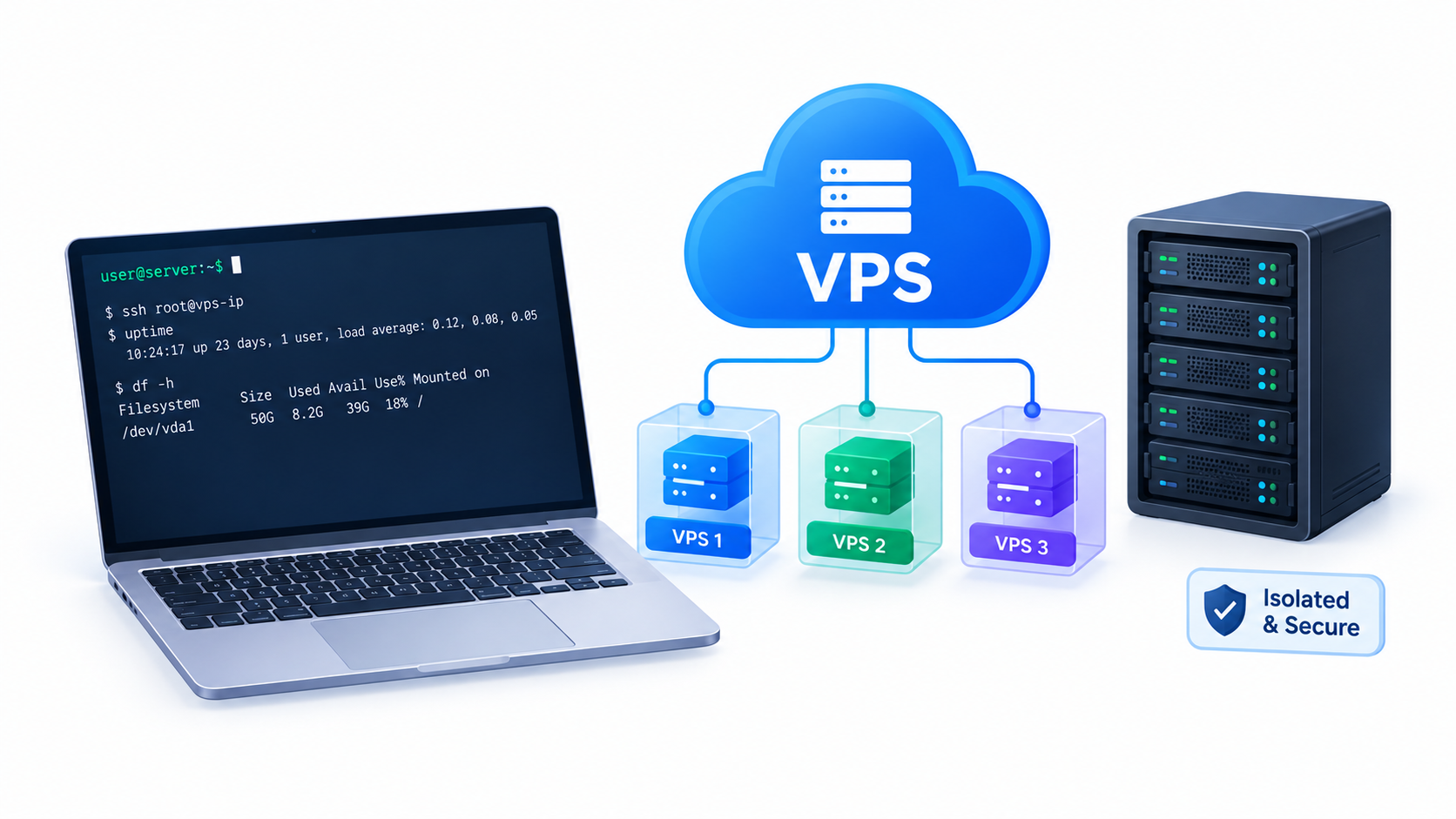
If your website feels slow, your app keeps crashing under traffic, or you simply need more control over your server, you’ve probably come across the term VPS. A Virtual Private Server sits between cheap shared hosting and expensive dedicated hardware, giving you dedicated resources without the full price tag. This guide breaks down what a VPS actually is, how it works under the hood, and how to choose, set up, and secure one for your own projects.
Table of Contents
- What Is a VPS, Exactly?
- How a VPS Works
- VPS vs Shared Hosting vs Dedicated Server vs Cloud
- Types of VPS Virtualization (KVM, OpenVZ, Xen)
- Managed vs Unmanaged VPS
- Who Actually Needs a VPS?
- How to Choose the Right VPS Plan
- Setting Up Your First VPS (Step-by-Step)
- Securing Your VPS: A Practical Checklist
- Common VPS Use Cases
- VPS Maintenance and Monitoring
- Frequently Asked Questions
- Conclusion
What Is a VPS, Exactly?
A Virtual Private Server is a virtual machine carved out of a larger physical server using virtualization software. Even though many VPS instances share the same physical hardware, each one runs its own operating system, has its own root access, and behaves like an independent machine.
Think of a physical server as an apartment building. Shared hosting is like renting a single room with shared utilities. A VPS is your own private apartment: you still share the building, but your space, your lock, and your rules are entirely yours.
How a VPS Works
A hypervisor (virtualization layer) sits on top of the physical host and splits its CPU, RAM, and disk into isolated virtual machines. Each virtual machine boots its own kernel, keeps its own file system, and cannot see or touch the resources of neighboring VPS instances.
This isolation is what makes a VPS predictable. Unlike shared hosting, a noisy neighbor consuming heavy CPU on the same physical box won’t slow your site down, because your allocated resources are reserved for you.
VPS vs Shared Hosting vs Dedicated Server vs Cloud
| Feature | Shared Hosting | VPS | Dedicated Server | Cloud VM |
|---|---|---|---|---|
| Resources | Shared, unpredictable | Dedicated, fixed | Fully dedicated | Dedicated, elastic |
| Root access | No | Yes | Yes | Yes |
| Cost | Lowest | Moderate | Highest | Pay-as-you-go |
| Scalability | Very limited | Manual upgrade | Manual, slow | Instant, automated |
| Best for | Small blogs, low traffic | Growing sites, apps, small businesses | High-traffic enterprise workloads | Variable or bursty workloads |
A VPS is the sweet spot for most small and medium businesses: enough control and performance to run a real application, without dedicated-server pricing.
Types of VPS Virtualization (KVM, OpenVZ, Xen)
KVM (Kernel-based Virtual Machine)
KVM is full hardware virtualization built into the Linux kernel. Each VPS runs its own independent kernel, so you can install almost any operating system and load custom kernel modules. Most modern providers use KVM because it offers the strongest isolation.
OpenVZ
OpenVZ is container-based virtualization that shares the host’s kernel across all VPS instances. It’s lighter and cheaper to run, but you’re limited to Linux and can’t customize the kernel — a trade-off worth knowing before you buy the cheapest plan you find.
Xen
Xen supports both full virtualization and paravirtualization. It remains reliable and is still used by several large cloud providers, though KVM has become the more common default for new VPS plans.
Managed vs Unmanaged VPS
An unmanaged VPS gives you root access and nothing else — you handle updates, security, backups, and troubleshooting yourself. It costs less and suits people comfortable with Linux administration.
A managed VPS adds a support team that handles the operating system, security patches, and often the control panel. It costs more, but it removes the sysadmin workload for businesses that would rather focus on their product than server maintenance.
If you’re a developer, a sysadmin, or you’re training toward one of these roles, an unmanaged VPS is also one of the best low-cost ways to practice real Linux administration skills.
Who Actually Needs a VPS?
A VPS makes sense once shared hosting starts holding you back. Common signs include:
- Your site slows down noticeably during traffic spikes
- You need to install custom software, cron jobs, or specific PHP/Node versions
- You’re running more than one application or environment (staging + production)
- You need a static IP for a firewall rule, VPN, or mail server
- Compliance or security requirements mean you can’t share a kernel with strangers
How to Choose the Right VPS Plan
1. CPU and RAM
Match resources to your actual workload, not marketing numbers. A simple WordPress site or small API runs comfortably on 1 vCPU and 1–2 GB RAM. Add a database, a cache layer, or Docker containers, and 2 vCPUs with 4 GB RAM becomes a safer baseline.
2. Storage Type
Always prefer NVMe or SSD storage over traditional HDD. The difference in disk I/O directly affects database performance and page load times — this is not an area to cut costs on.
3. Bandwidth and Network
Check the monthly data transfer allowance and the provider’s network uptime guarantee. A generous CPU allocation is wasted if your bandwidth cap throttles you during your busiest month.
4. Data Center Location
Pick a location close to your main audience. Latency to your visitors’ region affects real-world speed more than most other specs on a hosting page.
5. Root Access and OS Choice
Confirm the provider gives full root/administrator access and supports the operating system you plan to run — Ubuntu Server LTS and Debian remain the most common choices for production Linux workloads.
Setting Up Your First VPS (Step-by-Step)
Step 1: Connect via SSH
ssh root@your_server_ipStep 2: Update the system
apt update && apt upgrade -yStep 3: Create a non-root administrator account
Never leave root as your daily login — it’s the single easiest way to get compromised.
adduser gean_admin
usermod -aG sudo gean_admin
Step 4: Test the new account before locking anything down
Open a second terminal and confirm you can log in and use sudo before you touch SSH settings:
ssh gean_admin@your_server_ip
sudo whoami
Step 5: Set up SSH key authentication
ssh-copy-id gean_admin@your_server_ipStep 6: Disable root login and password authentication
Edit /etc/ssh/sshd_config:
PermitRootLogin no
PasswordAuthentication no
Then restart SSH:
systemctl restart sshdSecuring Your VPS: A Practical Checklist
A VPS gives you full control, which also means full responsibility. The provider secures the physical hardware and network; everything above that layer is yours to lock down.
- Enable a firewall. On Ubuntu, allow SSH first, then enable UFW so you don’t lock yourself out:
ufw allow OpenSSH
ufw enable- Install Fail2ban to automatically block IPs after repeated failed login attempts:
apt install fail2ban -y- Keep the system patched with unattended security upgrades:
apt install unattended-upgrades -y
dpkg-reconfigure --priority=low unattended-upgrades- Never expose database ports publicly. Bind MySQL, PostgreSQL, and Redis to
127.0.0.1unless you have a specific reason and a strict firewall rule around them. - Automate off-server backups. A provider snapshot is convenient, but it lives on the same platform as your server — always keep a copy somewhere else too.
- Monitor logs regularly with tools like
journalctl,fail2ban-client status, or a centralized log dashboard.
Common VPS Use Cases
- Website and application hosting — WordPress, Laravel, Django, Node.js apps that outgrow shared hosting
- Development and staging environments — a safe space to test changes before production
- VPN servers — self-hosted WireGuard or OpenVPN for private, encrypted browsing
- Game servers — Minecraft, CS2, and other multiplayer servers needing dedicated uptime
- Email servers — full control over deliverability and spam filtering
- CI/CD runners and automation — dedicated build agents for your pipelines
- Learning and cybersecurity labs — a disposable, isolated environment for practicing Linux administration and security skills safely
VPS Maintenance and Monitoring
Owning a VPS is an ongoing responsibility, not a one-time setup. Build a simple routine:
- Check resource usage weekly with
htop,free -h, anddf -h - Review
fail2banand auth logs for suspicious login attempts - Apply security updates promptly rather than batching them for months
- Test your backup restoration process at least once — a backup you’ve never restored is not a proven backup
- Set up basic uptime monitoring so you know about downtime before your users do
Frequently Asked Questions
Is a VPS the same as cloud hosting? Not exactly. A VPS is typically a fixed-resource virtual machine on a single provider’s infrastructure, while cloud hosting usually spreads resources across a distributed network and scales more elastically. Many cloud providers do offer VPS-style plans, so the line has blurred.
Can I host multiple websites on one VPS? Yes. With a web server like Nginx or Apache configured with virtual hosts, a single VPS can run several independent websites, as long as your CPU, RAM, and storage can handle the combined load.
How much does a VPS cost? Entry-level VPS plans typically start in the range of a few dollars per month for 1 vCPU and 1 GB RAM, scaling up based on CPU, RAM, storage type, and managed support.
Do I need Linux knowledge to use a VPS? Basic command-line familiarity helps a lot, especially for an unmanaged VPS. A managed VPS or a control panel like cPanel/Plesk reduces that requirement significantly.
What happens if my VPS runs out of resources? Most providers let you resize the plan (more vCPU, RAM, or storage) with a short reboot, which is far simpler than migrating to new hardware.
Is a VPS secure by default? No. The provider secures the physical infrastructure, but operating system hardening, firewall rules, updates, and application security are entirely your responsibility.
Conclusion
A Virtual Private Server gives you dedicated resources, full root access, and real flexibility at a price point most shared-hosting outgrows can’t match. The right choice depends on your workload: pick KVM for full isolation and OS flexibility, size your CPU and RAM to your actual traffic, and treat security as an ongoing habit rather than a one-time setup step. Whether you’re hosting a growing website, running a development environment, or building your Linux administration skills, a properly configured VPS is one of the most practical tools in modern IT infrastructure.
Want more articles and tutorials like this?
Get new tutorials, security alerts, and IT tips straight to your inbox.