What Happens When a SOC Analyst Receives a Malware Alert?
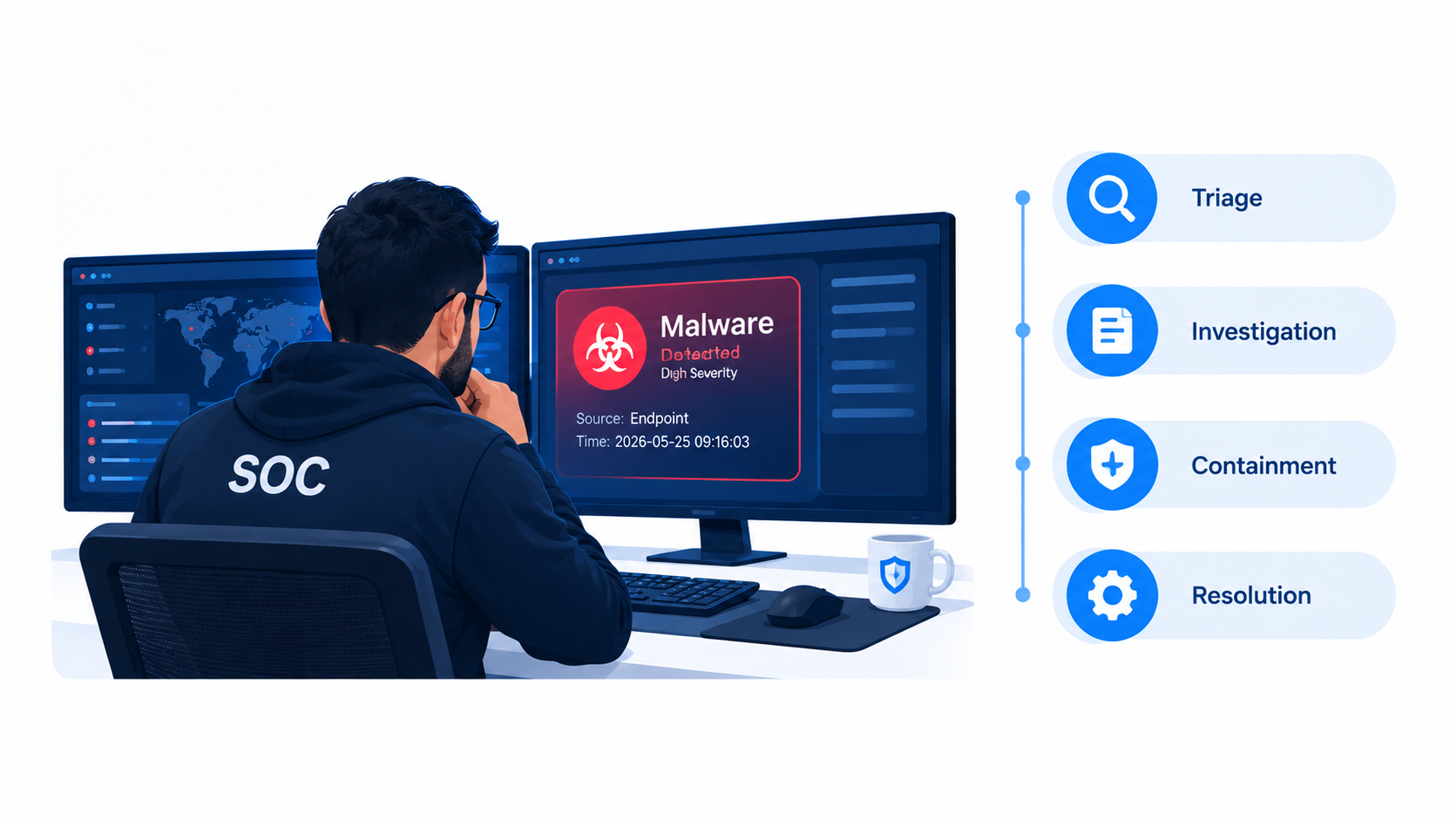
An alert pops up on the SOC dashboard: “Malware detected on WS-0142.” Within minutes, an analyst must decide whether it is a real attack or a false alarm. A wrong call costs time if it is noise, and it costs far more if it is ransomware.
This post follows one malware alert from arrival to closure. You will see the decisions, tools, queries, and commands analysts use every day.
Summary: When a SOC analyst receives a malware alert, they triage it, check whether it is real, collect evidence, find out how far it spread, contain the affected system, remove the threat, recover, and document everything. Speed matters, but a repeatable process matters more.
Table of Contents
- Where Malware Alerts Come From
- Step 1: Receive and Triage the Alert
- Step 2: Validate: True Positive or False Positive?
- Step 3: Investigate the Host
- Step 4: Determine the Scope
- Step 5: Contain the Threat
- Step 6: Eradicate and Recover
- Step 7: Document and Learn
- Common Mistakes to Avoid
- Conclusion
- FAQ
Where Malware Alerts Come From
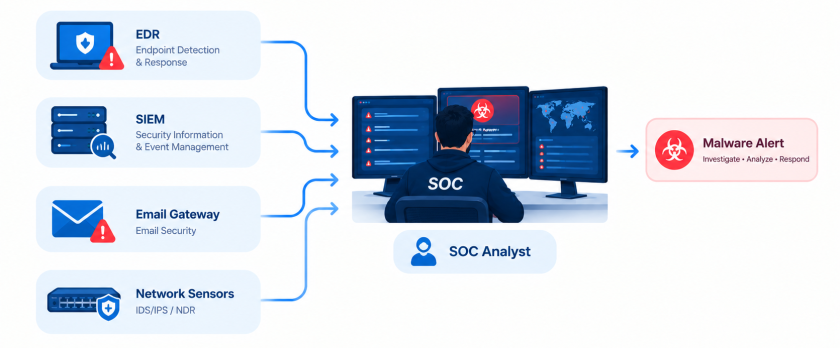
A malware alert never starts with the analyst. Security tools generate it first. The most common sources are:
- Endpoint Detection and Response (EDR): tools like Microsoft Defender for Endpoint or CrowdStrike flag suspicious files and behavior on a device.
- SIEM correlation rules: a SIEM such as Splunk or Microsoft Sentinel combines logs from many systems and fires a rule when patterns match.
- Email security gateways: these catch malicious attachments and links.
- Network tools: IDS/IPS, DNS filters, and proxies spot traffic to known bad domains.
- User reports: an employee says, “I opened a strange invoice and my PC is acting weird.”
Each source has a different level of trust. An EDR alert that says “ransomware behavior blocked” deserves a faster response than a single low-confidence signature hit.
Step 1: Receive and Triage the Alert
Triage means sorting. The analyst does not dive into forensics yet. First, they answer four quick questions.
What Does the Alert Say?
The analyst reads the alert title, severity, detection name, and timestamp. For example: “Trojan:Win32/Wacatac.B!ml detected on WS-0142 by user a.benali.”
How Important Is the Asset?
A malware hit on a test laptop is not the same as one on a domain controller or a finance server. The analyst checks the asset inventory or CMDB for the device role, owner, and criticality.
Is the Malware Active or Blocked?
Most EDR tools tell you if they quarantined the file or only logged it. “Blocked” lowers urgency, though it does not close the case. “Allowed” or “executed” raises it sharply.
Who Is Affected?
A standard user and a domain admin carry different risk. If the account has high privileges, the analyst escalates faster.
Based on these answers, the analyst sets a priority. Many teams use a simple scale:
| Priority | Example | Target response |
|---|---|---|
| Critical | Ransomware behavior, malware on a server | Immediate |
| High | Executed malware on a user PC | Within minutes |
| Medium | Blocked malware, no execution | Within the hour |
| Low | Known adware, PUA | Same day |
Treat these times as examples. Your own SLA decides the real numbers.
Step 2: Validate: True Positive or False Positive?
Security tools make mistakes. Analysts must confirm that the alert reflects a real threat before they spend hours on it.
Check the File Hash
The hash identifies the file. Grab the SHA-256 from the alert, or compute it yourself.
Windows (PowerShell):
powershell
Get-FileHash -Algorithm SHA256 "C:\Users\a.benali\Downloads\invoice_2026.exe"Linux:
bash
sha256sum /home/user/Downloads/invoice_2026.exeCheck Threat Intelligence
Next, look up the hash on VirusTotal, MalwareBazaar, or your threat intelligence platform. You can also use the VirusTotal API:
bash
HASH="<sha256_here>"
curl -s --request GET \
  --url "https://www.virustotal.com/api/v3/files/$HASH" \
  --header "x-apikey: $VT_API_KEY" | jq '.data.attributes.last_analysis_stats'
The output shows how many engines call the file malicious, suspicious, or harmless. A hash that 50 engines flag differs sharply from one that two engines flag.
Tip: Never upload a file with sensitive company data to a public service. Look up the hash instead of the file.
Look at the Context
Context often settles the question. Ask:
- Where did the file come from? A download from a random site is riskier than a file from the software deployment tool.
- Is the file signed by a trusted publisher?
- Did the user really run it?
- Did anything strange happen right after?
A penetration tester running a known offensive tool might trigger an alert too. Check change records and ask the team before you panic.
Decide
Now the analyst has a verdict:
- False positive: document the reason, tune the rule if needed, and close.
- True positive: move to investigation.
- Unsure: treat it as true until proven otherwise, and escalate to a senior analyst.
Step 3: Investigate the Host
Once the alert looks real, the analyst studies the infected machine. The goal is to rebuild what happened, so the investigation follows a timeline.
Build the Process Tree
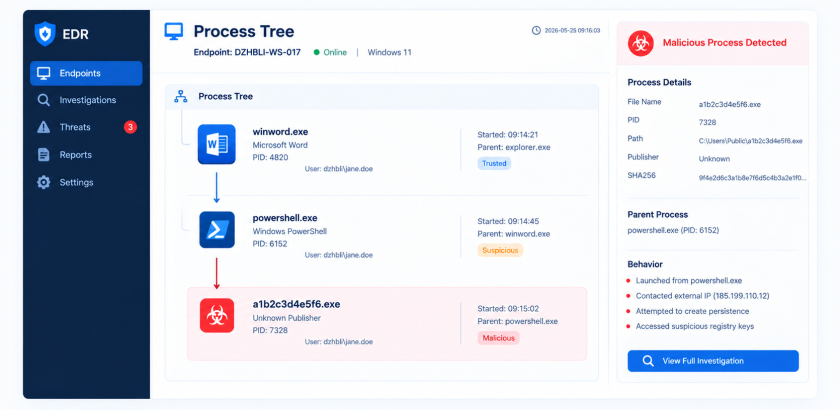
The process tree shows which program started which. A Word document that launches PowerShell, which launches a downloaded executable, tells a clear story.
If your endpoints run Sysmon, Event ID 1 records process creation. This Splunk query lists what ran on the host:
spl
index=sysmon EventCode=1 host="WS-0142"
| table _time ParentImage Image CommandLine User
| sort _time
In Microsoft Defender, the same idea looks like this in KQL:
kql
DeviceProcessEvents
| where DeviceName == "WS-0142"
| where Timestamp > ago(24h)
| project Timestamp, InitiatingProcessFileName, FileName, ProcessCommandLine, AccountName
| order by Timestamp asc
Look for odd parent-child pairs, such as winword.exe starting powershell.exe, and for encoded or obfuscated commands.
Check Network Connections
Malware often “phones home” to a command-and-control (C2) server. Sysmon Event ID 3 logs network connections:
spl
index=sysmon EventCode=3 Image="*\\invoice_2026.exe"
| stats count by DestinationIp DestinationPort
The analyst checks the destination IPs and domains against threat intelligence and looks for traffic at regular intervals. Regular “beaconing” is a classic C2 sign.
Look for Persistence
Attackers want to survive a reboot. The analyst checks common persistence spots.
Windows:
powershell
# Registry Run keys
Get-ItemProperty "HKCU:\Software\Microsoft\Windows\CurrentVersion\Run"
Get-ItemProperty "HKLM:\Software\Microsoft\Windows\CurrentVersion\Run"

# Scheduled tasks
schtasks /query /fo LIST /v | more

# Startup items
Get-CimInstance Win32_StartupCommand | Select Name, Command, Location
Linux:
bash
crontab -l
ls -la /etc/cron.*
systemctl list-unit-files --state=enabled
ss -tulpn
ps auxf
Check Files and Registry Changes
Sysmon Event ID 11 (file created) and Event ID 13 (registry value set) show what the malware dropped or changed. These events often reveal extra payloads or hidden copies of the malware.
Step 4: Determine the Scope
One infected machine is a problem. Ten infected machines are an incident. The analyst must find out how far the threat reached.
Hunt for the Same Indicators
Use the hash, file name, domain, and IP address as indicators of compromise (IOCs) and search the whole environment.
kql
DeviceFileEvents
| where SHA256 == "<sha256_here>"
| summarize FirstSeen=min(Timestamp), LastSeen=max(Timestamp) by DeviceName
kql
DeviceNetworkEvents
| where RemoteIP == "203.0.113.45"
| summarize Connections=count() by DeviceName, InitiatingProcessFileName
(The IP above is a documentation address. Replace it with your real IOC.)
Check the User Account
Did the malware steal credentials? The analyst reviews sign-in logs for the user: impossible travel, new devices, or logins at odd hours. If the account looks exposed, the team resets the password and revokes active sessions.
Check Lateral Movement
Look for signs the attacker moved to other systems: remote logins (Windows Event ID 4624 with logon type 3 or 10), use of PsExec, WMI, or RDP from the infected host. If the scope reaches servers or domain controllers, the SOC escalates to the incident response team.
Step 5: Contain the Threat
Containment stops the damage from growing. Speed matters here, but so does care. Pulling the wrong plug can destroy evidence or disrupt the business.
Isolate the Host
Most EDR tools offer a one-click network isolation button. The device keeps a link to the EDR console but loses all other network access. This is the best first move.
If you have no EDR, you can isolate a Linux host manually while keeping your own access:
bash
# Allow your SOC jump host, drop everything else
SOC_IP="10.10.10.5"
iptables -I INPUT 1 -s $SOC_IP -j ACCEPT
iptables -I OUTPUT 1 -d $SOC_IP -j ACCEPT
iptables -A INPUT -j DROP
iptables -A OUTPUT -j DROP
On Windows, avoid blocking everything by hand on a remote machine, because you may lock yourself out. Use your EDR, or ask the network team to move the device to a quarantine VLAN.
Block the IOCs
The SOC pushes the bad indicators to other controls:
- Block the hash in EDR and antivirus.
- Block the domain and IP on the firewall, proxy, and DNS filter.
- Remove the phishing email from all mailboxes if email was the entry point.
Disable Compromised Accounts
If credentials leaked, the analyst disables the account or forces a password reset, and revokes tokens and sessions.
Preserve Evidence
Before cleanup, collect what you need: memory dump, relevant logs, the malware sample, and a disk image if the case needs one. Store the sample in a password-protected archive so nobody runs it by accident:
bash
zip -e -P infected malware_sample.zip invoice_2026.exe
sha256sum malware_sample.zip > malware_sample.zip.sha256
Many teams use the password “infected” as a convention. Write down who handled the evidence and when. This “chain of custody” matters if the case goes to legal or law enforcement.
Step 6: Eradicate and Recover
With the threat contained, the team removes it and returns systems to normal.
Eradication
Eradication means deleting every trace: malicious files, scheduled tasks, registry keys, services, and rogue accounts. The analyst also closes the hole that let the malware in, for example by patching the vulnerable software or blocking the macro.
For serious infections, most teams reimage the machine instead of cleaning it by hand. A rebuilt system is the only way to be sure nothing hides in it.
Recovery
Recovery brings the system back:
- Rebuild or restore from a known clean backup.
- Apply all patches.
- Reconnect the device to the network.
- Watch it closely for several days.
The analyst checks that the old IOCs no longer appear. If they return, the cleanup missed something.
Confirm With a Quick Scan
A simple YARA rule helps you search for leftovers across systems. This example looks for a made-up string pattern:
yara
rule Suspicious_Invoice_Dropper
{
    meta:
        description = "Example rule for dropper found in incident"
        author = "SOC Team"
        date = "2026-10-15"

    strings:
        $s1 = "invoice_2026" ascii wide
        $s2 = "cmd.exe /c powershell -enc" ascii wide
        $mz = { 4D 5A }

    condition:
        $mz at 0 and all of ($s*)
}
Run it with:
bash
yara -r suspicious_invoice_dropper.yar /path/to/scanTest every YARA rule on clean files first, so it does not flag normal software.
Step 7: Document and Learn
The incident is not over when the system works again. Documentation turns one bad day into a stronger defense.
Write the Incident Report
A good report answers:
- What happened? A clear timeline.
- How did it get in? The root cause.
- What did it affect? Systems, users, and data.
- What did the team do? Actions and times.
- What are the IOCs? Hashes, IPs, domains, file names.
Short, clear, and factual reports work best. Managers, auditors, and future analysts all read them.
Run a Lessons-Learned Review
Within a few days, the team meets and asks:
- Did we detect it fast enough?
- Did the playbook work, or did people improvise?
- Which tool gaps slowed us down?
- What new detection rule would catch this earlier?
Improve Detection
The analyst turns findings into action: new SIEM rules, updated block lists, better email filtering, user awareness training, and playbook edits. Each incident should leave the SOC better prepared.
Common Mistakes to Avoid
Even skilled analysts slip up. Watch for these traps:
- Closing the alert because the antivirus “quarantined” it. Quarantine does not tell you how the file arrived or whether it ran first.
- Skipping the scope check. One infected PC often hides others.
- Wiping the machine too early. You lose evidence you need for root cause.
- Trusting a single source. One clean VirusTotal result does not prove a file is safe, especially for new or targeted malware.
- Forgetting the user. Talk to the person who clicked. They often know the missing detail.
- Poor notes. If you did not write it down, it did not happen.
- Alert fatigue. Too many noisy alerts cause real ones to slip through. Tune rules regularly.
Skills That Help a SOC Analyst Succeed
Handling malware alerts takes a mix of technical and soft skills:
- Strong understanding of Windows and Linux internals
- Networking basics: DNS, HTTP, TCP/IP
- Log analysis with a SIEM
- Reading process trees and EDR telemetry
- Basic scripting in PowerShell, Bash, or Python
- Clear writing and calm communication under pressure
Home labs help a lot. You can build a small lab with a Windows VM, a Linux VM, Sysmon, and a free SIEM like Wazuh or Security Onion, then practice with safe, public malware samples inside an isolated network.
Conclusion
A malware alert starts a clear chain of work. The SOC analyst triages the alert, validates it with hashes and threat intelligence, investigates the host, measures the scope, contains the threat, cleans up, and records what they learned.
No single step is magic. The value comes from following the same process every time, using good queries and commands, and writing clear notes. Build your own playbook, practice it in a lab, and refine it after each incident.
If you want to grow in this field, start by learning Sysmon events, practice KQL or SPL queries, and walk through a mock malware incident from alert to report.
FAQ
What is the first thing a SOC analyst does when a malware alert fires?
The analyst triages it. They read the alert details, check the asset’s importance, see whether the malware ran or was blocked, and set a priority.
How does an analyst know if a malware alert is a false positive?
They compare the file hash with threat intelligence, check the file’s source and signature, review what the process did, and confirm with the user or IT team. Context usually settles the question.
Should a SOC analyst delete the malware right away?
No. Collect evidence first, then isolate the host and remove the threat. Deleting too early can erase clues about the entry point and the attacker’s actions.
What tools do SOC analysts use for malware alerts?
Common tools include EDR platforms, SIEMs like Splunk and Microsoft Sentinel, Sysmon, VirusTotal, sandboxes, YARA, and ticketing systems.
What is an IOC in malware investigation?
An indicator of compromise is a piece of evidence of an attack, such as a file hash, IP address, domain name, or registry key. Analysts use IOCs to hunt for the same threat on other systems.
How long does it take to handle a malware alert?
It depends on the case. A false positive may take a few minutes. A real infection with lateral movement can take days of containment, cleanup, and review.
Do I need to know how to code to work in a SOC?
You do not need to be a developer, but basic scripting in PowerShell, Bash, or Python saves time. It helps with log parsing, automation, and API lookups.
Is reimaging better than cleaning an infected computer?
For serious infections, yes. Reimaging removes hidden persistence that manual cleanup can miss. Back up needed user data first, and scan it before you restore it.
Want more articles and tutorials like this?
Get new tutorials, security alerts, and IT tips straight to your inbox.