Strix: The Open-Source AI Pentesting Tool That Attacks Your App Before Hackers Do
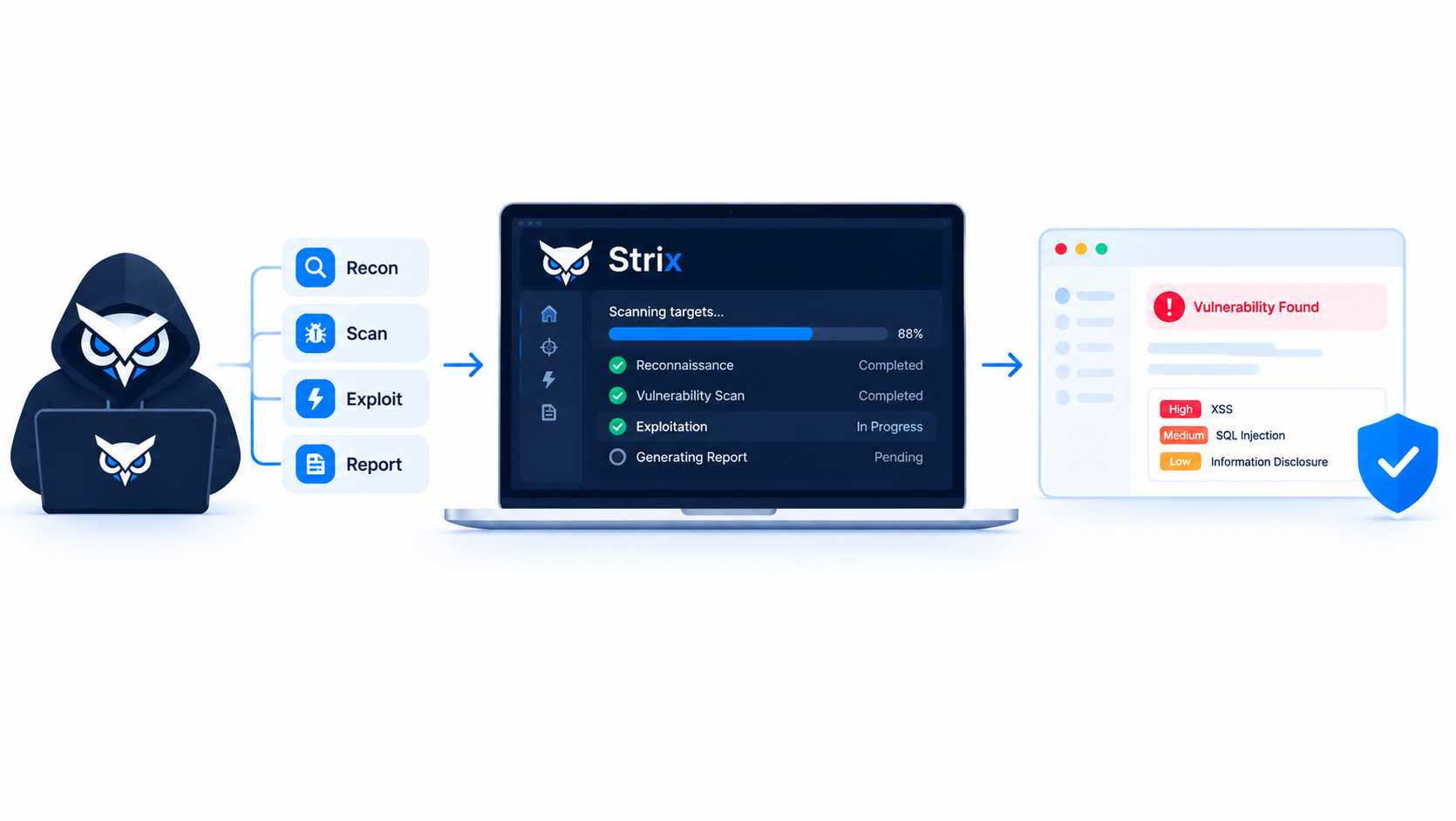
Security reviews often arrive late, cost a lot, and happen once a year. Meanwhile, developers ship code every day. Strix tries to close that gap. This open-source project sends a team of AI agents to attack your app, then proves each flaw with a working exploit. In this guide, you will learn how Strix works, how to install it, how to run a safe first scan, and how to wire it into your CI pipeline.
Table of Contents
- What Is Strix?
- Why AI Pentesting Matters Now
- How Strix Works Under the Hood
- What Strix Can Find
- Requirements Before You Start
- Install Strix Step by Step
- Run Your First Scan Safely
- Scan Modes, Scope, and Cost Control
- Add Strix to GitHub Actions
- Read the Results with the Local Viewer
- Open Source vs Cloud vs Enterprise
- Strengths and Limits You Should Know
- Legal and Ethical Rules
- Conclusion
- FAQ
What Is Strix?
Strix is an open-source penetration testing tool built around AI agents. You give it a target, such as a code folder, a GitHub repository, a web app, or an API spec. The agents then behave like a small red team. They map the attack surface, probe for weaknesses, and try to exploit what they find.
The project lives at github.com/usestrix/strix under the Apache-2.0 license. At the time of writing in October 2026, the repository has about 69,000 stars and 7,700 forks, which makes it one of the most watched security projects on GitHub.
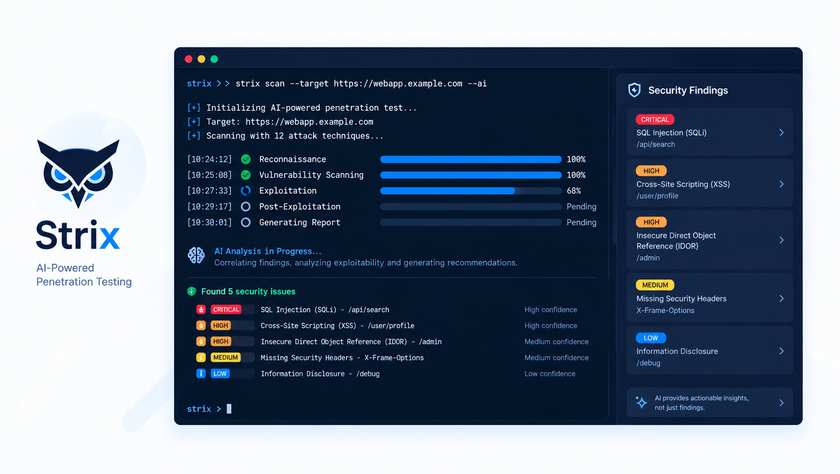
The important word is “validate.” Many scanners dump long lists of possible problems. Strix tries to prove each one with a real proof-of-concept, so you spend your time on bugs that actually work.
Why AI Pentesting Matters Now
Traditional testing has a timing problem. A manual pentest takes weeks to schedule and costs thousands of dollars. Static scanners run fast, but they flood teams with false alarms. Developers learn to ignore both.
AI agents offer a middle path. A language model can read code, plan an attack, run tools, and adjust when something fails. That loop resembles how a human tester works, just faster and at any hour.
This does not replace skilled testers. It does change who can run a basic security check. A small team without a security budget can now test every pull request, and an experienced pentester can hand the boring recon work to agents.
How Strix Works Under the Hood
Strix combines several well-known open-source pieces with an agent framework on top. Understanding the parts helps you trust the results and troubleshoot problems.
The Agent Team
Strix does not use a single assistant. It uses what the project calls a graph of agents. A root agent plans the job, then starts specialist sub-agents for tasks like recon, exploitation, and follow-up. Agents share what they learn, so one agent’s discovery can feed another’s attack. The agents can also chain smaller bugs into a bigger one, as a human red team would.
The Toolkit
Each agent can use a set of offensive tools. According to the project documentation, these include:
- An HTTP proxy (Caido) to capture and modify requests
- A browser for testing XSS, CSRF, and login flows
- A shell for running commands
- A Python runtime for writing exploit code
- Recon and OSINT helpers for mapping subdomains and services
- Static and dynamic code analysis
The Sandbox
Strix runs these tools inside a Docker container. The first run pulls the sandbox image automatically. This design keeps risky commands away from your host system, but it comes with one catch that you must read carefully: when you point Strix at a local folder, the folder mounts into the sandbox as writable. The agent can edit your real files. Commit or stash your work first.
The LLM Layer
Strix talks to models through LiteLLM, so it supports many providers, including OpenAI, Anthropic, Google, DeepSeek, and local models through Ollama or LM Studio. Model quality matters a lot. A weak model finds fewer bugs and wastes more money on dead ends.
What Can Strix Find?
The project targets the OWASP Top 10 and goes beyond it. Here is the coverage in plain terms:
| Area | Examples |
|---|---|
| Access control | IDOR, privilege escalation, auth bypass |
| Injection | SQL, NoSQL, OS command, template injection |
| Server-side | SSRF, XXE, insecure deserialization, RCE |
| Client-side | Stored, reflected, and DOM XSS; CSRF; prototype pollution |
| Business logic | Race conditions, payment tampering, workflow bypass |
| Auth and sessions | JWT attacks, session fixation |
| API security | Mass assignment, broken authentication, rate limit bypass |
| Infrastructure | Misconfigurations, exposed services, cloud issues |
Business logic flaws deserve special attention. Classic scanners rarely catch them because no signature exists for “this checkout lets me change the price.” An agent that understands the app’s flow has a better chance.
Requirements Before You Start
You need only two things:
- Docker, running. Strix starts its sandbox through Docker.
- An LLM API key from a supported provider (or a local model).
Check Docker first:
bash
docker --version
docker ps
If docker ps returns a permission error on Linux, add your user to the docker group, then log in again:
bash
sudo usermod -aG docker $USER
newgrp docker
Install Strix Step by Step
Step 1: Install the CLI
The official installer is a single command:
bash
curl -sSL https://strix.ai/install | bashAlways read an install script before you pipe it into bash. You can download it first and inspect it:
bash
curl -sSL https://strix.ai/install -o strix-install.sh
less strix-install.sh
bash strix-install.sh
Python users can also install the package from PyPI as strix-agent with pipx, uv, or pip.
Step 2: Configure Your Model
Set the model name and your key. Strix uses the LiteLLM naming format:
bash
export STRIX_LLM="openai/gpt-5.4"
export LLM_API_KEY="your-api-key"
The project suggests several models, including GLM-5.3 through OpenRouter, GPT-5.4, Claude Sonnet 4.6, Gemini 3 Pro, DeepSeek V4 Pro, and Kimi K3. Model lineups change fast, so check the official LLM providers page before you choose.
Running a local model? Add the base URL:
bash
export LLM_API_BASE="http://localhost:11434"Strix saves your settings to ~/.strix/cli-config.json, so you do not need to export them again each session. You can also keep separate profiles and load one with --config.
Step 3: Update Later
Update the standalone binary with a single flag:
bash
strix --updateRun Your First Scan Safely
Never learn on a production system. Start with a deliberately vulnerable app that you run yourself. OWASP Juice Shop is a popular choice:
bash
docker run -d --name juice-shop -p 3000:3000 bkimminich/juice-shopNow point Strix at it:
bash
strix --target http://localhost:3000 --scan-mode quickBecause the agents run inside a container, “localhost” may point to the container itself rather than your machine. If Strix cannot reach the app, use your machine’s LAN IP address instead. Check the official docs for the recommended setup on your platform.
Strix writes results to strix_runs/<run-name> as it works. You can watch the live terminal interface while it runs.
Common Target Types
Strix accepts many kinds of targets with the same --target flag:
bash
# A local codebase (white-box)
strix --target ./app-directory

# A GitHub repository
strix --target https://github.com/org/repo

# A live web app (black-box)
strix --target https://your-app.com

# Source code plus the deployed app together
strix -t https://github.com/org/app -t https://staging.example.com

# Many targets from a file (one per line, # for comments)
strix --target-list ./targets.txt
Test an API from Its Spec
If you have an OpenAPI, Swagger, or Postman file, give Strix the spec and the live base URL together. The agent then tests every declared endpoint instead of guessing them by crawling:
bash
strix --target ./openapi.yaml --target https://api.example.comGive the Agent Instructions
Grey-box testing works better with context. Pass credentials or a focus area with --instruction:
bash
strix --target https://app.example.com \
  --instruction "Log in as the test user and focus on IDOR and auth bypass"
For longer briefs, store them in a file:
bash
strix --target https://app.example.com --instruction-file ./brief.mdUse test accounts only. Never hand an agent real admin credentials.
Scan Modes, Scope, and Cost Control
An AI scan costs real money, because every agent turn calls a paid model. Strix gives you several dials to keep spending predictable.
Pick a Scan Mode
The --scan-mode flag (or -m) accepts three values:
quickfor fast checks, ideal for pull requestsstandardfor balanced coveragedeepfor thorough work (this is the default)
Set a Budget and Turn Limit
bash
strix --target https://app.example.com --max-budget 25 --max-turns 300--max-budget caps total spend in US dollars across all agents. In headless mode, the scan stops cleanly when it hits the cap. In interactive mode, it pauses instead, so you can decide what to do. The documentation notes that cost is a best-effort estimate, and the final bill can slightly overshoot the limit. Treat the cap as a guardrail, not a guarantee.
--max-turns limits how many turns each agent can take. The default is 500.
Tune Reasoning Effort
Reasoning models think harder at higher settings, and that costs more tokens:
bash
export STRIX_REASONING_EFFORT="medium"The default is high, and quick scans default to medium.
Use a Cheaper Model for Deduplication
Strix checks whether each finding duplicates an earlier one. That job is simple, so you can route it to a small model:
bash
export STRIX_DEDUPE_MODEL="openai/gpt-5.4-mini"Add Web Search
Agents research better with live search. Set an Exa or Perplexity key to enable it:
bash
export EXA_API_KEY="your-exa-key"Add Strix to GitHub Actions
Testing every pull request is where Strix becomes a real DevSecOps tool. The basic workflow looks like this:
yaml
name: strix-security-scan

on:
  pull_request:

jobs:
  security-scan:
    runs-on: ubuntu-latest
    steps:
      - uses: actions/checkout@v6
        with:
          fetch-depth: 0

      - name: Install Strix
        run: curl -sSL https://strix.ai/install | bash

      - name: Run Strix
        env:
          STRIX_LLM: ${{ secrets.STRIX_LLM }}
          LLM_API_KEY: ${{ secrets.LLM_API_KEY }}
        run: strix -n -t ./ --scan-mode quick --fail-on high
Three details matter here:
fetch-depth: 0pulls the full git history. Strix needs it to scope a quick scan to the files that changed in the pull request.-nruns headless mode, with no interactive screen.--fail-on highfails the build only for high and critical findings. Lower findings still appear in the report.
Understand the Exit Codes
| Code | Meaning |
|---|---|
| 0 | Scan finished and found nothing at or above your threshold |
| 1 | Fatal error, such as missing variables or Docker not running |
| 2 | Vulnerabilities found (headless mode only) |
Your pipeline can use these codes to decide whether a merge proceeds.
A Nightly Scan Script
For a staging site that you own, a scheduled script works well. Save this as nightly-strix.sh:
bash
#!/usr/bin/env bash
set -euo pipefail

TARGET="https://staging.example.com"
LOG_DIR="$HOME/strix-logs"
mkdir -p "$LOG_DIR"

export STRIX_LLM="openai/gpt-5.4"
export LLM_API_KEY="$(cat "$HOME/.strix-key")"

set +e
strix -n --target "$TARGET" --scan-mode standard \
  --max-budget 15 --fail-on medium \
  > "$LOG_DIR/scan-$(date +%F).log" 2>&1
STATUS=$?
set -e

if [ "$STATUS" -eq 2 ]; then
  echo "Strix found issues on $TARGET. See $LOG_DIR" \
    | mail -s "Strix alert: $TARGET" security@example.com
fi
Then schedule it with cron:
bash
chmod 700 nightly-strix.sh
crontab -e
# Run every night at 02:00
0 2 * * * /home/youruser/nightly-strix.sh
Keep the API key file readable only by its owner (chmod 600 ~/.strix-key).
Suggested image: unsplash-search:continuous integration pipeline
- Title: Strix in a CI/CD security pipeline
- Alt text: Diagram-style view of a software delivery pipeline with an automated security check
Read the Results with the Local Viewer
Every run saves its output to disk. You can open a local dashboard with one command:
bash
# Open the latest run
strix view

# Open a named run
strix view my-run-name
The dashboard shows findings, a live map of the agent team, and past runs. Nothing leaves your machine. By default, the viewer binds to 127.0.0.1 and prints a link with an access token. Treat that link like a password. If you expose it on other network interfaces with --host 0.0.0.0, anyone with the link can read your findings.
Run telemetry also lands in strix_runs/<run_name>/events.jsonl. Note that Strix sends product telemetry by default. If your policy forbids that, turn it off:
bash
export STRIX_TELEMETRY=0Connect Extra Tools with MCP
Strix can talk to Model Context Protocol (MCP) servers. You list them in ~/.strix/mcp-servers.json, and the agent gains their tools during a run. A remote server entry looks like this:
json
[
  {
    "name": "github",
    "transport": "http",
    "url": "https://api.githubcopilot.com/mcp/",
    "auth": { "kind": "bearer", "token": "your-token" },
    "allowed_tools": ["list_issues"]
  }
]
Always use allowed_tools to give the agent the smallest set it needs. An agent with broad tool access and a mistaken plan can do real damage.
You can also add Strix skills to coding agents such as Claude Code or Cursor with npx skills add usestrix/strix. Those agents can then start scans and fix findings for you.
Open Source vs Cloud vs Enterprise
Strix comes in three flavors:
| Option | Best for | Key points |
|---|---|---|
| Open source | Individuals, labs, small teams | Free to use; you supply Docker and your own LLM key |
| Strix Cloud | Teams that want no setup | Hosted platform with validated findings, autofix pull requests, and integrations |
| Enterprise | Larger organizations | SSO, compliance-style reports, VPC or self-hosted deployment |
For learning and for small projects, the open-source version is enough. Choose a paid tier only if you need the managed features.
Strengths and Limits You Should Know
No tool deserves blind trust. Here is a fair look at both sides.
Strengths
- Validated findings reduce false positives
- Works on source code, live sites, and APIs
- Fits CI pipelines with clear exit codes
- Local-first design keeps results on your machine
- Active development with frequent updates
Limits
- LLM costs can climb on deep scans of large apps
- Results depend on the model you choose
- Agents can make mistakes, so a human must review high-impact findings
- Writable folder mounts mean your files can change
- It does not replace a full manual pentest or a compliance audit
Treat Strix as a fast first line of defense. Run it often, then bring in a human expert for critical systems.
Legal and Ethical Rules
Strix attacks real targets. The project’s own warning says to test only systems you own or have explicit written permission to test, and to stay inside the agreed scope.
Follow these habits every time:
- Get written authorization before any scan.
- Test staging copies, not production, whenever possible.
- Use test accounts and fake data.
- Set a budget and turn limit.
- Review findings before you act on them.
- Report real bugs you find in other people’s systems through their disclosure program.
Unauthorized testing is illegal in most countries, and “the AI did it” will not protect you.
Conclusion
Strix shows where security testing is heading. Instead of a scanner that guesses, you get a team of agents that attack, verify, and report. Setup takes minutes: install Docker, run the installer, set your model, and point the tool at a target you control.
For best results, start in a lab with Juice Shop, use quick mode in pull requests, cap your spending with --max-budget, and read every finding with a critical eye. Used this way, Strix can catch serious bugs before attackers do. Always stay within the law, and always keep a human in the loop.
FAQ
Is Strix free?
The open-source version is free under the Apache-2.0 license. You still pay your LLM provider for API usage, unless you run a local model. Strix Cloud and Enterprise are separate paid offerings.
What do I need to run Strix?
You need Docker running on your machine and an API key from a supported LLM provider. Local models also work if you set LLM_API_BASE.
Can Strix test a website I do not own?
No, not legally. Only test systems you own or have explicit written permission to test. Unauthorized scanning can lead to criminal charges.
How long does a scan take?
It depends on the target size and scan mode. A quick scan of a small project can finish fast, while deep scans take much longer and cost more. Use --max-budget and --max-turns to set limits.
Does Strix replace a human penetration tester?
No. It speeds up routine testing and catches many common flaws, but humans still handle complex logic, scoping, reporting, and compliance work.
Can I use Strix in CI/CD?
Yes. Run strix -n in headless mode inside GitHub Actions or any CI system. Use --scan-mode quick and --fail-on high to keep pull request checks fast and meaningful.
Which LLM works best?
The project recommends several strong models, such as GLM-5.3, GPT-5.4, Claude Sonnet 4.6, Gemini 3 Pro, DeepSeek V4 Pro, and Kimi K3. Check the official provider page for the latest list, because it changes often.
Where does Strix store its results?
Each run saves to strix_runs/<run-name> in your working directory. Use strix view to open them in the local dashboard.
Can Strix change my code?
Yes, when you target a local directory, the sandbox mounts it as writable. Commit or stash your changes before every scan.
Want more articles and tutorials like this?
Get new tutorials, security alerts, and IT tips straight to your inbox.
My experience shows that this approach can overwhelm smaller development teams. Certain legacy systems might not support the necessary setup.