How to Check if a Cisco SFP Module Is Working Properly
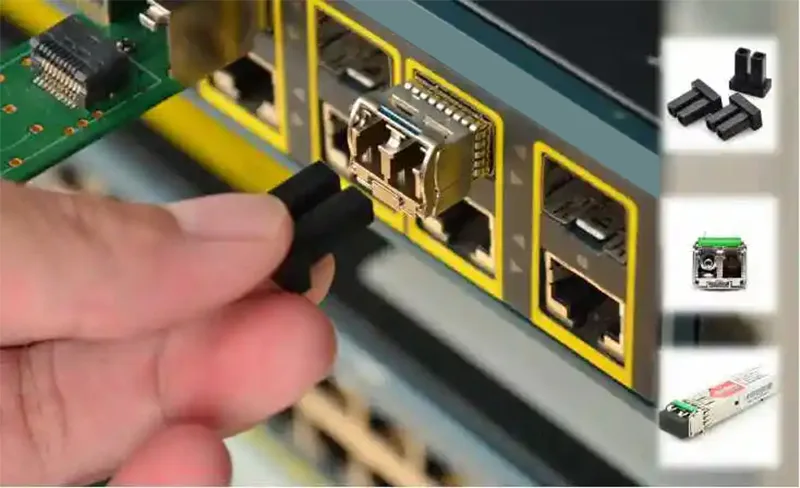
Fiber links are critical components in modern enterprise networks. When a fiber connection suddenly goes offline, the first reaction is often to blame the SFP module.
But in real-world network troubleshooting, the SFP is not always the problem.
An SFP (Small Form-factor Pluggable) transceiver is only one part of the optical link. A damaged fiber cable, incorrect TX/RX polarity, dirty connectors, incompatible optics, or even a problem on the remote switch can create the same symptoms as a failed transceiver.
The good news is that Cisco IOS provides several built-in diagnostic commands that allow network engineers to quickly verify whether an SFP module is healthy or whether the issue exists somewhere else in the fiber path.
In this article, we will explore the main Cisco commands used to troubleshoot SFP modules and analyze optical link problems.
What Is an SFP Module?
An SFP module is a hot-swappable network component that allows Cisco switches and routers to communicate over different types of media, including:
- Fiber optic cables
- Copper Ethernet cables
- Single-mode fiber (SMF)
- Multi-mode fiber (MMF)
The SFP converts electrical signals from the network device into optical signals and sends them through the fiber cable to another device.
A complete optical connection depends on several elements working together:
Cisco Switch
     |
     |
   SFP Module
     |
     |
 Fiber Cable
     |
     |
 Remote SFP Module
     |
     |
Remote Switch
A failure anywhere in this chain can result in a disconnected link.
Step 1: Confirm That the Cisco Switch Detects the SFP
Before performing advanced troubleshooting, the first step is to verify that the switch recognizes the installed transceiver.
Run:
Switch> enable
Switch# show inventory
You can also use:
Switch# show interfaces transceiver
If the SFP is detected correctly, Cisco IOS will display information such as:
- Transceiver model
- Serial number
- Interface association
- Temperature
- Voltage
- TX optical power
- RX optical power
Example output:
Interface: Gi0/9

Temperature : 26.6°C
Voltage     : 3.21V
TX Power    : -5.5 dBm
RX Power    : -30.4 dBm
If Cisco does not display any information about the SFP, check:
- Is the module properly inserted?
- Is the SFP supported by the Cisco platform?
- Is the transceiver compatible with the switch model?
A detection problem usually points to a hardware or compatibility issue.
Step 2: Check the Interface Status
After confirming that the SFP is recognized, check the physical status of the interface.
Use:
Switch# show interfaces status
or:
Switch# show interfaces GigabitEthernet0/9
A healthy optical interface should normally show:
Status: connected
Line protocol: up
Common problematic states:
| Status | Meaning |
|---|---|
| down/down | Physical layer issue |
| up/down | Protocol or configuration issue |
| notconnect | No optical signal detected |
| administratively down | Interface disabled |
Step 3: Analyze Optical Power Using DOM
One of the most useful features available on modern Cisco SFP modules is DOM (Digital Optical Monitoring).
DOM provides real-time information about the optical condition of the transceiver.
Run:
Switch# show interfaces transceiver
Example:
Port       Temperature   Voltage    TX Power    RX Power

Gi0/9        26.6°C       3.21V     -5.5 dBm   -30.4 dBm
Important values to monitor:
| Parameter | Description |
|---|---|
| Temperature | SFP operating temperature |
| Voltage | Power supplied to the module |
| TX Power | Optical signal transmitted |
| RX Power | Optical signal received |
Step 4: Understanding TX and RX Optical Power
Let’s analyze this example:
Temperature : 26.6°C
Voltage     : 3.21V
TX Power    : -5.5 dBm
RX Power    : -30.4 dBm
The results indicate:
✅ Temperature is normal
✅ Voltage is within range
✅ The SFP is transmitting optical signal
⚠️ RX power is extremely low
A very low RX value means the local SFP is not receiving enough optical signal from the remote side.
This does not necessarily mean the SFP is faulty.
The module may be working correctly while the problem exists somewhere else in the optical path.
Step 5: Common Reasons for Low RX Power
Low receive power is one of the most common fiber troubleshooting issues.
Possible causes include:
Fiber Cable Problems
- x Damaged fiber patch cable
- x Broken fiber strand
- x Excessive cable bending
Connector Issues
- x Dirty LC connectors
- x Dust contamination
- x Poor fiber connection
Installation Problems
- x Incorrect TX/RX polarity
- x Wrong fiber type
- x Unsupported distance
Remote Device Issues
- x Remote switch powered off
- x Remote interface shutdown
- x Failed remote SFP module
Always check both ends of the link before replacing hardware.
Step 6: Check Interface Errors
Even when the link remains active, interface statistics can reveal physical problems.
Run:
Switch# show interfaces GigabitEthernet0/9
Look for:
- x CRC errors
- x Input errors
- x Output errors
- x Frame errors
- x Packet drops
Increasing error counters often indicate:
- x Poor optical signal quality
- x Faulty fiber cable
- x Dirty connectors
- x Failing optics
Step 7: Check Cisco Logs for SFP Events
Cisco IOS logs can provide additional information about transceiver problems.
Use:
Switch# show logging | include SFP
or:
Switch# show logging | include GBIC
These logs can reveal:
- Unsupported transceiver
- SFP insertion/removal events
- Hardware validation failures
Cisco SFP Troubleshooting Checklist
Before replacing an SFP module, verify:
✔ The switch detects the transceiver
✔ The SFP is compatible
✔ The interface is enabled
✔ TX optical power is present
✔ RX optical power is acceptable
✔ Fiber connectors are clean
✔ TX/RX polarity is correct
✔ The remote switch is reachable
✔ The remote SFP is operational
✔ The fiber cable has been tested
Final Thoughts
A fiber link failure does not automatically mean that the SFP module has failed.
In many cases, the transceiver is operating correctly, but the optical signal is interrupted somewhere between the two devices.
Using Cisco IOS diagnostic commands such as:
show inventory
show interfaces status
show interfaces transceiver
show interfaces GigabitEthernet0/9
show logging | include SFP
network engineers can quickly identify whether the issue comes from:
- The SFP module
- The fiber cable
- Optical power levels
- The remote network device
Proper diagnosis saves time, avoids unnecessary hardware replacement, and helps maintain a stable enterprise network infrastructure.
Want more articles and tutorials like this?
Get new tutorials, security alerts, and IT tips straight to your inbox.