How to Manage Cron Jobs in Linux: A Complete Sysadmin Guide
If you administer Linux servers, sooner or later you need tasks to run themselves — backups at 3 AM, log cleanups every week, disk checks every ten minutes. That’s what cron was built for. This guide walks through the crontab syntax, the commands you’ll actually type, real scheduling examples, and the production habits that separate a cron job that quietly fails for weeks from one you can trust. It’s written from hands-on system administration notes, refined with current best practices for 2026.
Table of Contents
- What Is Cron and Why It Matters
- Understanding Crontab Syntax
- Setting Up Your System Before Scheduling
- Managing Crontab Files
- Practical Cron Job Examples
- Production Best Practices for 2026
- Logging, Troubleshooting, and Monitoring
- Cron vs Anacron vs systemd Timers
- Handy Tools for Building Cron Expressions
- Conclusion
- FAQ
What Is Cron and Why It Matters
Cron is a daemon that has shipped with Unix-like systems for decades, and it remains the default way most Linux administrators automate repetitive work. Instead of manually running a backup script every night, you hand the schedule to cron once, and it takes care of execution from then on.
The appeal is simplicity: no extra software to install, no complex configuration language, and it’s already running on almost every Linux distribution. The tradeoff is that cron itself has no concept of success or failure — it just fires a command at the scheduled time and moves on. Understanding that limitation early will save you a lot of debugging later, and we’ll come back to it in the best-practices section.
Understanding Crontab Syntax
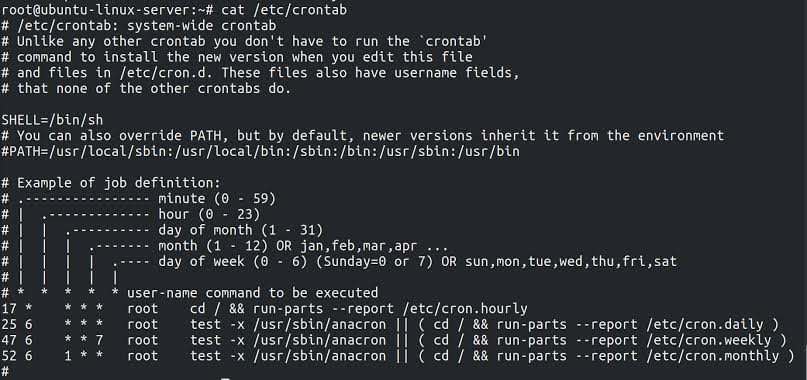
Every cron entry follows the same structure: five time fields, then the command to execute.
# .---------------- minute (0 - 59)
# |  .------------- hour (0 - 23)
# |  |  .---------- day of month (1 - 31)
# |  |  |  .------- month (1 - 12) OR jan,feb,mar...
# |  |  |  |  .---- day of week (0 - 6) (Sunday = 0 or 7)
# |  |  |  |  |
# *  *  *  *  *  command to be executed
An asterisk (*) means “every value is valid” for that field. A step value like */10 means “every 10 units.” You can combine ranges, lists, and steps to build fairly precise schedules without needing extra tooling.
Reading Time Fields in Practice
*/10 * * * *— runs every 10 minutes, any hour, any day.* */2 * * *— runs every minute, but only during hours that are multiples of 2 (effectively every 2 hours when combined correctly with minute 0).0 5 * * mon— runs once, at 5:00 AM, only on Mondays. This pattern is common for weekly maintenance and cleanup jobs.
Special Shortcuts
Cron also supports readable shortcuts that map to standard time fields, which are useful when you don’t need minute-level precision:
| Shortcut | Equivalent | Typical Use |
|---|---|---|
@yearly | 0 0 1 1 * | Annual maintenance scripts |
@monthly | 0 0 1 * * | Monthly backups or reports |
@daily | 0 0 * * * | Daily log cleanup |
@hourly | 0 * * * * | Frequent sync jobs |
@reboot | Runs at startup | Services that must start with the machine |
Setting Up Your System Before Scheduling
Before your schedules mean anything, your server’s clock needs to be correct — a cron job set for “5 AM” is only useful if the system agrees on what 5 AM is.
Setting the Correct Timezone
timedatectl list-timezones
timedatectl set-timezone Africa/Algiers
list-timezones shows every timezone identifier your system recognizes, and set-timezone applies the one you need. To confirm the change and see the current local time and offset:
timedatectlStarting and Enabling the Cron Service
Having correct schedules does nothing if the daemon itself isn’t running. Start it for the current session and make sure it survives a reboot:
sudo systemctl start cron.service
sudo systemctl enable cron.service
You can verify it’s active with systemctl status cron.service — if it isn’t running, none of your jobs will fire, regardless of how correctly they’re written. <!– IMAGE: Close-up of a server rack with status lights, representing background automated processes. Alt text: “Server rack representing background automated Linux processes” | Title: “Linux server automation” | Suggested search term: “server rack data center” (source: Unsplash) –>
Managing Crontab Files
Cron scheduling is per-user by design, which keeps permissions clean: your jobs run with your privileges, and a user shouldn’t be able to schedule something outside their own access level.
Editing Your Own Crontab
crontab -eThis opens a temporary editable copy of your crontab. Nothing takes effect until you save — cron then installs it as the real file behind the scenes.
Viewing, Listing, and Removing Entries
crontab -l      # list your current scheduled jobs
crontab -r      # remove all your crontab entries
Managing Crontab for Other Users
An administrator can view or edit another user’s schedule without switching accounts:
sudo crontab -u USER -e     # edit a specific user's crontab
sudo crontab -u USER -l     # view a specific user's crontab
sudo crontab -u root -e     # example: edit root's crontab
The System-Wide Crontab File
Beyond per-user schedules, Linux keeps one file for system-level jobs that need to specify which user they run as:
sudo nano /etc/crontabYou can inspect its contents directly with cat /etc/crontab. The format here has one extra field compared to a personal crontab — the username — placed right before the command:
mm hh dd MMM DDD USER commandPractical Cron Job Examples
Theory is easier to remember with real commands attached to it. Here are patterns pulled from common system administration tasks.
Check disk space every 10 minutes:
*/10 * * * * /home/maverick/check-disk-spaceRun a weekly clean-up every Monday at 5 AM:
0 5 * * mon /scripts/script.shThis kind of schedule is ideal for tasks like clearing temporary files or rotating archives — frequent enough to stay useful, infrequent enough not to add noise.
Trigger a script at every system boot:
@reboot /scripts/script.shRun a backup script as root, every minute:
*/1 * * * * /home/it/Desktop/back-up.shRun the same script as a different user:
*/1 * * * * /usr/bin/sh /home/it/Desktop/back-up.shNotice that both backup examples call the script directly with its interpreter — this avoids relying on execute permissions and keeps behaviour predictable no matter which user’s crontab it lives in.
Production Best Practices for 2026
Cron hasn’t changed much in decades, but how experienced administrators use it safely has. A handful of habits consistently separate reliable scheduled tasks from ones that fail silently for weeks before anyone notices.
- Always use absolute paths. Cron runs with a minimal environment, and
PATHis not the same as your interactive shell’s. A script that works fine when you run it manually can fail under cron simply because it can’t find a binary. - Redirect all output to a log file. By default, cron mails output to a local spool almost nobody checks. Append both stdout and stderr to a log instead:
>> /var/log/task.log 2>&1. - Make jobs idempotent. A job that runs twice by accident — due to a retry, an overlap, or a manual re-trigger — should never cause duplicate side effects.
- Prevent overlapping runs with a lock. Wrapping a job in
flockstops a slow run from stacking on top of the next scheduled one. - Set a timeout. Pairing
timeout 30mwith your command ensures a hung job fails cleanly instead of running indefinitely. - Exit with the correct status code. Scripts should return
0on success and non-zero on failure so any wrapper or monitor can tell the difference. - Pin the timezone for time-sensitive jobs, especially on servers that might migrate between regions or hosting providers.
- Version your crontab. Keeping schedules in source control, rather than editing them ad hoc on the server, makes changes auditable and reversible.
Logging, Troubleshooting, and Monitoring
Even a well-written job needs visibility once it’s unattended in production.
Where Cron Logs Live
Log locations differ by distribution. On Ubuntu and Debian systems, cron activity typically appears in /var/log/syslog, or via journalctl -u cron on systemd-based setups. On RHEL, CentOS, AlmaLinux, and Rocky Linux, check /var/log/cron or journalctl -u crond. If a job that should have run doesn’t show up in either place, the problem is usually the crontab entry itself, not the script.
Why Silent Failure Is Cron’s Biggest Weakness
Cron’s job is only to run a command at the right time — it has no built-in way to tell you whether that command actually succeeded. A backup script can “run” every night for a month while quietly failing every single time, and cron will never flag it. This is why an increasing number of administrators pair scheduled jobs with an external check-in: the script pings a monitoring endpoint on success, and if that ping doesn’t arrive on schedule, an alert fires. Logs tell you what happened after the fact; a missed check-in tells you something is wrong right now.
Cron vs Anacron vs systemd Timers
Cron isn’t the only scheduler on modern Linux systems, and knowing when to reach for an alternative is part of managing cron jobs well.
- Cron is best for always-on servers where tasks must run at exact times.
- Anacron is designed for machines that aren’t always powered on — like laptops or development VMs — since it ensures a periodic job still runs if the scheduled time was missed while the machine was off.
- systemd timers are the more modern option, offering richer dependency handling, calendar-based scheduling, and tighter integration with services already managed by systemd. Many teams use both: cron for simple, isolated tasks, and systemd timers for jobs tied closely to a managed service.
For most single-purpose automation — the kind covered in this guide — plain cron remains more than sufficient.
Handy Tools for Building Cron Expressions
Writing cron syntax from memory gets easier with practice, but a few tools make it faster to verify a schedule before deploying it:
- A crontab expression generator to build a schedule visually instead of counting fields by hand.
- Crontab.guru, a widely used site for translating cron syntax into plain English and catching mistakes before they reach production.
- Hands-on practice environments that walk through inspecting and analyzing running Linux processes, useful if you’re troubleshooting a job that isn’t behaving as scheduled.
<!– IMAGE: A calendar or clock icon overlaid on code, representing task scheduling. Alt text: “Clock and code representing Linux task scheduling with cron” | Title: “Scheduling automated tasks with cron” | Suggested search term: “clock schedule automation code” (source: Unsplash) –>
Conclusion
Cron remains one of the most dependable tools in a Linux administrator’s kit — not because it’s sophisticated, but because it’s simple, predictable, and available everywhere. The syntax takes a bit of memorization, but once the five time fields click, writing new schedules becomes second nature. The real skill isn’t just getting a job to run on time; it’s making sure that job fails loudly instead of silently, logs enough detail to debug later, and doesn’t stack on top of itself when something runs long. Combine correct crontab syntax with the production habits covered above, and cron will keep doing its job quietly in the background — exactly as intended.
FAQ
Q: Why isn’t my cron job running even though the syntax looks correct? A: The most common cause is a missing absolute path or an environment variable that exists in your shell but not in cron’s minimal environment. Check the relevant log file for your distribution first.
Q: Can I schedule a job for a different user without switching accounts? A: Yes — use sudo crontab -u USERNAME -e to edit, or -l to list, another user’s schedule.
Q: What’s the difference between editing crontab -e and /etc/crontab? A: crontab -e edits a per-user schedule with no username field. /etc/crontab is the system-wide file and requires specifying which user each job should run as.
Q: Should I use cron or systemd timers for a new project? A: For simple, standalone tasks, cron is faster to set up. If the job depends on another systemd-managed service or needs richer scheduling logic, a systemd timer is usually the better fit.
Want more articles and tutorials like this?
Get new tutorials, security alerts, and IT tips straight to your inbox.