Elementor Pro Critical Vulnerability: How an Empty File Field Opens the Door to Full Server Takeover
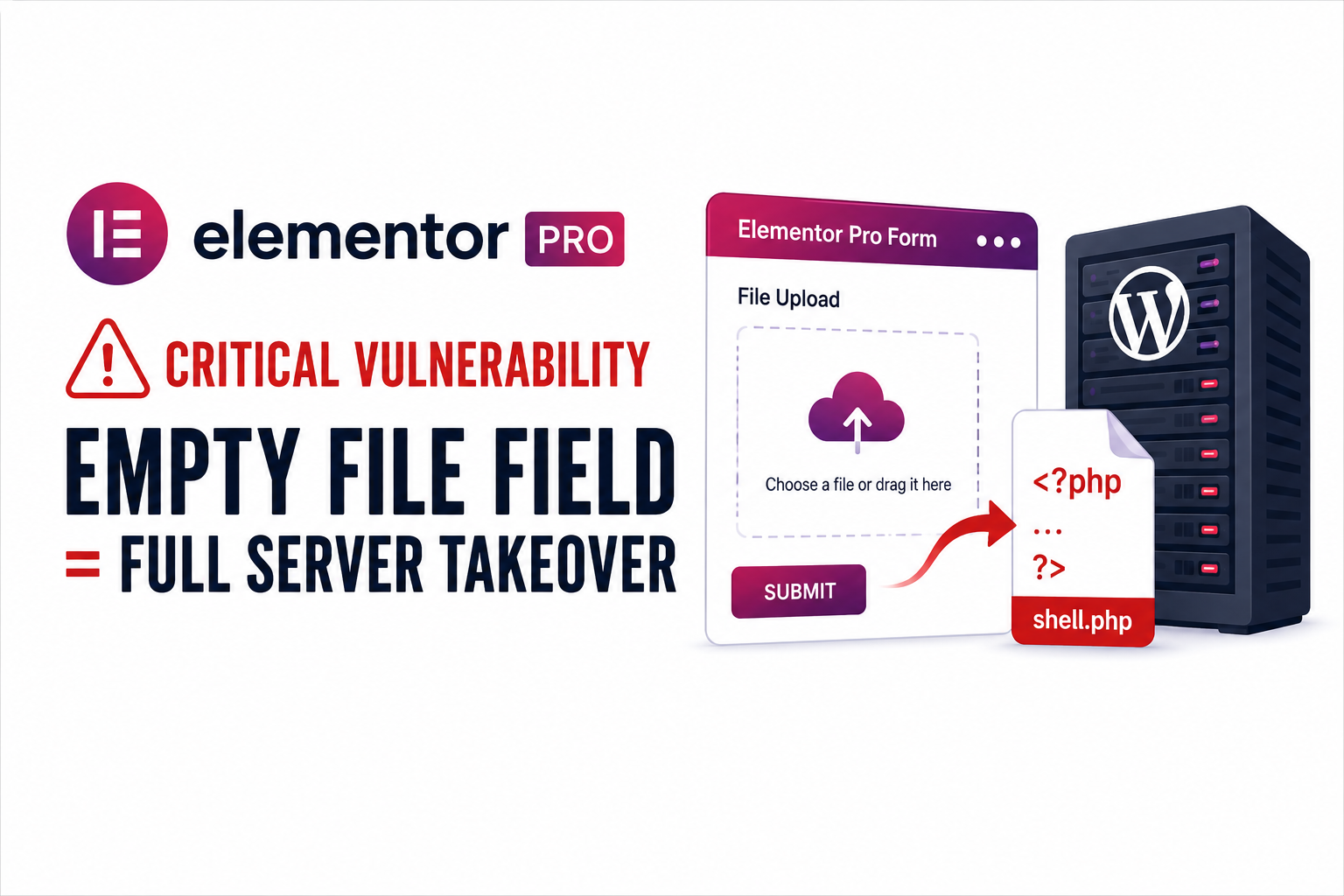
Millions of WordPress sites run Elementor Pro to power contact forms, job applications, and support tickets. In August 2026, researchers disclosed a critical flaw in the plugin’s Forms module that lets a stranger upload a working PHP file to your server without logging in. This post breaks down how the bug works, who it affects, and exactly what you need to do today to close it. If you manage a WordPress site, this is worth ten minutes of your time.
Table of Contents
- What Happened
- Why This Bug Is So Dangerous
- How the Exploit Actually Works
- Who Is Affected
- How to Check If You Are Vulnerable
- How to Fix It: Step-by-Step
- Scanning for Signs of Compromise
- Hardening Your Uploads Directory
- Lessons for WordPress Site Owners
- FAQ
- Conclusion
What Happened
On July 16, 2026, security researcher Tin Pham, known online as TF1T, reported a file upload flaw to Patchstack through its bug bounty program. Wordfence researcher Austin Ginder independently found the same issue. Elementor prepared a fix within a day of the report, but the patched version, 4.2.2, did not ship until August 19, more than a month later.
The vulnerability, tracked as CVE-2026-32475, received a CVSS score of 9.0, placing it in the critical category. It affects the Forms module, one of the most widely used building blocks in Elementor Pro, present on an estimated six million active installations.
Show Image Alt text: Elementor Pro Forms module configuration screen in WordPress admin Suggested search term: “wordpress elementor pro form builder dashboard”
Why This Bug Is So Dangerous
Three factors push this flaw into the highest risk tier a WordPress site can face:
- No login required. The attacker never authenticates and never touches the WordPress admin area.
- No user interaction needed. A site owner does not need to click anything or approve a submission.
- Direct code execution. A successful upload does not just place a file on the server; it hands the attacker a working PHP shell they can call over HTTP right away.
Put simply, an attacker can go from “found your website” to “running commands on your server” using nothing more than a public contact form.
How the Exploit Actually Works
Elementor Pro’s Forms module handles a File Upload field with two separate code loops:
- A validation loop that checks each submitted file’s extension against an allow list and a blocklist covering dangerous types such as
.php,.phtml, and.asp. - A processing loop that moves accepted files from a temporary location into a public folder.
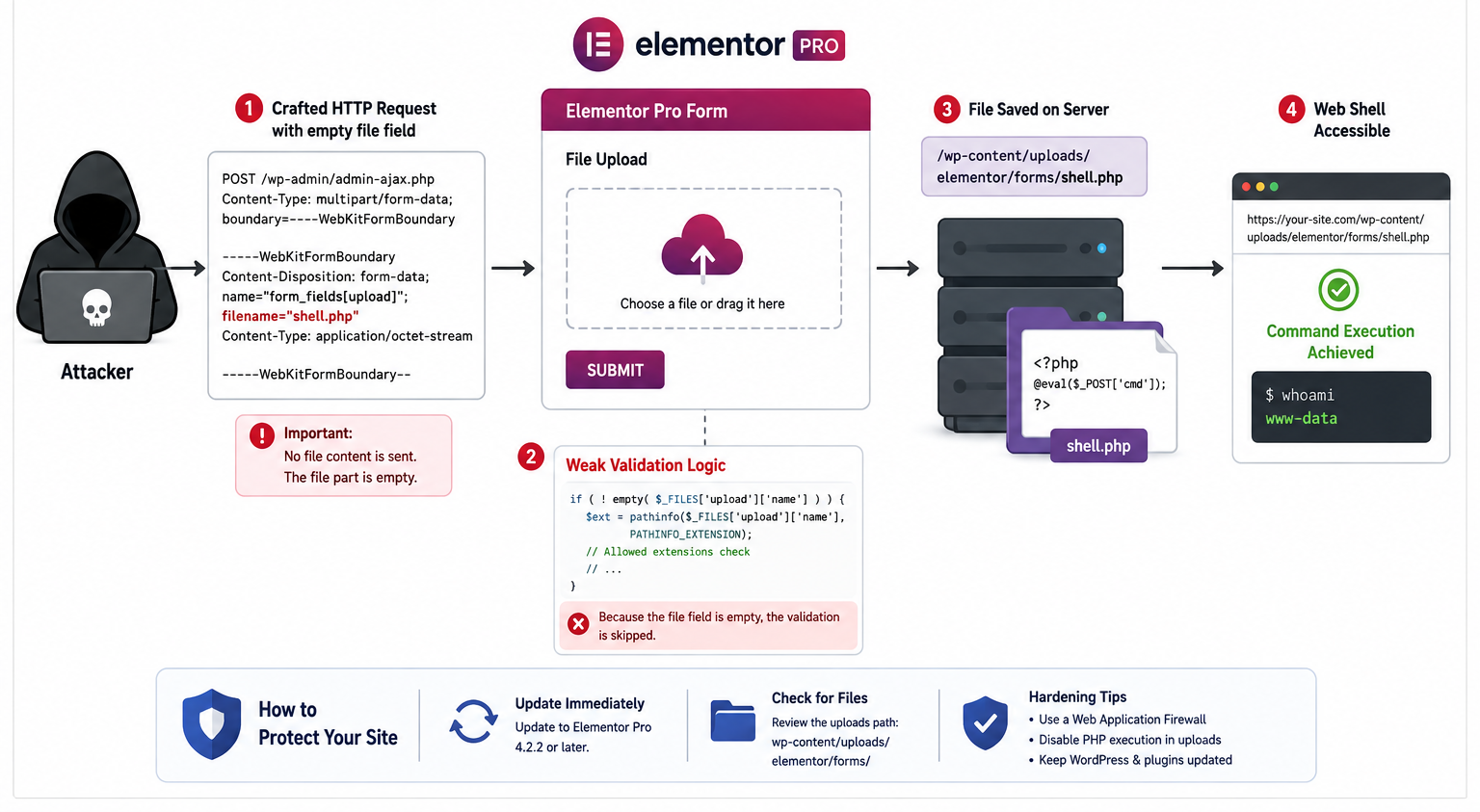
The two loops disagree about how to treat an empty file entry, meaning an upload part with no filename attached, which PHP internally flags as UPLOAD_ERR_NO_FILE. According to Patchstack’s technical write-up, the validation loop hits a return statement the moment it meets an empty entry and stops checking anything that follows. The processing loop, however, uses continue instead, so it skips the empty entry and keeps working through the rest of the submission.
An attacker exploits this gap by crafting a multipart form submission with two file parts for a single upload field:
- An empty first part with no filename.
- A malicious PHP payload as the second part.
The validator sees the empty entry, gives up, and never inspects the second part. The processing loop, unaware of the abandoned check, happily saves that second file to a predictable, publicly reachable directory: wp-content/uploads/elementor/forms/<uniqid>.php. Requesting that URL directly then executes the attacker’s code on the server.
Researchers at Cyber Kendra also noted that PHP’s uniqid() function is time-based, meaning its first eight hex characters reflect the server’s current epoch second, information the server’s own HTTP Date header discloses. That narrows the guesswork an attacker needs to locate the uploaded file.
The whole exchange happens through Elementor’s own AJAX endpoint for form submissions, with no cookie, no nonce, and no WordPress session involved at any point.
Who Is Affected
According to Elementor’s own advisory to subscribers, the vulnerability only puts a site at real risk when two conditions are both true:
- The site has a published page with an Elementor Pro Form widget.
- That form has a File Upload field, and the multiple file upload option is enabled. This setting is off by default, so many sites are safer than the CVSS score alone suggests.
Even so, “off by default” does not mean rare in practice. Common form types that use file uploads include:
- Job application and résumé submission forms
- Support or help desk ticket forms
- Document or portfolio submission forms
- RFQ and vendor onboarding forms
Any site running Elementor Pro version 4.2.1 or earlier, with a form matching this pattern, should treat the issue as urgent.
How to Check If You Are Vulnerable
Start by confirming your installed version. From the WordPress dashboard:
- Go to Plugins → Installed Plugins.
- Locate Elementor Pro in the list.
- Check the version number shown underneath the plugin name.
You can also check from the command line if you have WP-CLI access:
wp plugin get elementor-pro --field=versionIf the result reads 4.2.1 or lower, your site is vulnerable until you patch. Version 4.2.2 and above already contains the fix.
To find out whether any of your forms actually expose the risky configuration, search your Elementor templates for File Upload fields with multiple uploads enabled:
wp elementor library get-all --format=tableThen open each form in the Elementor editor and check the File Upload field’s settings for Allow Multiple File Uploads.
How to Fix It: Step-by-Step
Updating the plugin removes the vulnerability entirely and takes only a few minutes.
Step 1: Back up your site
Before any plugin update, take a full backup of your files and database. Most managed hosts offer one-click backups; alternatively, use WP-CLI:
wp db export backup-before-elementor-update.sqlStep 2: Update Elementor Pro to 4.2.2 or later
From the dashboard, go to Plugins → Installed Plugins, find Elementor Pro, and click Update Now. Using WP-CLI instead:
wp plugin update elementor-proStep 3: Update WordPress core as well
The same week Elementor patched this flaw, WordPress core released version 7.0.4, addressing a separate high-severity issue involving malicious file uploads through Ghostscript and ImageMagick. Update core alongside the plugin:
wp core update
wp core update-db
Step 4: Verify the installed version
wp plugin get elementor-pro --field=versionConfirm the output shows 4.2.2 or higher before moving on.
Step 5: Clear your caching layer
Whether you use Cloudflare, a caching plugin, or both, purge the cache after updating so no stale plugin assets remain in circulation.
Scanning for Signs of Compromise
Updating the plugin stops new attacks, but it will not remove a file an attacker already planted. Check the public uploads folder for anything that should not be there:
find wp-content/uploads/elementor/forms/ -type f -name "*.php"A clean site returns no results. If the command lists any .php files in that directory, treat the site as compromised and investigate further rather than simply deleting the file, since an attacker who gained code execution may have left other footholds elsewhere.
It also helps to check recent file modification times across the uploads directory, since some attackers rename payloads to blend in:
find wp-content/uploads/ -mtime -30 -type f \( -name "*.php" -o -name "*.phtml" \)If you find unexpected PHP files anywhere inside wp-content/uploads/, consider bringing in a WordPress security specialist to check for backdoors, rogue admin accounts, and modified core files before declaring the site clean.
Hardening Your Uploads Directory
Even after patching, it is good practice to stop the uploads folder from ever executing PHP in the first place. Add the following rule to your site’s .htaccess file, inside the wp-content/uploads/ directory, on Apache-based hosting:
<FilesMatch "\.(php|phtml|php3|php4|php5|php7|pht)$">
    Require all denied
</FilesMatch>
If your server runs Nginx, add this to your server block instead:
location ~* /wp-content/uploads/.*\.(php|phtml|php3|php4|php5|php7|pht)$ {
    deny all;
}
This rule means that even if a malicious file somehow reaches the uploads folder again in the future, through this plugin or another one, the web server refuses to execute it. Restart or reload your web server after making the change:
sudo systemctl reload nginx
# or, for Apache
sudo systemctl reload apache2
Lessons for WordPress Site Owners
This incident is a reminder that plugin risk does not stop at “keep everything updated,” although that remains the single most effective defense. A few habits reduce exposure to the next flaw like this one:
- Disable file upload fields you do not actively need. Every open upload field is one more thing to secure.
- Subscribe to plugin security advisories through services like Patchstack or Wordfence, which often publish mitigation rules before a patch even ships.
- Apply a web application firewall (WAF) that can block suspicious multipart uploads at the network edge, buying time between disclosure and patching.
- Separate uploads from execution using the
.htaccessor Nginx rules above, regardless of which plugins you run.
None of these steps replace patching, but together they shrink the window during which any single flaw can hurt you.
FAQ
Is my site definitely safe once I update to Elementor Pro 4.2.2? Updating removes the vulnerability itself, but it does not undo any damage from an attack that already happened. Always scan the uploads directory and review recent site activity after patching a critical flaw like this one.
Do I need the Elementor Pro license active to get the update? Yes. Elementor Pro is a premium plugin, so your license needs to be valid for the update to appear in your dashboard and to receive support if something goes wrong.
Does the free version of Elementor have this vulnerability? No. CVE-2026-32475 affects Elementor Pro specifically, because the Forms module with file upload functionality is a Pro-only feature.
Is there a public proof-of-concept exploit available? At the time of writing, researchers had not released a public working exploit, though multiple technical write-ups describe the mechanism in detail. Given how straightforward the bypass is to reproduce, treat the absence of a public PoC as a temporary head start, not a reason to delay patching.
What if I cannot update Elementor Pro right away? As a temporary measure, disable any Elementor Pro form with a File Upload field, or at minimum turn off the “Allow Multiple File Uploads” setting on those fields. A WAF rule blocking PHP uploads through form endpoints also helps as an interim mitigation.
Was this vulnerability exploited before it became public? No confirmed reports of active exploitation existed at disclosure time. Because the flaw affects every version Elementor Pro has ever shipped, security researchers still recommend a thorough scan rather than assuming your site was never targeted.
Conclusion
CVE-2026-32475 shows how a small inconsistency between two pieces of validation logic can turn a routine contact form into a full remote code execution path. The flaw required no login, no user interaction, and only a slightly unusual multipart request to exploit. Elementor Pro 4.2.2 closes the gap, but the fix only protects sites that actually install it. Update your plugin and WordPress core today, scan your uploads directory for anything unexpected, and add server-level rules that stop PHP from ever executing inside your uploads folder again. A few minutes of maintenance now is far cheaper than recovering from a compromised server later.
Want more articles and tutorials like this?
Get new tutorials, security alerts, and IT tips straight to your inbox.
That’s a really concerning situation – it highlights just how important regular plugin updates are for WordPress security.