Why a VPN Doesn’t Make You Hidden: The Real Truth About Online Anonymity
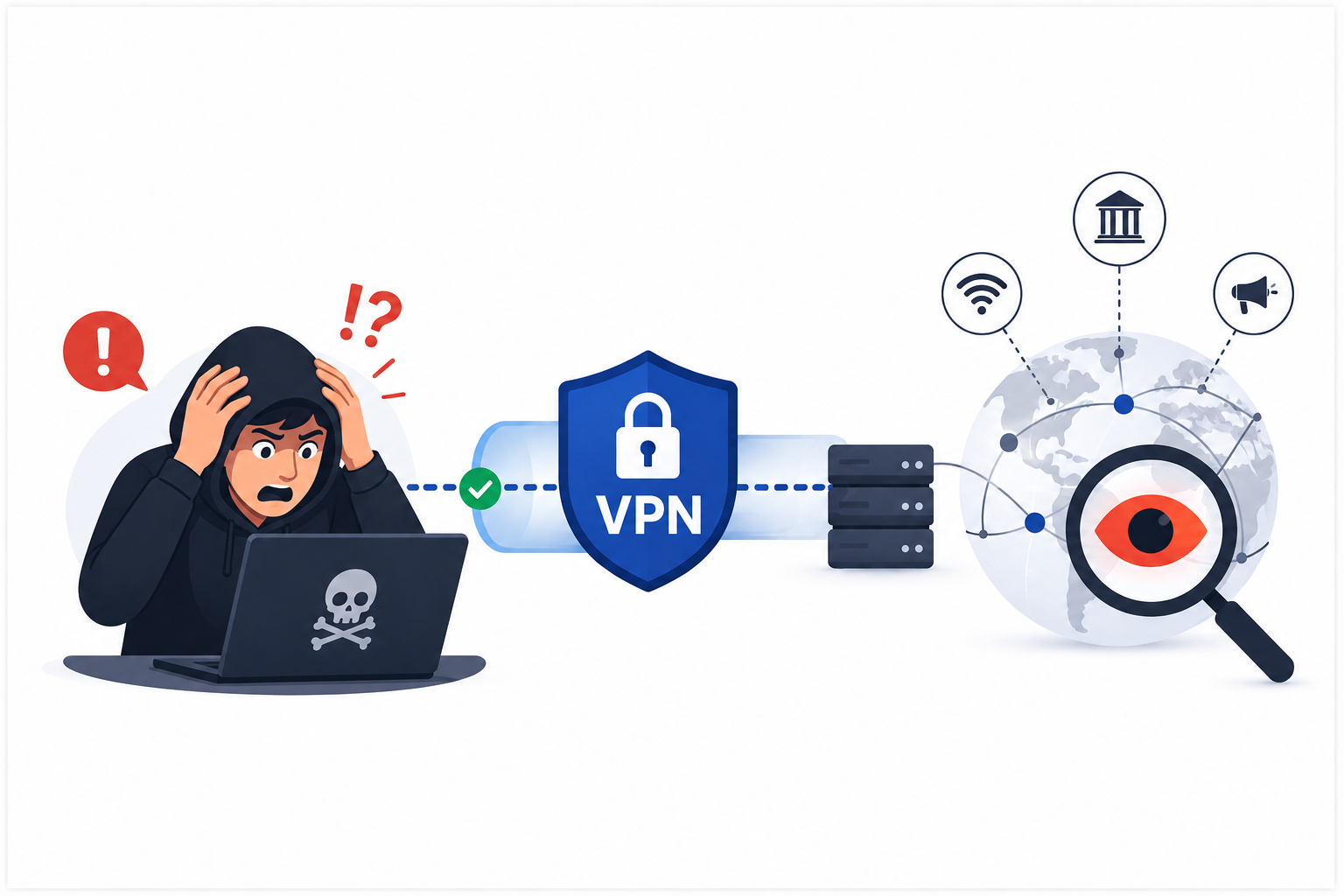
A VPN encrypts your traffic and masks your IP address, but it does not make you invisible online. Your browser fingerprint, logged-in accounts, GPS location, cookies, and even the VPN provider itself can still expose who you are. True privacy demands layered tools and smarter habits—not just a single app.
Table of Contents
- What a VPN Actually Does for You
- The Myth of the Invisibility Cloak
- What Your VPN Cannot Hide
- Your Logged-In Identity
- Browser Fingerprinting
- Cookies and Trackers
- Your GPS Location
- The Fact That You Use a VPN
- Technical Leaks That Blow Your Cover
- DNS Leaks
- IPv6 Leaks
- WebRTC Leaks
- Kill Switch Failures
- The VPN Provider: Your New Middleman
- Logging Policies That Betray You
- Jurisdiction and Legal Pressure
- Free VPNs: The Hidden Cost
- What Actually Works for Real Privacy
- Layer Your Defenses
- Harden Your Browser
- Switch to Privacy-First Services
- Practical Steps to Test Your Privacy
- Conclusion
What a VPN Actually Does for You
A Virtual Private Network builds an encrypted tunnel between your device and a remote server. Your Internet Service Provider (ISP) sees only encrypted data flowing to that server. Websites see the server’s IP address, not yours. This stops casual snooping on public Wi-Fi and prevents your ISP from logging every site you visit.
VPNs also bypass geo-restrictions. Streaming platforms, news sites, and regional services often block content based on your IP location. A VPN lets you pick a server in another country and access that region’s catalog.
These are genuine benefits. But they are not the same as anonymity. Encryption hides what you send through the tunnel. It does not hide who you are once that traffic exits the tunnel.
The Myth of the Invisibility Cloak
Marketing teams love to show hooded figures vanishing into digital shadows. The message is clear: buy this VPN, and no one can find you. That story sells subscriptions, but it misleads users.
A VPN is a traffic rerouter, not an identity eraser. It changes one data point—your IP address—while leaving dozens of other tracking mechanisms untouched. Think of it like wearing a mask at a party where everyone else recognizes your voice, your walk, and the phone in your hand. The mask helps, but it does not make you a stranger.
Understanding this distinction matters because false confidence leads to risky behavior. People post sensitive information, visit questionable sites, or log into personal accounts while assuming a VPN grants total protection. It does not.
What Your VPN Cannot Hide
Your Logged-In Identity
The moment you sign into Google, Facebook, Amazon, or any account tied to your real name, you tell that platform exactly who you are. The VPN changes your IP, but your account credentials do not change. Google tracks you by your account history, not your IP address. Facebook builds profiles based on your behavior inside their ecosystem. A VPN cannot stop that.
If you connect to a VPN server in Germany but log into your personal Gmail, Google still knows it is you. The company simply records that you accessed Gmail from a German IP. Your identity remains intact.
Practical tip: Create separate browser profiles or use privacy-focused browsers for anonymous sessions. Never mix logged-in accounts with activities you want to keep private.
Browser Fingerprinting
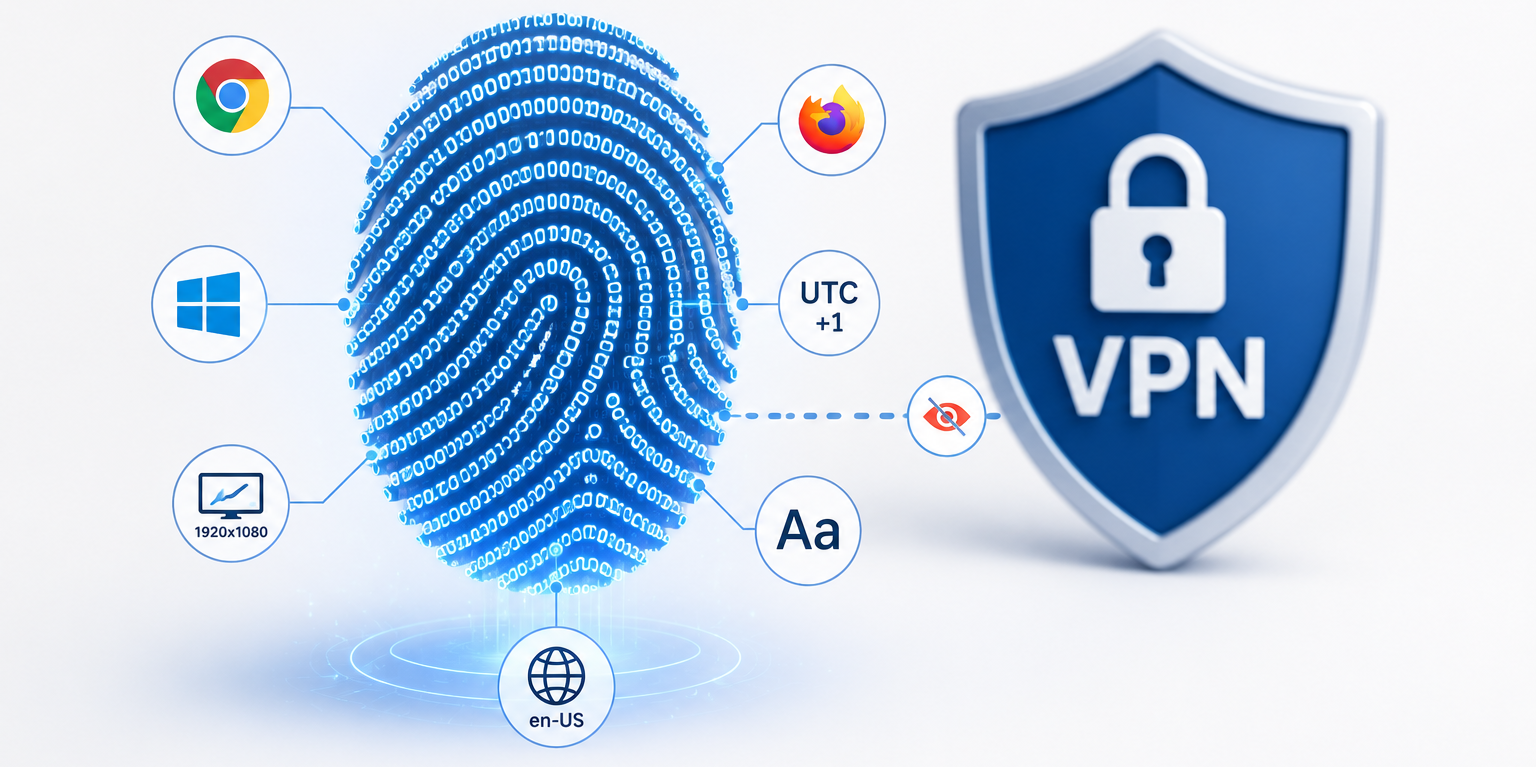
Websites collect technical details about your device to build a unique fingerprint. Your screen resolution, installed fonts, browser version, operating system, timezone, language settings, and even the list of browser extensions all combine into a profile. Research from the Electronic Frontier Foundation shows that 83% of browsers carry a unique fingerprint.
A VPN does not alter any of these attributes. Your browser still reports the same screen size, the same fonts, and the same extensions. Tracking companies use this fingerprint to follow you across sessions, regardless of how many times your IP changes.
Cookies and Trackers
Cookies are small files websites store on your device. They remember your login state, shopping cart, and preferences. Third-party cookies follow you across multiple sites, building a behavioral profile. Trackers embedded in ads and social media buttons do the same.
A VPN encrypts the connection carrying these cookies, but it does not block or delete them. If you visit Site A with a tracker, then visit Site B through a VPN, that tracker still recognizes you through the cookie it planted earlier.
Your GPS Location
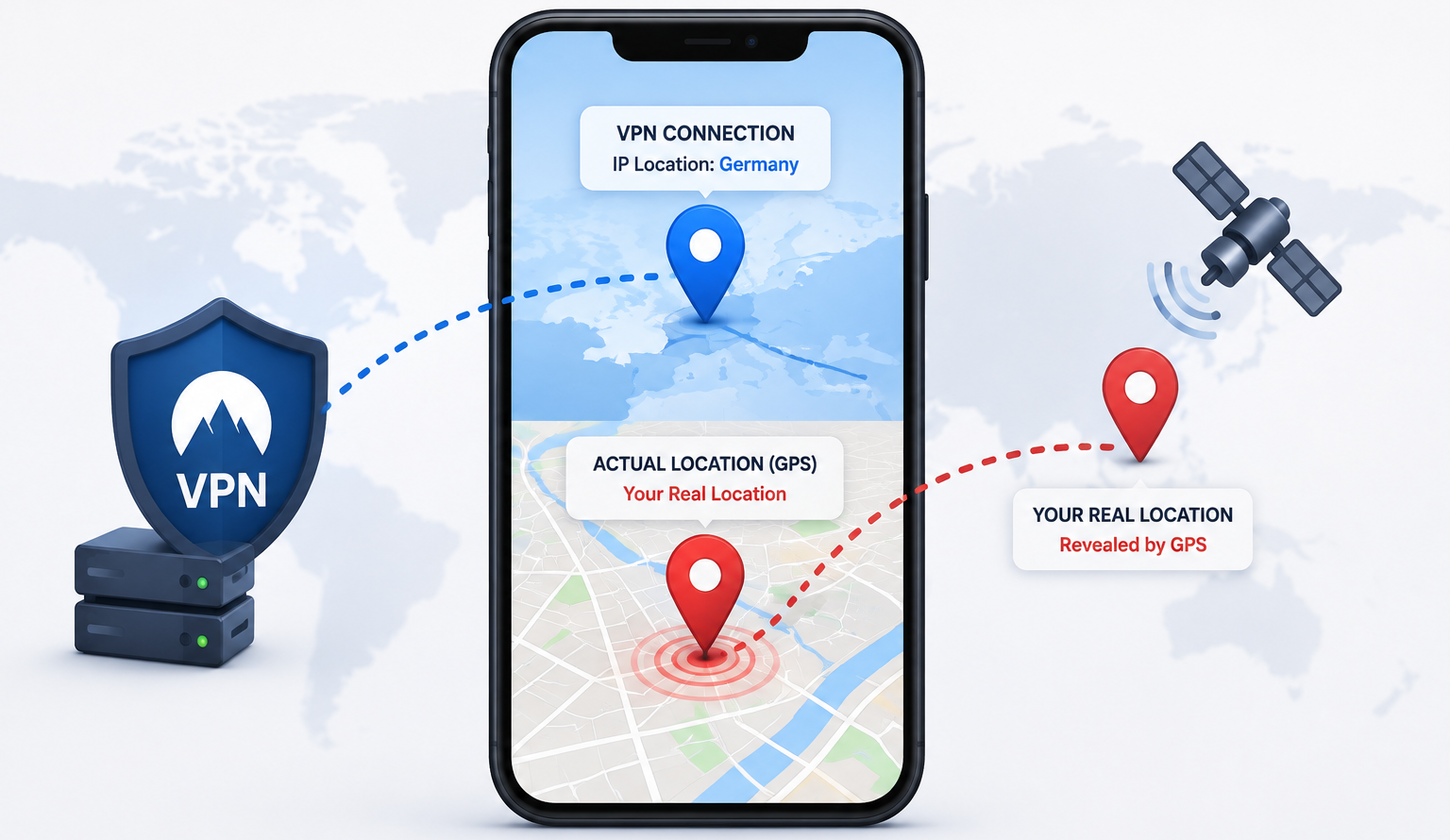
Mobile apps often request location permissions. A VPN masks your IP-based location, but it cannot spoof your GPS coordinates. If you grant an app access to your location, it reads your real coordinates directly from the device.
Apps like TikTok, Google Maps, and ride-sharing services use GPS, cell tower triangulation, and Wi-Fi network mapping to pinpoint you. A VPN does not touch any of these signals. If you are sitting in London but connected to a Tokyo VPN server, your phone’s GPS still says London.
The Fact That You Use a VPN
Your ISP, network administrator, and many websites can detect VPN traffic. They see encrypted connections heading to known VPN server IP ranges. Some platforms, including Netflix, Steam, and banking sites, actively flag VPN connections and display warnings like “It appears you are using a VPN or proxy.”
Obfuscation techniques disguise VPN traffic to look like standard HTTPS, but detection methods constantly evolve. The point is simple: a VPN does not hide itself. Anyone monitoring the network knows you are using one.
Technical Leaks That Blow Your Cover
Even when a VPN works correctly, misconfigurations and protocol behaviors can expose your real identity. Here are the most common leaks.
DNS Leaks
When you type a website address, your device asks a DNS server to translate that name into an IP address. By default, your ISP provides the DNS server, which means it sees every domain you visit. A VPN should route DNS requests through its own servers to prevent this.
Sometimes the VPN fails to override your system DNS settings. Your traffic goes through the encrypted tunnel, but your DNS queries leak out through the regular ISP connection. The result? Your ISP still sees every site you visit, even though the content itself is encrypted.
How to test for DNS leaks:
You can check your DNS configuration with simple commands. On Windows, open PowerShell and run:
# Check which DNS servers your system uses
Get-DnsClientServerAddress | Select-Object -ExpandProperty ServerAddresses
On Linux or macOS, use:
# Display current DNS resolver
cat /etc/resolv.conf
If these commands show your ISP’s DNS servers while your VPN claims to be active, you have a leak. Reputable VPN clients include DNS leak protection, but you should verify it yourself.
IPv6 Leaks
Most networks now assign both IPv4 and IPv6 addresses. Many VPNs protect only IPv4 traffic. If your device has an IPv6 address and the VPN does not tunnel IPv6 packets, those packets bypass the VPN entirely. Websites that support IPv6 see your real IPv6 address and location.
How to check your IPv6 exposure:
# Check if your device has an IPv6 address
ip addr show | grep inet6
If this returns an address and your VPN does not explicitly support IPv6, disable IPv6 at the operating system level or choose a VPN that fully supports dual-stack tunneling.
WebRTC Leaks
Web Real-Time Communication (WebRTC) enables video calls, voice chat, and peer-to-peer file sharing directly in the browser. For these features to work, WebRTC needs to know your local IP address. Some browsers expose this local IP even when a VPN is active.
An attacker or tracking script can exploit this to discover your real local network IP, which helps narrow down your identity and location.
How to test for WebRTC leaks:
Visit a WebRTC leak test website while connected to your VPN. If the test shows your real local IP address or your ISP’s public IP, your browser is leaking. You can disable WebRTC in Firefox by typing about:config in the address bar and setting media.peerconnection.enabled to false. For Chrome, install an extension that blocks WebRTC or use a hardened browser.
Kill Switch Failures
A kill switch blocks all internet traffic if the VPN connection drops. Without it, your device silently reverts to the regular connection, exposing your real IP and traffic to your ISP. This window of exposure might last only seconds, but that is enough to deanonymize you.
Not all VPN clients include a reliable kill switch. Some require manual activation in settings. Others fail to block traffic during brief reconnections. Always enable the kill switch and test it by manually disconnecting the VPN to confirm your internet access halts completely.
The VPN Provider: Your New Middleman
When you use a VPN, you shift trust from your ISP to the VPN provider. That provider sees everything your ISP would have seen: the websites you visit, the timing of your connections, and the volume of data you transfer. If that provider keeps logs, sells data, or caves to legal pressure, your privacy evaporates.
Logging Policies That Betray You
VPN providers advertise “no-logs” policies, but not all of them honor that claim. Some keep connection timestamps, bandwidth usage, or even browsing history. High-profile cases prove this risk is real. PureVPN handed over user data to FBI investigators despite marketing minimal logging. HMA VPN provided logs that led to criminal prosecution. IPVanish initially denied logging but later admitted to maintaining connection records after legal pressure.
A “private-log” VPN might store your original IP address and session timestamps. Authorities can correlate this metadata with server logs from websites you visited. Suddenly your “anonymous” session becomes traceable.
Jurisdiction and Legal Pressure
The country where a VPN company operates determines what laws apply. Some nations mandate data retention. Others belong to intelligence-sharing alliances like the Five Eyes, Nine Eyes, or Fourteen Eyes. Even a provider that wants to protect users may face legal orders forcing them to collect and hand over data.
A no-logs policy only works if the provider truly has nothing to store. If the law requires retention, the policy becomes meaningless. Always research the jurisdiction before trusting a VPN with sensitive activities.
Free VPNs: The Hidden Cost
Free VPNs face a fundamental problem: servers, bandwidth, and staff cost money. If users do not pay, the provider finds revenue elsewhere. Many free VPNs log user activity, inject ads, or sell browsing data to brokers. Some embed tracking libraries directly into their apps.
Others use weak encryption or outdated protocols that leak data. A 2020 study found that many free Android VPNs contained malware or excessive permissions that exposed user data. When the product is free, you are often the product.
What Actually Works for Real Privacy
A VPN is one tool in a larger toolbox. Real privacy requires layering multiple defenses and changing your online behavior.
Layer Your Defenses
Combine a VPN with other privacy technologies. The Tor network routes traffic through multiple volunteer relays, making it extremely difficult to trace the origin. However, Tor slows down browsing and some sites block Tor exit nodes.
A VPN over Tor or Tor over VPN configuration adds complexity but also adds protection. Use privacy-focused operating systems like Tails or Whonix for high-risk activities. These systems run from a USB stick and leave no trace on the host computer.
Harden Your Browser
Your browser is the primary attack surface for tracking. Take these steps to reduce exposure:
- Use Firefox with privacy tweaks or switch to Brave, which blocks trackers and ads by default.
- Install uBlock Origin to block tracking scripts and malicious domains.
- Use the Privacy Badger extension from the EFF to automatically block invisible trackers.
- Clear cookies and site data after every session, or use containers that isolate different activities.
- Disable third-party cookies in your browser settings.
- Spoof or reduce your fingerprint by using a common browser configuration, standard screen resolution, and minimal extensions.
Switch to Privacy-First Services
Stop feeding data to companies that monetize your behavior. Replace Google with DuckDuckGo or Startpage for search. Use ProtonMail or Tutanota for email. Switch from WhatsApp to Signal for messaging. These services collect less data and resist surveillance by design.
If you must use mainstream platforms, create separate accounts for different purposes. Never link anonymous activities to accounts tied to your real identity.
Practical Steps to Test Your Privacy
You do not need to be a security expert to verify your setup. Run these checks regularly:
1. IP leak test Visit an IP-checking website before and after connecting your VPN. Confirm the IP changes to the VPN server’s location.
2. DNS leak test Use a DNS leak test tool to verify that DNS queries resolve through the VPN provider, not your ISP.
3. WebRTC leak test Check if your browser exposes your local IP address while the VPN runs.
4. Check your browser fingerprint Use the EFF’s Cover Your Tracks tool to see how unique your browser fingerprint is and whether trackers can follow you.
5. Review your VPN settings Enable the kill switch, DNS leak protection, and IPv6 leak protection. Confirm your VPN client uses modern protocols like WireGuard or OpenVPN with strong encryption.
Here is a simple script you can run on Linux to check your current public IP and compare it against your known VPN server location:
#!/bin/bash
# Check current public IP and geolocation info
echo "Fetching your current public IP details..."
curl -s https://ipinfo.io/json | jq '{ip: .ip, city: .city, region: .region, country: .country, org: .org}'
echo ""
echo "If the above does not match your VPN server location, investigate for leaks."
Save this as check-ip.sh, make it executable with chmod +x check-ip.sh, and run it before and after connecting your VPN.
Conclusion
A VPN protects your connection from casual eavesdropping and masks your IP address from the websites you visit. It does not, however, make you hidden. Your logged-in accounts, browser fingerprint, cookies, GPS location, and even the VPN provider itself can all pierce the veil.
True online privacy demands more than a single app. It requires layered tools, hardened browsers, privacy-first services, and disciplined habits. Test your setup regularly. Question marketing claims. And never assume that one tool grants total invisibility.
The internet remembers everything. A VPN slows down the observers, but it does not stop them. Stay informed, stay skeptical, and build a privacy strategy that actually works.
Want more articles and tutorials like this?
Get new tutorials, security alerts, and IT tips straight to your inbox.