How to Migrate from Windows to Linux Without Losing Your Mind
Windows 10 support ended on October 14, 2025, and millions of PC owners now face a real choice: buy new hardware for Windows 11, pay for Extended Security Updates, or switch operating systems entirely. Linux has quietly become the practical third option. Modern distributions install in under an hour, run on older hardware, and no longer demand a command-line degree to use. This guide walks you through a calm, low-risk path from Windows to Linux, step by step, without the stress that usually comes with a big software switch.
Table of Contents
- Why People Are Switching to Linux in 2026
- Before You Start: Planning Your Migration
- Choosing the Right Linux Distribution
- Backing Up Your Data the Right Way
- Creating a Bootable USB Drive
- Dual-Boot vs. Full Replacement
- Installing Linux Step by Step
- Replacing Your Favorite Windows Apps
- Running Windows-Only Software on Linux
- Common Migration Mistakes to Avoid
- FAQ
- Conclusion
Why People Are Switching to Linux in 2026
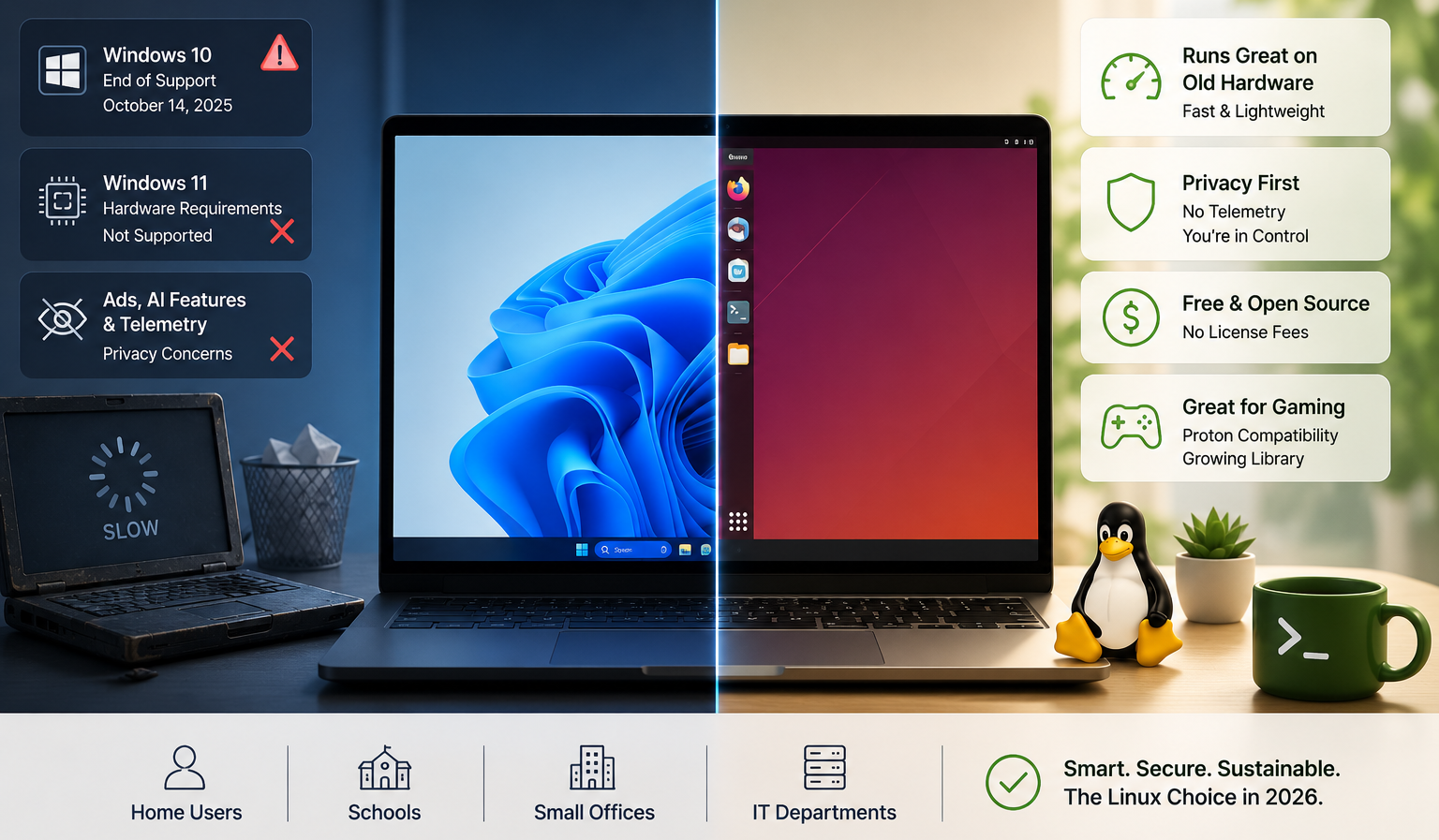
Microsoft’s Windows 10 cutoff pushed the issue, but it isn’t the only reason people leave. Windows 11’s hardware requirements block millions of otherwise capable PCs. Many users also resent built-in AI features, ads in the Start menu, and telemetry collection. Linux distributions run well on decade-old laptops, respect user privacy by default, and cost nothing to install. Gaming compatibility through Valve’s Proton has closed much of the gap that once kept gamers away from Linux.
Businesses face the same pressure at scale. Schools, small offices, and IT departments managing older hardware fleets increasingly treat Linux as a cost-effective, sustainable alternative to buying new machines. For home users, though, the decision usually comes down to comfort and confidence: does the switch feel manageable?
Before You Start: Planning Your Migration
A successful migration starts with an honest inventory, not an installer. Spend thirty minutes answering three questions before you touch anything.
List Your Must-Have Applications
Write down every program you use weekly. Mark each one as web-based, available on Linux, or Windows-only. Most everyday tools, including Chrome, Zoom, Slack, and Microsoft 365 (via the web), already work fine in a browser on any operating system.
Check Your Hardware Compatibility
Search for your laptop or desktop model plus “Linux compatibility” before installing anything. Printers, Wi-Fi cards, and fingerprint readers occasionally need extra setup. Most mainstream hardware from the last ten years works out of the box.
Verify Game and Peripheral Support
Gamers should check ProtonDB.com for each title’s compatibility rating. Most single-player and many multiplayer games run well through Steam’s Proton compatibility layer, though some titles with aggressive anti-cheat systems still refuse to launch on Linux.
Choosing the Right Linux Distribution
Distribution choice matters more for comfort than for raw capability. Nearly every modern distro can browse the web, edit documents, and play media. The real difference lies in the desktop layout and how much maintenance it expects from you.
Best Overall Pick: Linux Mint
Linux Mint with the Cinnamon desktop mirrors the Windows layout closely: a bottom taskbar, a Start-style menu, and a system tray. It uses Ubuntu’s stable package base, so software availability and hardware support stay strong. Mint avoids frequent interface changes, which suits anyone who wants their computer to behave the same way every morning.
Best for a Polished, Modern Feel: Zorin OS
Zorin OS ships with a layout switcher that can mimic Windows 11 or macOS on demand. It includes a built-in tool for running some Windows apps and offers a clean, welcoming first-boot experience that eases newcomers into the Linux world.
Best for Gamers: Pop!_OS or Bazzite
Pop!_OS handles NVIDIA graphics drivers automatically and ships with gaming-friendly defaults. Bazzite targets Steam Deck-style handhelds and living-room gaming PCs, bundling Proton and performance tweaks out of the box.
Best for Developers and IT Professionals: Fedora Workstation
Fedora offers newer software packages, strong container and virtualization tooling, and close alignment with enterprise Red Hat environments. It suits users comfortable troubleshooting occasional rough edges in exchange for cutting-edge features.
Backing Up Your Data the Right Way
Never install a new operating system without a verified backup. Copy your files to an external drive or cloud storage, then confirm the backup actually opens on a second device.
What to Back Up
- Documents, photos, and videos from your user folder
- Browser bookmarks and saved passwords (export them first)
- Email data if you use a local client like Outlook or Thunderbird
- License keys and installers for paid Windows-only software you still need
- A full disk image if you plan to keep Windows available for reference
A Simple Backup Command for Linux Users Later
Once you move to Linux, rsync becomes your go-to backup tool. It only copies changed files, which makes repeat backups fast.
# Back up your home folder to an external drive mounted at /media/backup
rsync -avh --progress /home/yourusername/ /media/backup/home-backup/
The -a flag preserves permissions and timestamps, -v shows progress in detail, and -h prints file sizes in a human-readable format.
Creating a Bootable USB Drive
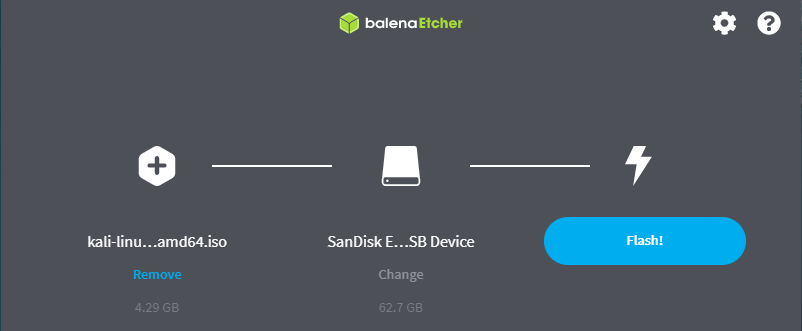
Every mainstream distribution offers a “live” mode you can run directly from a USB stick, with no changes made to your hard drive. This lets you test hardware compatibility before committing to an install.
- Download the distro’s ISO file from its official website.
- Download balenaEtcher or Rufus (Windows) to write the ISO to a USB drive of 8GB or larger.
- Select the ISO file and your USB drive in the tool, then click “Flash” or “Start.”
- Restart your PC and enter the boot menu, usually by pressing F12, F2, or Esc during startup.
- Select the USB drive to boot into a live Linux session.
Test your Wi-Fi, sound, trackpad, and external displays while running the live session. If everything works, you can move forward confidently.
Dual-Boot vs. Full Replacement
Two migration paths exist, and the right one depends on how much you still depend on Windows-only software.
Dual-Boot: The Safe Transition Period
Dual-booting installs Linux alongside Windows on the same drive, letting you choose an operating system at startup. This approach removes almost all risk, since your Windows installation stays untouched. Most installers, including Mint’s and Ubuntu’s, offer an automatic “Install alongside Windows” option that resizes your existing partition safely.
Full Replacement: For a Clean Break
Replacing Windows entirely works best once you have confirmed your must-have apps run on Linux, whether natively or through a browser. This path frees up disk space and avoids the temptation to fall back into old habits every time something feels unfamiliar.
Installing Linux Step by Step
The installation process looks similar across most beginner-friendly distributions.
- Boot from your USB drive and select “Install [Distro Name]” from the welcome screen.
- Connect to Wi-Fi if you’re not already on ethernet, so updates can download during setup.
- Choose your installation type: dual-boot alongside Windows, or erase the disk for a full replacement.
- Set your region, keyboard layout, and time zone.
- Create your user account, including a strong password and computer name.
- Wait for the installer to copy files, which typically takes 15 to 30 minutes.
- Restart when prompted and remove the USB drive.
- Run system updates immediately after your first login.
# Update your new Linux system (Debian/Ubuntu/Mint-based distros)
sudo apt update && sudo apt upgrade -y
# Update your new Linux system (Fedora)
sudo dnf upgrade --refresh -yReplacing Your Favorite Windows Apps
Most Windows programs have a capable Linux equivalent. Trying the alternative before you switch removes a lot of anxiety on migration day.
| Windows App | Linux Alternative |
|---|---|
| Microsoft Word/Excel/PowerPoint | LibreOffice, or Microsoft 365 in a browser |
| Photoshop | GIMP, or Photopea in a browser |
| Outlook | Thunderbird, or Outlook web |
| iTunes | Rhythmbox, or streaming service apps |
| Windows Explorer | Files (Nautilus), Dolphin, or Nemo |
| Notepad | Text Editor (Gedit), or Kate |
Most of these alternatives install through your distro’s app store with a single click, no downloading installers from random websites required.
Running Windows-Only Software on Linux
Some programs genuinely have no direct Linux equivalent. Three practical options exist for these holdouts.
Wine and Bottles
Wine translates Windows program calls into something Linux understands, letting many Windows apps run without a virtual machine. Bottles wraps Wine in a friendly interface, creating isolated environments for each app so one installation doesn’t break another.
Virtual Machines
Tools like VirtualBox or GNOME Boxes let you run a full copy of Windows inside a window on your Linux desktop. This guarantees compatibility for niche accounting software or specialized hardware tools, at the cost of extra RAM and storage.
Keep a Dual-Boot Option Open
If one or two programs remain essential, dual-booting solves the problem permanently. You get daily-driver Linux with a safety net for the rare occasion you need native Windows.
Common Migration Mistakes to Avoid
- Skipping the live-boot test. Always confirm hardware works before installing anything permanently.
- Not backing up browser passwords. Export them first; migrating manually later wastes time.
- Choosing a distro based on hype instead of desktop layout. Comfort matters more than benchmarks for daily use.
- Ignoring driver-specific hardware, such as certain Wi-Fi chips or NVIDIA GPUs, which sometimes need a manual driver install.
- Deleting Windows before confirming every app has a working replacement.
FAQ
Do I need to know how to code to use Linux? No. Beginner-friendly distributions like Linux Mint and Zorin OS work entirely through graphical menus. The terminal remains available for advanced tasks, but daily use rarely requires it.
Will my printer and Wi-Fi work on Linux? Most mainstream hardware from the past decade works automatically. Check your specific model online before switching, especially for laptops with unusual Wi-Fi chipsets.
Can I still play my Steam games on Linux? Many games run well through Steam’s Proton compatibility layer. Check ProtonDB.com for your specific titles, since some games with strict anti-cheat systems remain unsupported.
Is dual-booting safe for my Windows files? Yes, when done correctly. Standard installers resize your Windows partition without touching existing files, though a full backup remains a smart precaution regardless.
What happens to my Windows license if I switch? Nothing forces you to give it up. You can keep Windows on a separate partition, a spare drive, or a virtual machine for the rare program that needs it.
How long does a full migration take? Expect two to four hours total for a typical home PC: about an hour for backup and research, thirty minutes for installation, and the rest for reinstalling apps and personalizing settings.
Conclusion
Migrating from Windows to Linux no longer requires deep technical expertise or a high tolerance for troubleshooting. Beginner-friendly distributions like Linux Mint and Zorin OS replicate the Windows experience closely enough that most users adjust within a few days. Plan ahead: back up your data, test your hardware through a live USB session, and choose between dual-boot and full replacement based on how much Windows-only software you still need. Take the process one step at a time, and the switch becomes a manageable weekend project rather than a stressful ordeal.
Want more articles and tutorials like this?
Get new tutorials, security alerts, and IT tips straight to your inbox.