Transferring Files from the Command Line: A Practical Guide to Linux Shell and Windows PowerShell
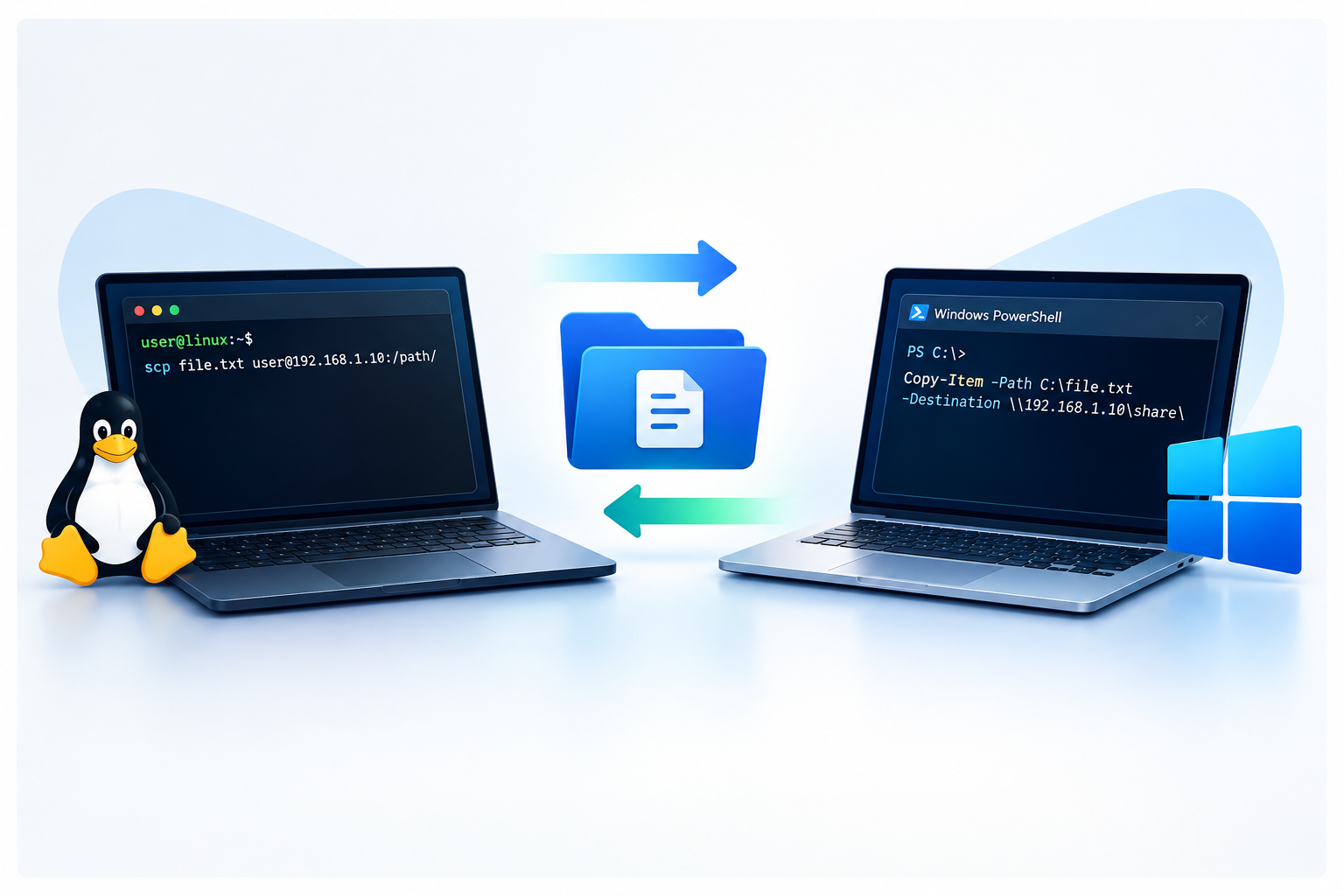
Copying a file between two machines is one of those tasks that looks simple until there’s no shared drive, no GUI, and no time to install extra software. Every Linux administrator eventually needs to move a file over SSH from the shell, and every Windows administrator eventually needs to do the same thing from PowerShell. This guide covers the built-in, no-extra-install methods for both, plus what to do when the fastest tool isn’t available.
Table of Contents
- Why Command-Line Transfers Matter
- Prerequisites
- Transferring Files with the Linux Shell
- Transferring Files with Windows PowerShell
- Cross-Platform Transfers: Linux to Windows and Back
- Choosing the Right Method
- Common Mistakes and Troubleshooting
- FAQ
- Conclusion
Why Command-Line Transfers Matter
Remote administration rarely happens through a file explorer. Servers are managed over SSH or PowerShell Remoting, often with no desktop environment installed at all. Knowing how to move a file — a config, a log bundle, a patch, an installer — directly from the shell saves time and avoids setting up temporary file shares just to complete a five-minute task.
This also matters for troubleshooting. When a GUI-based transfer tool fails or isn’t installed, falling back to the command line is often the fastest way to get unstuck.
Prerequisites
A few things need to be in place before any of these commands will work reliably:
- An SSH server running on the receiving Linux host. Most distributions ship
openssh-server, but it isn’t always enabled by default on minimal installs. Check withsystemctl status ssh(Debian/Ubuntu) orsystemctl status sshd(RHEL/Fedora), and open port 22 on the firewall if needed. - The OpenSSH client feature installed on Windows. It’s included by default on current builds, but on older or stripped-down installs it may need to be added through Settings > Apps > Optional Features > OpenSSH Client, or via
Add-WindowsCapability -Online -Name OpenSSH.Client~~~~0.0.1.0. - Sufficient permissions on both ends. The account used for the transfer needs read access to the source file and write access to the destination directory. On Linux, this means checking file ownership and mode bits with
ls -l; on Windows, it means confirming the account isn’t blocked by NTFS permissions on the destination folder. - Network connectivity on the correct port. SSH-based transfers use port 22 by default, and PowerShell Remoting uses port 5985 (HTTP) or 5986 (HTTPS) for WinRM. A quick
Test-NetConnection -ComputerName <host> -Port 22from PowerShell, ornc -zv <host> 22from Linux, confirms whether the port is reachable before troubleshooting further.
Transferring Files with the Linux Shell
SCP: The Default Choice
scp (secure copy) rides on top of an existing SSH connection, so it’s encrypted and authenticated using the same credentials or keys as a normal SSH login.
To push a local file to a remote server:
mark@bento:~$ scp document.txt mark@10.10.234.164:/home/mark
To pull a file from a remote server to the local machine, just reverse the source and destination:
scp mark@10.10.234.164:/home/mark/notes.txt ./notes.txt
Add -r to copy an entire directory:
scp -r ./project_folder mark@10.10.234.164:/home/mark/
If a script written for an older system suddenly breaks after an OpenSSH upgrade, it’s worth knowing that OpenSSH 9.0 changed scp to use the SFTP protocol internally by default instead of the legacy scp/rcp protocol. This mostly happens transparently, but certain wildcard expansions and remote paths like ~otheruser/file can behave differently. The -O flag forces the old behavior when needed:
scp -O document.txt mark@10.10.234.164:/home/mark
rsync: Better for Repeated or Large Transfers
rsync copies files over SSH the same way scp does, but it only transfers the parts of a file that changed on subsequent runs, which makes it much faster for repeated backups or large directory trees:
rsync -avz ./project_folder/ mark@10.10.234.164:/home/mark/project_folder/
The -a flag preserves permissions and timestamps, -v shows progress, and -z compresses data in transit.
SFTP: An Interactive Alternative
sftp opens an interactive session for browsing remote directories and transferring files, which is useful when the exact remote path isn’t known ahead of time:
sftp mark@10.10.234.164
sftp> cd /home/mark
sftp> put document.txt
sftp> get notes.txt
sftp> exit
When SSH Isn’t Available
If a target machine has no SSH server running, a temporary HTTP server is a quick fallback on a trusted local network. Python 3 includes one out of the box:
python3 -m http.server
This serves the current directory on port 8000. On the receiving machine, wget or curl grabs the file:
wget http://192.168.1.102:8000/file.txt
curl -O http://192.168.1.102:8000/file.txt
This method has no encryption and no authentication, so it should only be used on a trusted network and only for as long as the transfer takes. Stop the server with Ctrl+C as soon as the file has been retrieved.
Transferring Files with Windows PowerShell
Modern Windows 10, Windows 11, and Windows Server include a built-in OpenSSH client, which means the same scp syntax used on Linux works directly from PowerShell:
C:\Users\tami\Downloads> scp linuxdcagent.zip retgate@192.168.170.204:/home/retgate
This pushes the file to a Linux host using SSH authentication, exactly as it would from a Linux terminal.
Copy-Item with PowerShell Remoting
For Windows-to-Windows transfers where PowerShell Remoting (WinRM) is already enabled, Copy-Item can send or receive files through an existing remote session without needing SSH at all:
$session = New-PSSession -ComputerName SERVER02

# Copy a local file to the remote computer
Copy-Item -Path "C:\Files\report.csv" -Destination "C:\Files\" -ToSession $session

# Copy a file from the remote computer to the local machine
Copy-Item -FromSession $session -Path "C:\Files\log.txt" -Destination "C:\Files\log.txt"

Remove-PSSession $session
This is a convenient option in an Active Directory environment where WinRM is already configured for remote management, since it avoids setting up SSH keys just to move a file.
Invoke-WebRequest for HTTP Downloads
When a file is being served over HTTP or HTTPS, such as from the Python server described above or an internal file repository, Invoke-WebRequest downloads it directly:
Invoke-WebRequest -Uri "http://192.168.1.100:8000/file.txt" -OutFile "C:\Files\file.txt"
On older PowerShell versions, adding -UseBasicParsing avoids a dependency on Internet Explorer’s parsing engine and speeds up large downloads. The .NET WebClient class is another long-standing option that behaves similarly:
(New-Object System.Net.WebClient).DownloadFile('http://192.168.1.100:8000/file.txt', 'C:\Files\file.txt')
Robocopy for Network Shares
When both machines are already connected through SMB shares, robocopy is the standard Windows tool for reliable, resumable copies, especially for large directory trees:
robocopy C:\Source \\SERVER02\Share\Destination /E /Z
The /E flag copies subdirectories including empty ones, and /Z enables restart mode so an interrupted copy over an unreliable link can resume instead of starting over.
PowerShell Direct for Hyper-V Virtual Machines
If the target is a Hyper-V virtual machine running on the same host, PowerShell Direct allows Copy-Item -ToSession/-FromSession to work over the hypervisor’s VM bus instead of a network connection, which is useful when a VM has no network adapter configured yet:
$vmSession = New-PSSession -VMName "TestVM" -Credential (Get-Credential)
Copy-Item -Path "C:\Files\setup.exe" -Destination "C:\Files\" -ToSession $vmSession
Remove-PSSession $vmSession
This only works when running the command from the Hyper-V host itself, and the VM must be running a version of Windows that supports PowerShell Direct (Windows Server 2016/Windows 10 or later as the guest).
Cross-Platform Transfers: Linux to Windows and Back
Because Windows now ships OpenSSH by default, the same scp command works in both directions between Linux and Windows hosts, as long as an SSH server is running and reachable on the receiving side:
# From Windows PowerShell, pushing to a Linux server
scp linuxdcagent.zip retgate@192.168.170.204:/home/retgate
# From a Linux shell, pushing to a Windows server running OpenSSH
scp installer.msi administrator@192.168.170.55:C:/Users/administrator/Downloads/
Windows paths in an scp destination need forward slashes, and the OpenSSH server on Windows must be installed and running (Get-Service sshd will confirm this) before either direction will work.
Choosing the Right Method
| Method | Platform | Encrypted | Best For |
|---|---|---|---|
| scp | Linux, Windows (via OpenSSH) | Yes | One-off transfers, cross-platform |
| rsync | Linux, macOS | Yes | Large or repeated transfers, backups |
| sftp | Linux, Windows | Yes | Interactive browsing before transfer |
| Copy-Item -ToSession/-FromSession | Windows | Yes (over WinRM) | Windows-to-Windows in AD environments |
| Invoke-WebRequest / WebClient | Windows | Depends on URL scheme | Pulling files from an HTTP(S) source |
| robocopy | Windows | No (SMB-dependent) | Large directory trees over network shares |
| Python http.server + wget/curl | Linux, Windows | No | Quick transfers with no SSH configured |
Common Mistakes and Troubleshooting
Leaving off the destination path. Running scp file.txt user@host: without a path usually drops the file into the user’s home directory, which isn’t always intended. Always specify a full path when the destination matters.
Assuming WinRM is already enabled. Copy-Item -ToSession fails immediately if PowerShell Remoting hasn’t been enabled on the target. Run Enable-PSRemoting -Force on the target machine first, and confirm the Windows Firewall allows WinRM traffic on the correct network profile.
Forgetting that scp changed its default protocol. A script that worked for years can start failing after an OpenSSH upgrade to version 9.0 or later. Check the OpenSSH version with ssh -V, and add -O to scp if the legacy protocol is needed.
Using robocopy without testing exit codes. Robocopy returns non-zero exit codes even on successful runs, since the codes represent different kinds of changes rather than plain success or failure. Automation scripts should check for exit codes 0–7, which all indicate success, rather than treating any non-zero code as an error.
Running a temporary HTTP server and forgetting to close it. A Python HTTP server or any ad hoc file server left running after a transfer is an unauthenticated entry point on the network. Stop it as soon as the file has been retrieved.
FAQ
Do I need to install anything extra to use scp on Windows? No. Windows 10 (version 1809 and later), Windows 11, and current Windows Server releases include the OpenSSH client by default, so scp and sftp work directly from PowerShell or Command Prompt.
What’s the difference between scp and rsync? Both use SSH for encryption and authentication, but rsync only transfers the differences between files on repeated runs, which makes it significantly faster for backups or large trees that haven’t changed much since the last transfer.
Can PowerShell copy files without PowerShell Remoting enabled? Yes. If WinRM isn’t configured, scp (via the built-in OpenSSH client) or Invoke-WebRequest against an HTTP source both work without any remoting setup.
Why does my scp command fail after a Windows or Linux update? This is usually caused by the OpenSSH 9.0+ protocol change from legacy scp/rcp to SFTP. Adding the -O flag restores the previous behavior if a script depends on it.
Is it safe to use Python’s http.server for file transfers? It’s fine for short-lived transfers on a trusted local network, since it has no encryption or authentication. It shouldn’t be used for sensitive files or left running longer than necessary.
Conclusion
Both Linux and Windows now ship with everything needed to move files securely from the command line. scp and rsync remain the standard on Linux, and thanks to the built-in OpenSSH client, the same scp syntax carries over directly to Windows PowerShell. For Windows-native environments already using PowerShell Remoting, Copy-Item -ToSession and -FromSession avoid the need for SSH entirely, while Invoke-WebRequest and robocopy round out the toolkit for HTTP downloads and large network-share transfers. Knowing which one fits a given situation saves time and avoids unnecessary detours through GUI tools that may not even be installed.
Need help standardizing file transfer and remote administration practices across your Linux and Windows fleet? Contact GEANTECHNOLOGY for IT Consulting — reach out on WhatsApp or Telegram.
Want more articles and tutorials like this?
Get new tutorials, security alerts, and IT tips straight to your inbox.