Does HTTPS Mean a Website Is Secure? What the Padlock Does and Doesn’t Tell You
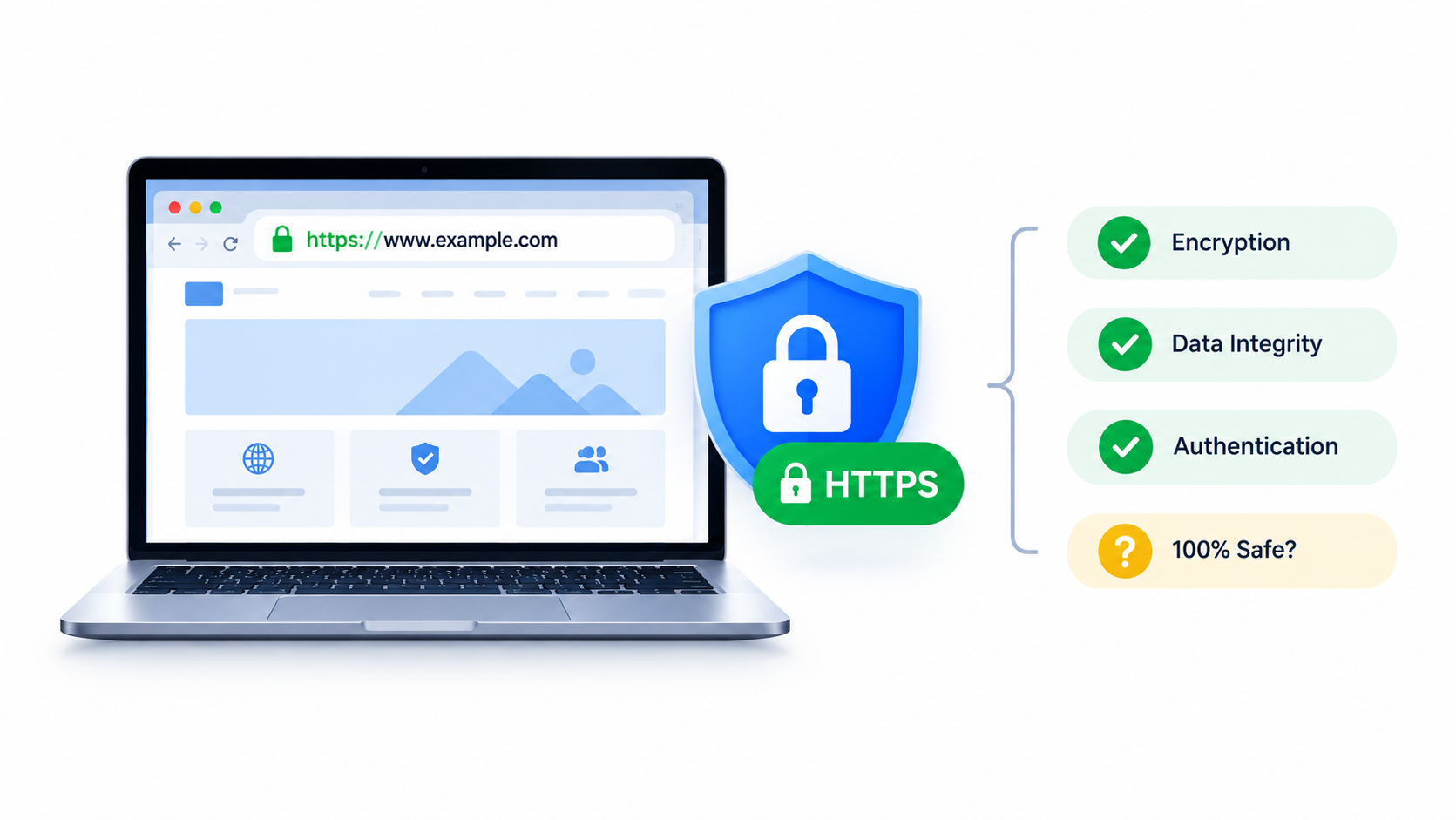
For years, security advice sounded simple: “Look for the padlock.” Browsers trained us to trust it. Attackers learned the same lesson and now put padlocks on their phishing pages too. I wrote this guide to explain what HTTPS really guarantees, where it stops, and what you need to do on top of it. Whether you browse the web or run a website, you will leave with practical checks and configuration examples.
Table of Contents
- What HTTPS Actually Does
- What HTTPS Does Not Protect
- Why Attackers Love HTTPS Too
- Types of Certificates: DV, OV, and EV
- How to Check a Website Yourself
- How to Check a Certificate from the Command Line
- HTTPS Mistakes Website Owners Make
- How to Harden Your Site Beyond HTTPS
- A Quick Checklist for Visitors
- FAQ
- Conclusion
What HTTPS Actually Does
HTTPS is HTTP running inside a TLS tunnel. TLS gives you three things.
Encryption
TLS scrambles the data between your browser and the server. Someone on the same Wi-Fi network, or a router along the path, cannot read your passwords, form entries, or cookies.
Integrity
TLS detects tampering. If someone changes a single byte in transit, the connection fails. This stops internet providers and hostile networks from injecting ads or scripts into pages you load.
Server authentication
The server presents a certificate, and a trusted Certificate Authority (CA) signed it. The signature says: “Whoever controls this domain asked us for this certificate.” Your browser checks that the name matches the address you typed.
That last point matters most. The certificate proves you reached example.com. It does not prove example.com deserves your trust.
What HTTPS Does Not Protect
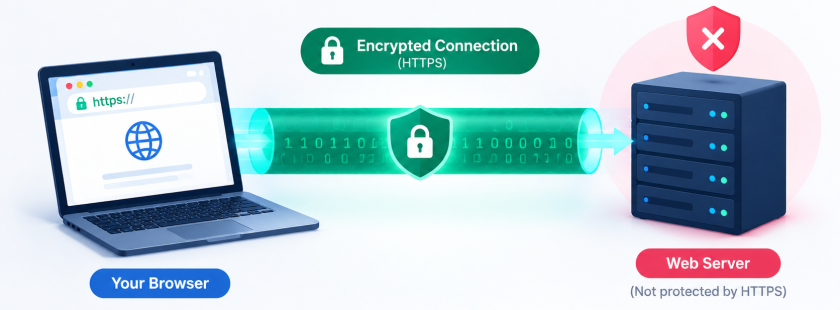
HTTPS covers the road, not the destination. Here is what stays outside its reach.
- The site’s intent. A scammer can register
secure-bank-login.com, get a certificate, and collect your credentials over an encrypted connection. - The server itself. If attackers break into the web server, they read your data after TLS decrypts it.
- Application bugs. SQL injection, cross-site scripting (XSS), broken access control, and file upload flaws all work fine over HTTPS.
- Outdated software. An old WordPress plugin with a known vulnerability stays vulnerable behind a valid certificate.
- Your device. Malware on your laptop sees everything before encryption starts.
- Third-party scripts. A compromised analytics or ad script runs inside your page with full access.
Think of HTTPS as a sealed armored truck. The truck protects the cargo on the road. It says nothing about who loaded it or who receives it.
Why Attackers Love HTTPS Too
Free certificates changed the game. Let’s Encrypt and similar services issue certificates automatically, with no payment and almost no identity checks. That helped the web move to encryption, which is good news. It also means criminals get the same padlock as everyone else.
Security researchers have repeatedly found that most phishing sites now use HTTPS. Attackers know victims trust the padlock, so they make sure it appears.
Common tricks include:
- Lookalike domains:
paypa1.com(with a number one) ormicros0ft-support.com. - Subdomain tricks:
login.yourbank.com.evil-site.netputs the real brand first, but the real domain isevil-site.net. - Internationalized lookalikes: characters from other alphabets that look identical to Latin letters.
- Hacked legitimate sites: attackers upload a phishing page to a real, HTTPS-enabled website.
In every case, the certificate is valid. The browser has no reason to complain.
Types of Certificates: DV, OV, and EV
Not all certificates verify the same things.
| Type | What the CA checks | Typical use |
|---|---|---|
| DV (Domain Validation) | You control the domain | Blogs, small sites, most of the web |
| OV (Organization Validation) | The organization exists and owns the domain | Business sites |
| EV (Extended Validation) | Deeper legal and operational checks | Banks, large enterprises |
Most sites use DV certificates. They prove domain control and nothing else. Years ago, browsers showed a green company name for EV certificates. Modern browsers have dropped that display, because research showed users did not understand or notice it. So today, a padlock looks the same whether the certificate is DV or EV.
You can still click the padlock and read the certificate details, which sometimes reveal the organization name. But for everyday browsing, don’t expect the browser to tell you who stands behind a site.
How to Check a Website Yourself
Before you enter a password or payment details, run through these quick checks.
Read the domain carefully
Look at the part right before the first single slash. In https://accounts.google.com.verify-id.xyz/login, the real domain is verify-id.xyz. Read from right to left, starting at the top-level domain.
Check for spelling tricks
Zoom in on the address. Look for swapped letters, extra hyphens, or numbers replacing letters.
Type the address yourself
For banks, email, and cloud accounts, use a bookmark or type the address. Don’t click links from messages.
Click the padlock
Open the certificate details. Check who issued it and when it expires. A certificate issued yesterday for a site claiming to be a decades-old bank deserves a second look.
Look at the page itself
Poor grammar, urgent threats, and requests for unusual information still signal a scam.
Use a password manager
A password manager only fills credentials on the exact domain you saved them for. If it refuses to autofill, pay attention. That refusal often exposes a fake page.
Image suggestion 2
Title: How to read a URL to spot a fake domain
Alt tag: Annotated URL highlighting the real registered domain versus a deceptive subdomain in a phishing link
How to Check a Certificate from the Command Line
If you administer systems, you can inspect certificates directly. These commands work on Linux and macOS.
View the certificate details
echo | openssl s_client -connect example.com:443 -servername example.com 2>/dev/null \
  | openssl x509 -noout -subject -issuer -dates -ext subjectAltName
This prints the subject, the issuer, the validity dates, and every domain name the certificate covers.
Check the expiry date only
echo | openssl s_client -connect example.com:443 -servername example.com 2>/dev/null \
  | openssl x509 -noout -enddate
See which TLS version the server negotiates
openssl s_client -connect example.com:443 -tls1_3 </dev/null 2>/dev/null | grep -E "Protocol|Cipher"If this fails, the server may not support TLS 1.3. Try -tls1_2 to test the older version.
Look at the security headers
curl -sI https://example.com | grep -iE "strict-transport|content-security|x-frame|x-content-type|referrer-policy|permissions-policy"No output means the server sends none of those headers. We cover why they matter below.
Run a full TLS audit
The open-source tool testssl.sh checks protocols, ciphers, and known vulnerabilities:
git clone --depth 1 https://github.com/drwetter/testssl.sh.git
cd testssl.sh
./testssl.sh --quiet https://example.com
Run this only against servers you own or have permission to test.
HTTPS Mistakes Website Owners Make
Getting a certificate is easy. Configuring it well takes more care. These mistakes appear again and again.
Mixed content
Your page loads over HTTPS, but it pulls an image, script, or stylesheet over plain HTTP. Browsers block active mixed content (scripts) and warn about passive content (images). Both weaken your page.
Forgetting to redirect HTTP to HTTPS
Visitors who type your domain without https:// land on the unencrypted version first. Redirect all HTTP traffic.
Letting certificates expire
An expired certificate scares visitors away and breaks APIs. Certificate lifetimes keep getting shorter across the industry, so manual renewal grows riskier every year. Automate it.
Supporting old protocols
TLS 1.0 and 1.1 have known weaknesses. Disable them. Keep TLS 1.2 and 1.3.
Skipping HSTS
Without HTTP Strict Transport Security, an attacker on a hostile network can downgrade a visitor’s first connection to plain HTTP.
Trusting HTTPS and ignoring everything else
Teams sometimes treat the padlock as the finish line. Meanwhile, the CMS runs three years of unpatched plugins.
How to Harden Your Site Beyond HTTPS
Here is a practical baseline for a Linux server running Nginx. Adapt it for Apache if you prefer.
Step 1: Get and renew certificates automatically
sudo apt update
sudo apt install certbot python3-certbot-nginx -y
sudo certbot --nginx -d example.com -d www.example.com
Certbot installs a timer that renews certificates. Confirm it works:
sudo certbot renew --dry-run
systemctl list-timers | grep certbot
Step 2: Redirect HTTP to HTTPS
nginx
server {
    listen 80;
    listen [::]:80;
    server_name example.com www.example.com;
    return 301 https://example.com$request_uri;
}
Step 3: Use modern TLS settings
server {
    listen 443 ssl http2;
    listen [::]:443 ssl http2;
    server_name example.com;

    ssl_certificate     /etc/letsencrypt/live/example.com/fullchain.pem;
    ssl_certificate_key /etc/letsencrypt/live/example.com/privkey.pem;

    ssl_protocols TLSv1.2 TLSv1.3;
    ssl_prefer_server_ciphers off;
    ssl_session_timeout 1d;
    ssl_session_cache shared:SSL:10m;
    ssl_session_tickets off;

    # OCSP stapling
    ssl_stapling on;
    ssl_stapling_verify on;
}
Mozilla’s SSL Configuration Generator gives you up-to-date cipher lists for your exact server version, so check it before copying cipher settings.
Step 4: Add security headers
add_header Strict-Transport-Security "max-age=31536000; includeSubDomains" always;
add_header X-Content-Type-Options "nosniff" always;
add_header X-Frame-Options "SAMEORIGIN" always;
add_header Referrer-Policy "strict-origin-when-cross-origin" always;
add_header Permissions-Policy "camera=(), microphone=(), geolocation=()" always;
Start HSTS with a short max-age (for example, 300 seconds) while you test. A long max-age locks browsers into HTTPS, so make sure every subdomain works before you raise it. Skip the preload directive until you fully understand it, because removing a domain from browser preload lists takes a long time.
Step 5: Add a Content Security Policy
A Content Security Policy (CSP) tells the browser which sources it may load scripts and styles from. It limits the damage from XSS. Begin in report-only mode:
add_header Content-Security-Policy-Report-Only "default-src 'self'; img-src 'self' data: https:; script-src 'self'; style-src 'self' 'unsafe-inline'" always;Watch the browser console for violations, adjust the policy, then switch to the enforcing Content-Security-Policy header.
Step 6: Test and reload
sudo nginx -t && sudo systemctl reload nginxWordPress-specific steps
If your site runs WordPress, add these lines to wp-config.php to force encrypted logins and admin sessions:
define( 'FORCE_SSL_ADMIN', true );Then follow these habits:
- Update core, themes, and plugins quickly. Delete the ones you don’t use.
- Use strong, unique admin passwords and enable two-factor authentication.
- Limit login attempts and hide or rename default login paths only as an extra layer, not as your main defense.
- Keep regular, tested backups stored off the server.
- Set cookies with
SecureandHttpOnlyflags. WordPress does this on HTTPS sites by default, but verify it in your browser’s developer tools.
Step 7: Monitor
Set an alert for certificate expiry. A simple cron job works:
#!/bin/bash
DOMAIN="example.com"
DAYS_LEFT=$(echo | openssl s_client -connect "$DOMAIN":443 -servername "$DOMAIN" 2>/dev/null \
  | openssl x509 -noout -enddate | cut -d= -f2 | xargs -I{} date -d "{}" +%s)
NOW=$(date +%s)
REMAINING=$(( (DAYS_LEFT - NOW) / 86400 ))

if [ "$REMAINING" -lt 14 ]; then
  echo "Certificate for $DOMAIN expires in $REMAINING days" | mail -s "Certificate warning" admin@example.com
fi
You can also watch Certificate Transparency logs for your domain. They reveal if someone issues a certificate for your name without your knowledge.
A Quick Checklist for Visitors
Keep this short list in mind each time you sign in or pay online:
- Confirm the exact domain, reading right to left.
- Reach important sites through bookmarks, not message links.
- Let your password manager decide whether a site is genuine.
- Turn on two-factor authentication, ideally with a hardware key or authenticator app, because stolen passwords alone then fail.
- Keep your browser and operating system updated.
- Treat urgency and fear as red flags, whatever the padlock says.
- Avoid sensitive logins on public Wi-Fi unless you trust your device’s protections.
FAQ
Does HTTPS make my website safe from hackers?
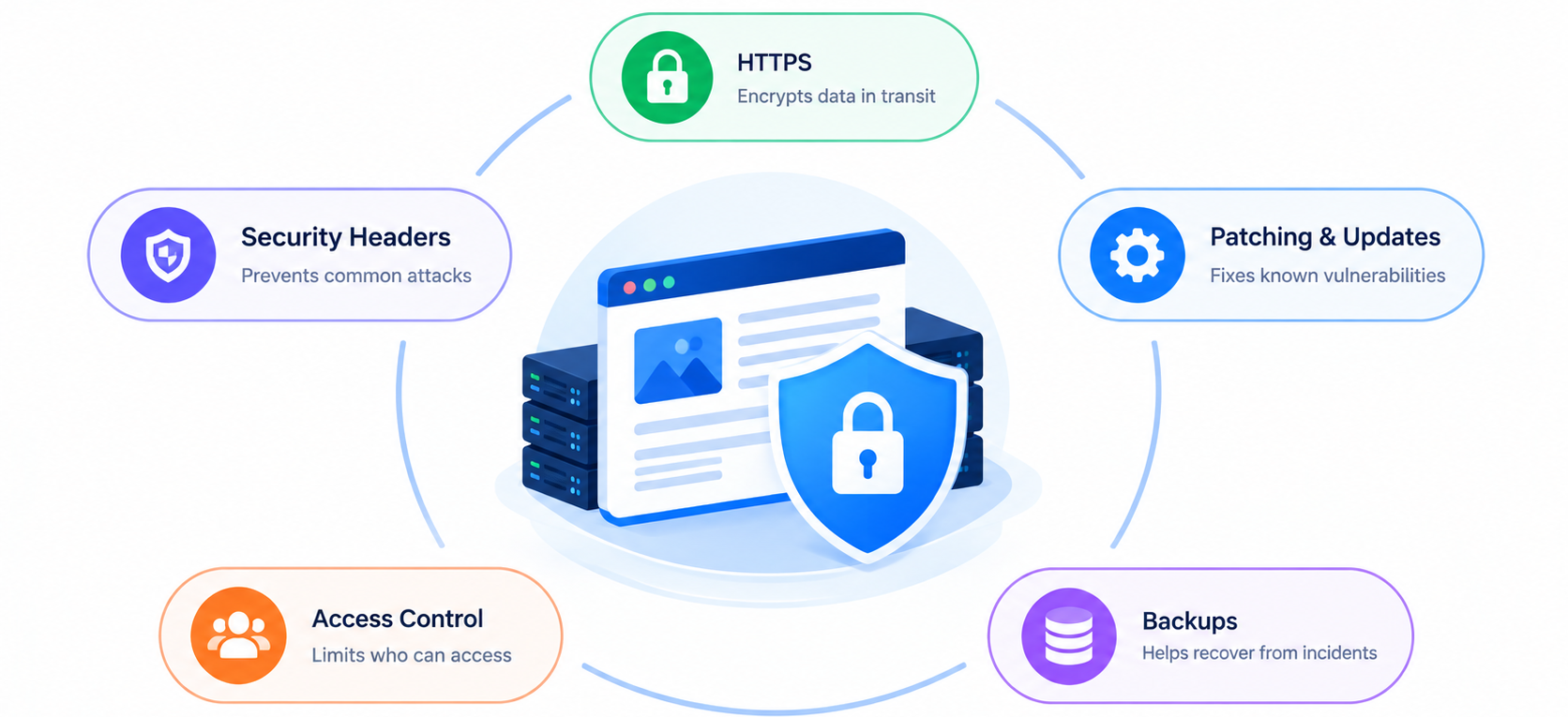
No. HTTPS protects data in transit. Hackers attack the server, the application code, and the people who use it. You still need patching, strong authentication, backups, and monitoring.
Can a phishing site have a valid HTTPS certificate?
Yes, and many do. Certificate authorities verify domain control, not honesty. If a scammer owns a lookalike domain, they can get a valid certificate for it.
Is HTTP always dangerous?
On an untrusted network, yes, because anyone can read or change the traffic. Browsers now warn about HTTP pages for good reason. Even static blogs should use HTTPS, since it prevents tampering and injected content.
Is the padlock icon still a trust signal?
Only for the connection. Browsers have moved away from presenting it as a sign of trustworthiness, and some now use a neutral icon. Check the domain, not the symbol.
What is the difference between SSL and TLS?
SSL is the older protocol, and it is obsolete. TLS replaced it. People still say “SSL certificate” out of habit, but modern sites use TLS.
Do I need to pay for a certificate?
For most blogs and small business sites, a free DV certificate from Let’s Encrypt works well. Pay for OV or EV only if your organization or customers need the extra identity verification, or if your hosting setup requires a commercial CA.
What does HSTS do?
HSTS tells browsers to connect to your site only over HTTPS for a set time. It blocks downgrade attacks and removes the insecure first redirect for returning visitors.
How often should I check my site’s security?
Automate certificate renewal and expiry alerts. Run a TLS scan and a header check after every server change, and at least quarterly. Review plugins and updates weekly if you run WordPress.
Will HTTPS improve my SEO?
Google has used HTTPS as a lightweight ranking signal for years. The bigger benefit is trust: visitors stay on a site that doesn’t throw browser warnings.
Conclusion
HTTPS matters. It encrypts traffic, prevents tampering, and confirms you reached the domain you typed. Every website should use it, and every visitor should expect it.
But the padlock answers one narrow question: “Is this connection private?” It does not answer “Is this site honest?” or “Is this server secure?” Attackers use HTTPS freely, so the padlock alone proves very little about intent.
If you browse, read the domain, use a password manager, and enable two-factor authentication. If you run a website, go beyond the certificate: redirect everything to HTTPS, enforce modern TLS, add security headers, keep software patched, and monitor expiry dates. Layered defenses protect people far better than any single icon in the address bar.
Want more articles and tutorials like this?
Get new tutorials, security alerts, and IT tips straight to your inbox.
My experience shows that the server certificate itself often indicates the true level of protection. Sometimes a seemingly secure connection fails due to outdated software.