RAID Is Not a Backup: Five Storage Failures Every Sysadmin Should Understand
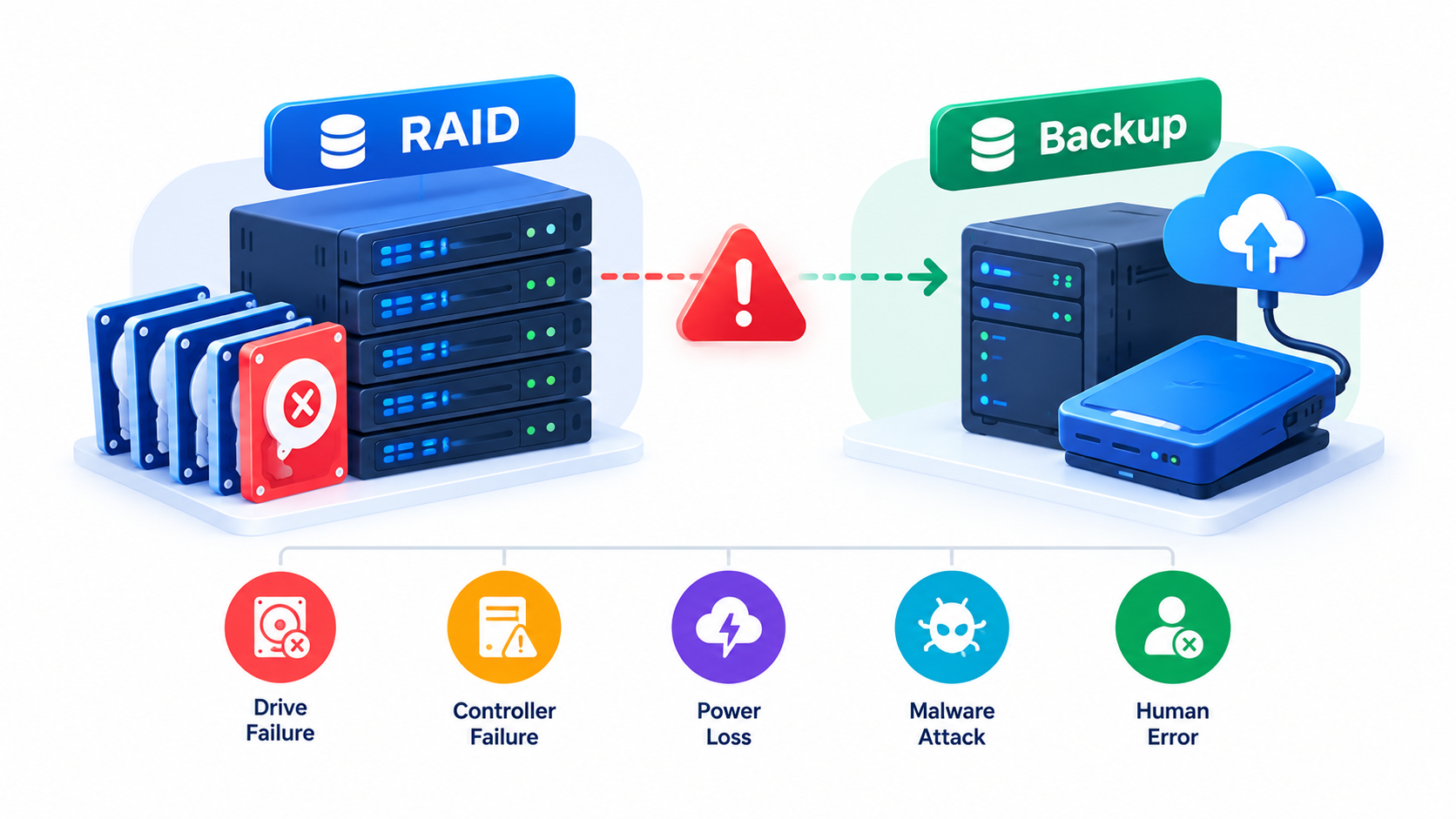
A technical guide for system administrators on RAID reliability, data loss, storage failures, and practical backup strategies.
The key takeaway: RAID helps keep systems running when certain disks fail, but it does not protect your data against accidental deletion, ransomware, filesystem corruption, or every type of hardware failure. A reliable data protection strategy combines RAID, independent backups, and tested recovery procedures.
Table of Contents
- Understanding RAID and backups
- Failure 1: Multiple disk failures during a rebuild
- Failure 2: Accidental deletion and human error
- Failure 3: Ransomware and malicious activity
- Failure 4: Filesystem corruption and silent data errors
- Failure 5: Controller, power, and site failures
- How to build a reliable storage protection strategy
- Practical Linux administration commands
- Conclusion
- Frequently asked questions
Understanding RAID and backups
RAID, short for Redundant Array of Independent Disks, combines multiple physical drives into a logical storage system. Depending on the RAID level, it can improve performance, provide redundancy, or do both.
For example, RAID 1 mirrors data across two drives, RAID 5 uses distributed parity to tolerate one drive failure, and RAID 6 can tolerate two drive failures. RAID 0 stripes data across drives without redundancy, so a single drive failure can make the entire array unavailable.
The important distinction is that RAID provides availability and limited fault tolerance; a backup provides a separate recovery point.
Consider a file server with four disks in a RAID 5 array. If one disk fails, the server can continue operating in a degraded state while the administrator replaces the disk and rebuilds the array. But if someone deletes an entire directory, RAID faithfully maintains that deletion across the array.
The same problem occurs when malware encrypts files or an application corrupts a database. RAID may continue working exactly as designed while the data becomes unusable.
RAID vs. backup: What is the difference?
| Capability | RAID | Independent backup |
|---|---|---|
| Survive certain disk failures | Yes, depending on RAID level | Can help restore data |
| Recover deleted files | Usually no | Yes, if retained |
| Restore an older version | Not by itself | Yes, if versioned |
| Recover from ransomware | Not by itself | Yes, if an unaffected copy exists |
| Protect against server destruction | Usually no | Yes, if stored separately |
| Restore a database to a previous point | Not by itself | Yes, if the backup supports it |
RAID and backups solve different problems. A resilient environment uses both, alongside monitoring, access controls, and tested disaster recovery procedures.
Failure 1: Multiple disk failures during a rebuild
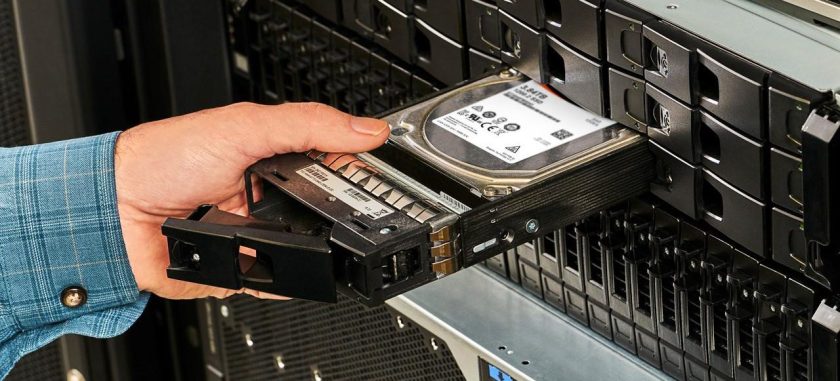
One of the most dangerous moments for a redundant storage array is the rebuild process after a disk failure.
Why rebuilds increase risk
Imagine a RAID 5 array containing four 8 TB drives. The array can tolerate one failed drive. Once that drive fails, the remaining disks must supply the data needed to reconstruct its contents onto a replacement.
During the rebuild, the array has lost its normal redundancy. If another drive fails, the array generally cannot reconstruct all the missing data and may become unusable.
Large drives also take time to rebuild, especially under heavy workloads. The actual duration depends on the controller, drive performance, data volume, workload, and configuration.
RAID 6 offers additional protection because it can tolerate two failed drives. However, it cannot guarantee recovery from every combination of hardware errors, corruption, or additional failures.
What about unreadable sectors?
A drive may remain operational while certain sectors become unreadable. When a RAID controller encounters an unreadable sector during a rebuild, it may be unable to reconstruct the affected data, depending on the RAID layout and available redundancy.
This is one reason why drive health monitoring and regular integrity checks matter. A drive that has not yet triggered a complete failure can still cause problems.
How sysadmins should reduce the risk
- Choose a RAID level based on drive count, capacity, workload, and acceptable failure risk.
- Monitor disk health, controller events, and degraded-array alerts.
- Keep compatible replacement drives available for critical systems.
- Maintain a current, independent backup before replacing disks or performing risky storage operations.
- Schedule consistency checks or scrubs according to the storage platform’s documentation.
- Avoid leaving a degraded array unattended.
A hot spare can shorten the time before rebuilding starts, but it does not replace a backup.
Practical lesson: RAID redundancy can disappear when you need it most. Monitor the array and make sure another recoverable copy exists before a storage emergency occurs.
Failure 2: Accidental deletion and human error
Not every storage disaster starts with a hardware failure. Sometimes, the problem is a single command, a mistaken click, or an application that removes the wrong files.
When RAID makes deletion permanent across the array
Suppose a system administrator accidentally runs:
rm -rf /srv/shared/projects/The command attempts to remove the specified directory and its contents. If the path is correct and the user has sufficient permissions, the data can disappear from the live filesystem.
On a mirrored RAID 1 array, both copies reflect the deletion. On RAID 5 or RAID 6, the array continues updating its data and parity as necessary.
RAID does not normally preserve a historical version of the directory.
A similar problem occurs when an administrator runs a faulty synchronization command:
rsync -av --delete /srv/source/ /srv/destination/The --delete option removes destination entries that do not exist in the source. If the source is empty because of an incorrect mount or path, the destination may lose files too.
Why snapshots are helpful, but not enough
Filesystem or storage snapshots can preserve a previous state, allowing administrators to recover deleted or modified files quickly. However, snapshots on the same storage system may also disappear if the pool fails, the storage system is compromised, or an administrator deletes the snapshots.
Treat snapshots as a recovery convenience, not as your only backup.
How to protect against human error
- Use least-privilege permissions for administrators and service accounts.
- Confirm paths and mounted filesystems before running destructive commands.
- Use dry-run options where available.
- Keep versioned backups with an appropriate retention period.
- Protect backup deletion rights with separate credentials.
- Test the restoration of individual files and directories.
For example, inspect the intended synchronization operation before executing it:
rsync -av --delete --dry-run \
  /srv/source/ \
  /srv/destination/
Review the output carefully. A dry run helps reveal unintended deletions, but it cannot guarantee that the source contains the correct data.
Practical lesson: RAID protects against certain drive failures, not against the person or process that tells the system to delete valid data.
Failure 3: Ransomware and malicious activity

Ransomware creates a particularly serious problem because it can affect production storage and any backup system the attacker can access.
Why RAID does not stop ransomware
Consider a file server with a RAID 10 array. The array mirrors data between pairs of drives, so it can survive certain disk failures.
An attacker compromises an administrator account and runs malware that encrypts shared files. The operating system writes the encrypted content to the live filesystem. RAID then mirrors or distributes those writes according to its configuration.
The array remains healthy, but the files are no longer available in their original form.
The attacker may also try to delete snapshots, disable backup jobs, or encrypt network-accessible backup repositories. CISA warns that ransomware operators often target accessible backups to prevent recovery.
How to build ransomware-resistant backups
A sound backup architecture should include:
- Offline copies: Keep at least one backup disconnected from ordinary production access.
- Immutable retention: Use storage policies that prevent modification or deletion during a defined retention period.
- Separate credentials: Avoid giving production administrators unrestricted control over backups.
- Network separation: Limit which servers and accounts can reach backup infrastructure.
- Encryption: Protect backup data at rest and in transit.
- Restore testing: Verify that files, databases, and complete systems can be recovered.
Immutability is useful only when configured and protected correctly. A compromised account with permission to change retention policies can undermine an otherwise strong design.
For critical environments, follow the 3-2-1 principle: maintain at least three copies of important data, use two types of storage, and keep one copy off-site. An additional offline or immutable copy strengthens protection.
Practical lesson: A backup is only useful if an attacker cannot destroy it and the organization can restore it when needed.
Failure 4: Filesystem corruption and silent data errors
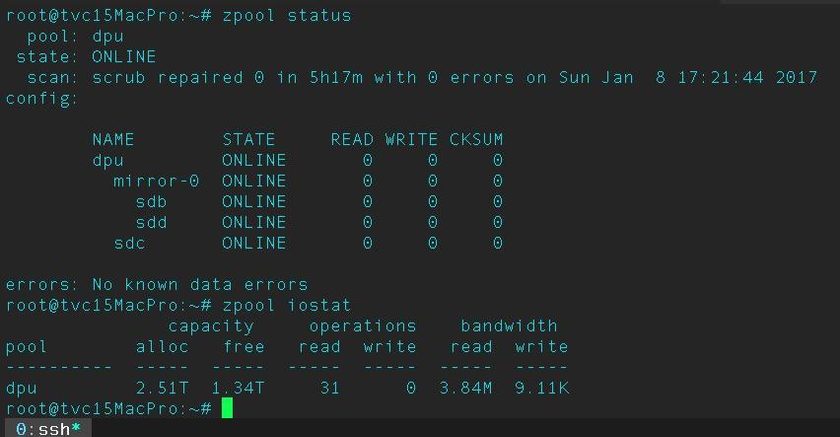
Storage can fail without a drive completely dying. Filesystem metadata can become inconsistent, applications can write invalid data, and hardware or software faults can damage stored information.
Filesystem corruption
A sudden power loss, controller problem, kernel failure, or storage fault can interrupt writes and leave a filesystem requiring recovery.
Journaling filesystems such as ext4 can help recover filesystem consistency after certain crashes. However, journaling does not guarantee that every application write completed successfully or that every file contains valid data.
If corruption affects files or metadata on a RAID array, the array may continue operating while exposing damaged content to applications.
Silent data corruption
Silent corruption occurs when data changes incorrectly without an obvious error being reported to the application. Depending on the system, the cause might involve memory, a storage device, a controller, a cable, or software.
Traditional RAID parity can help reconstruct data after certain failures, but parity alone is not a universal guarantee that the system will identify and correct every form of corruption.
Filesystems with end-to-end checksums and self-healing features, such as ZFS, can offer stronger integrity protection when configured with appropriate redundancy. Their ability to repair data depends on having another valid copy from which to reconstruct it.
Why backups still matter
A corrupted file may be backed up successfully if the backup process runs after the corruption occurs. The backup job can report success because it copied the file without detecting that the contents were already wrong.
To reduce this risk:
- Enable supported filesystem or storage integrity checks.
- Monitor filesystem, controller, and kernel error logs.
- Maintain versioned backups so older, uncorrupted copies remain available.
- Use application-aware backups for databases and other stateful workloads.
- Test restored data, not just the completion status of backup jobs.
For databases, a useful strategy may combine consistent backups with transaction logs, enabling point-in-time recovery where the database platform supports it.
Practical lesson: A successful backup job does not necessarily mean that the backed-up data is healthy. Integrity checks and historical recovery points matter.
Failure 5: Controller, power, and site failures
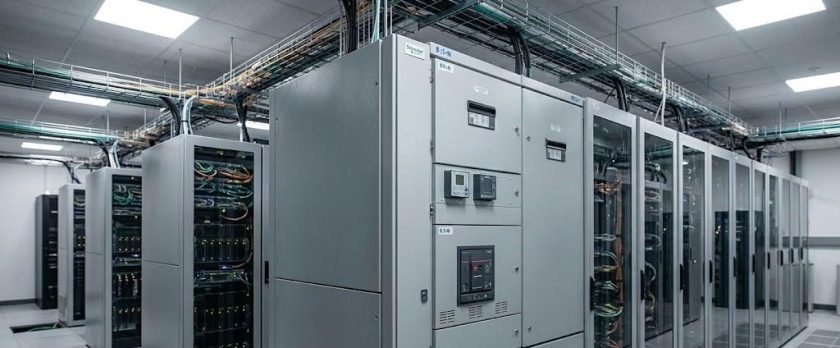
Administrators often focus on individual disks because drive failures are easy to recognize. However, a storage system depends on many components beyond its drives.
RAID controller failure
A hardware RAID controller manages disk operations, parity calculations, and access to the logical volume. If the controller fails, the array may become inaccessible even when every physical disk remains healthy.
Some systems allow administrators to import an existing array into a compatible replacement controller. However, compatibility, configuration metadata, firmware, and controller-specific features can affect recovery.
A failed controller does not necessarily mean that the data is lost permanently, but it can cause significant downtime.
Best practice: Document the RAID configuration, controller model, firmware, disk order, and recovery procedure. Keep replacement hardware or a supported recovery plan for critical systems.
Power supply and electrical failures
A failed power supply, damaged power distribution unit, or electrical incident can shut down an entire server.
Unexpected power loss can also interrupt writes. Battery-backed write caches and power-loss protection in suitable storage devices can reduce certain risks, but they do not eliminate every possibility of data loss.
Use redundant power supplies connected to appropriately independent power sources where the hardware supports them. Add a suitable UPS and test graceful shutdown procedures.
Server, rack, and data center failures
RAID cannot protect against the destruction of the server containing the array. A fire, flood, theft, cooling failure, or major electrical incident can affect every disk in the same machine.
Even a second server in the same room may share the same environmental risks.
For critical systems, keep backups in a separate physical location or a properly isolated cloud environment. Confirm that you can access the required credentials, encryption keys, software, and recovery documentation if the primary site becomes unavailable.
The single-point-of-failure problem
Consider this architecture:
- Four disks in RAID 10.
- One server chassis.
- One RAID controller.
- One local backup disk.
- No off-site copy.
This setup has redundancy at the disk level, but several failures could still make both production data and its backup unavailable.
A stronger design separates the failure domains. For example, it can combine local RAID, an independent backup repository, and an off-site immutable backup.
Practical lesson: Protect the entire storage service, not just the individual disks.
How to build a reliable storage protection strategy
The five failure scenarios point to a common principle: effective data protection requires several independent controls.
1. Select the right RAID level
RAID selection depends on workload, capacity, performance, cost, and the number of failures the system must tolerate.
| RAID level | Minimum drives | Disk failure tolerance | Main limitation |
|---|---|---|---|
| RAID 0 | 2 | None | One failed drive can destroy the array |
| RAID 1 | 2 | Typically one drive in a two-drive mirror | Limited usable capacity |
| RAID 5 | 3 | One drive | Vulnerable to additional failures during degraded operation |
| RAID 6 | 4 | Two drives | More parity overhead |
| RAID 10 | 4 | Depends on which drives fail | Requires mirrored pairs and loses capacity to mirroring |
These are general characteristics. Actual behavior depends on the implementation, layout, and controller.
For many business workloads, RAID 6 or RAID 10 may be preferable to RAID 5 when the impact of a second disk failure is unacceptable. The correct choice still depends on workload and system requirements.
2. Apply the 3-2-1 backup rule
3 Copies of Your Data
Keep the primary copy and at least two additional copies.
2 Different Storage Types
Reduce dependence on one storage device or technology.
1 Off-Site Copy
Keep a recoverable copy away from the primary location.
The 3-2-1 rule is a starting point, not a complete disaster recovery plan. For ransomware resilience, make at least one copy offline or immutable and protect backup administration separately from production administration.
3. Define RPO and RTO
A backup strategy should reflect how much data the business can afford to lose and how long its systems can remain unavailable.
- Recovery Point Objective (RPO): The maximum acceptable amount of data loss, expressed as time.
- Recovery Time Objective (RTO): The target time to restore a service after an outage.
For example, an application with an RPO of 15 minutes needs a backup or replication strategy that can recover to a point no more than 15 minutes before the incident. Its RTO might be two hours.
Replication can reduce recovery time, but it can also replicate accidental deletions or corrupted data. Historical backups remain important.
4. Monitor storage health continuously
Use monitoring tools to identify problems before they become outages. Depending on the platform, useful signals include:
- Disk health and predictive failure alerts.
- RAID degradation and rebuild progress.
- Read and write errors.
- Temperature and power events.
- Filesystem capacity and inode usage.
- Backup completion, age, and repository capacity.
- Scrub and integrity-check results.
Alerts must reach someone who can respond. A monitoring system that records a failing drive but sends no actionable notification offers limited protection.
5. Test recovery, not just backups
A backup job can complete successfully while the resulting data remains unusable because of missing credentials, corrupted archives, incorrect retention policies, or undocumented dependencies.
Test recovery at multiple levels:
- Restore an individual file.
- Recover a directory with its permissions and ownership.
- Restore a database using the required consistency procedures.
- Rebuild a virtual machine or server.
- Perform a disaster recovery exercise using a separate environment.
Record how long each operation takes and whether the recovered system meets its RPO and RTO.
The FBI and CISA both emphasize maintaining protected backups and regularly testing restoration procedures.
Practical Linux administration commands
Linux administrators can use several built-in tools to inspect storage health. The following examples focus on diagnosis and backup verification.
Check software RAID status
On systems using Linux MD RAID, inspect /proc/mdstat:
cat /proc/mdstatExample output:
Personalities : [raid1]
md0 : active raid1 sdb1[1] sda1[0]
      976630336 blocks super 1.2 [2/2] [UU]
The [UU] status indicates that both expected RAID 1 members are active in this example.
If a member fails, the array may display a degraded status. Exact output depends on the array and system.
For more detail, use:
sudo mdadm --detail /dev/md0Replace /dev/md0 with your actual array device. Hardware RAID controllers may require their own vendor-specific management utilities.
Inspect disk health with SMART
Install the smartmontools package if necessary, then inspect a physical drive:
sudo smartctl -a /dev/sdaLook for reported health status, reallocated sectors, pending sectors, uncorrectable errors, and relevant error logs.
SMART is useful but not infallible. A drive can fail without a clear prior warning, and controller-managed storage may require different access methods.
Review storage-related kernel errors
sudo journalctl -k -p warning..alertThis command displays kernel messages at warning level and above. Search the output for disk I/O errors, controller resets, filesystem warnings, and device timeouts.
Not every warning indicates a storage failure, so interpret the results in the context of the hardware and operating system.
Verify that a backup archive can be read
For a tar archive:
tar -tf /backup/files.tar.gz > /dev/null
echo $?
A return code of 0 indicates that the archive listing operation completed successfully. This checks basic readability and archive structure; it does not prove that every file can be restored correctly or that its contents are valid.
A stronger test extracts the archive into a temporary directory and checks representative files:
mkdir -p /tmp/restore-test

tar -xzf /backup/files.tar.gz \
  -C /tmp/restore-test

find /tmp/restore-test -maxdepth 2 -type f
Use a suitable test location with sufficient free space, and avoid overwriting production files. For critical systems, automate restoration tests and validate application-level integrity.
Create a basic file backup with rsync
For a simple local or mounted backup destination:
rsync -aHAX --numeric-ids \
  /srv/data/ \
  /mnt/backup/srv-data/
This command attempts to preserve common Linux file metadata, including hard links, ACLs, and extended attributes where supported.
Important considerations:
- Run with appropriate permissions if the files require them.
- Verify that the destination is actually mounted before starting.
- Use a separate backup system for stronger isolation.
- Do not assume that a mirrored directory is a historical backup.
- Add retention and versioning through a suitable backup solution rather than relying on one continuously synchronized copy.
The command above is a basic copy operation, not a complete enterprise backup system. For databases, use the database engine’s supported backup procedures or a backup tool that guarantees application consistency.
Recommended storage protection architecture
A practical design for a small or medium-sized business might look like this:
🖥️ Production Server
RAID 6 or RAID 10 · Monitoring · Application data
💾 Local Backup Repository
Automated backups · Version history · Fast recovery
🛡️ Off-Site Backup
Separate failure domain · Encryption · Immutable retention
✓ Verified Recovery
Scheduled restore tests · Documented recovery procedures
This architecture separates hardware redundancy from data recovery. If the production array fails, the local backup can help restore service. If the entire site is lost or ransomware compromises the local infrastructure, the off-site copy provides another recovery path.
The design should also account for backup retention, identity services, encryption keys, network dependencies, and the time required to rebuild the environment.
Conclusion
RAID remains an important part of storage reliability, but it solves a narrower problem than many administrators expect. It can keep data accessible through certain disk failures, depending on the RAID level and failure scenario. It cannot replace independent backups or a tested recovery plan.
The five failures covered in this article demonstrate why storage protection must extend beyond the disk array:
- Multiple disk failures can overwhelm RAID redundancy.
- Human error can remove valid data from every mirrored disk.
- Ransomware can encrypt production data and attack connected backups.
- Filesystem corruption and silent errors can damage data without causing an obvious drive failure.
- Controller, power, and site failures can take an entire storage service offline.
For system administrators, the goal is not simply to prevent every failure. That is rarely possible. The goal is to limit the impact of failures and ensure that critical data can be recovered within acceptable time and data-loss limits.
Use RAID for availability, backups for recovery, monitoring for early warning, and regular restore tests to prove that your protection strategy actually works.
Frequently asked questions (FAQ)
1. Why is RAID not considered a backup?
RAID maintains a storage array’s availability or redundancy against certain hardware failures. It generally does not preserve historical versions of files or protect against accidental deletion, ransomware, corruption, or destruction of the entire system. A backup provides a separate recovery point.
2. Can RAID 1 replace a backup?
No. RAID 1 mirrors data between drives, so deletions and unwanted modifications normally affect both copies. Maintain an independent backup with version history to recover earlier data.
3. Is RAID 5 safe for business-critical data?
RAID 5 can tolerate one disk failure, but a second disk failure before the array recovers can cause data loss. Evaluate drive capacity, rebuild time, workload, and recovery requirements. RAID 6 or RAID 10 may be more suitable for some business-critical workloads, but neither eliminates the need for backups.
4. Can RAID protect against ransomware?
No. RAID does not recognize whether a write contains legitimate data or ransomware-encrypted content. Protect backups with network isolation, separate administrative credentials, immutable retention where appropriate, and regular recovery tests.
5. How often should a sysadmin test backups?
Test critical file and application restores regularly, with the frequency based on business risk and recovery requirements. Run full disaster recovery exercises periodically as well. A successful backup log alone does not prove that the data can be restored.
6. Are snapshots the same as backups?
No. Snapshots provide point-in-time recovery, often within the same storage system. They are useful for quickly recovering deleted or modified data, but they can share the same failure domain as production storage. Protect important data with independent backups too.
7. What is the best backup strategy for a Linux server?
A strong starting point is the 3-2-1 rule, combined with versioned backups, appropriate application-consistent procedures, encryption, restricted backup access, and regular restoration tests. Critical environments should also consider offline or immutable copies.
8. What is the difference between replication and backup?
Replication copies changes from one system to another, often to improve availability or reduce recovery time. If a user deletes files or ransomware modifies data, replication may copy those changes too. Backups retain recoverable historical states according to a defined retention policy.
Enjoyed this article? Get the next one in your inbox.
Join our list for practical IT tutorials, security alerts and essential technology updates.
- Practical tutorials
- Security alerts
- Technology updates
No spam. Unsubscribe anytime.