Signal Local Backups on iPhone and Desktop: How to Back Up Chats to a Disk or NAS
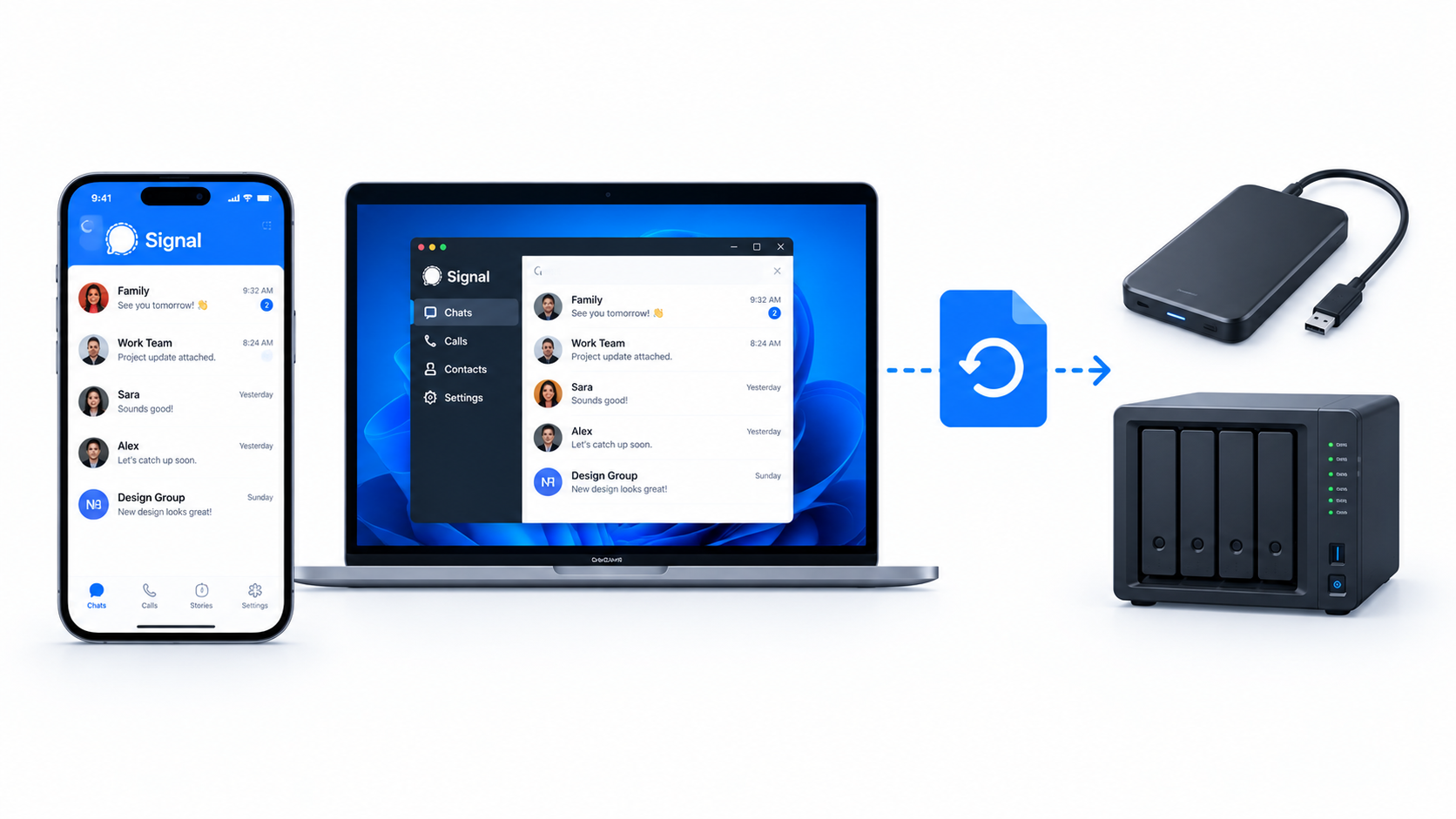
For years, Signal users had one painful question: “What happens to my chats when I lose my phone?” Signal’s answer finally got much better. With version 8.30, you can save encrypted backups on your own disk or NAS, and you can restore them on a different platform. I wrote this guide to explain what changed, what to watch out for, and how to automate the boring parts.
Table of Contents
- What changed in Signal 8.30
- Hosted backups vs local backups
- Why a cross-platform format matters
- How the encryption protects your data
- Disappearing messages and backups
- Setting up a local backup (practical steps)
- Automating copies to a NAS (scripts)
- A simple backup strategy that works
- Limits and gotchas
- Conclusion
- FAQ
What Changed in Signal 8.30
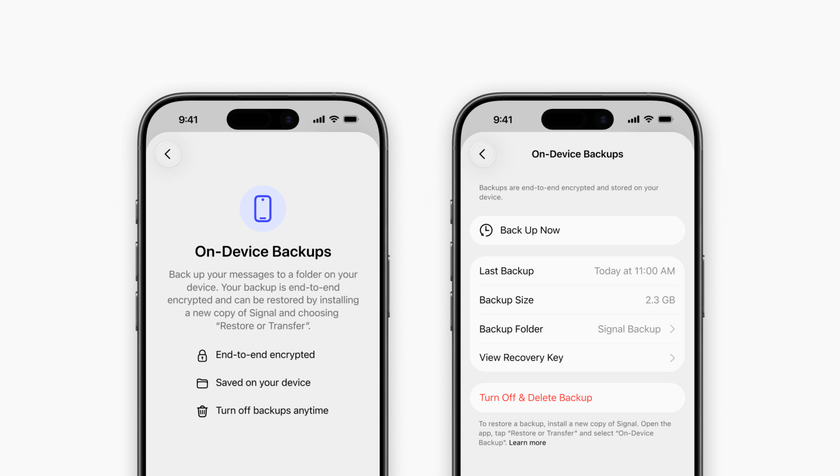
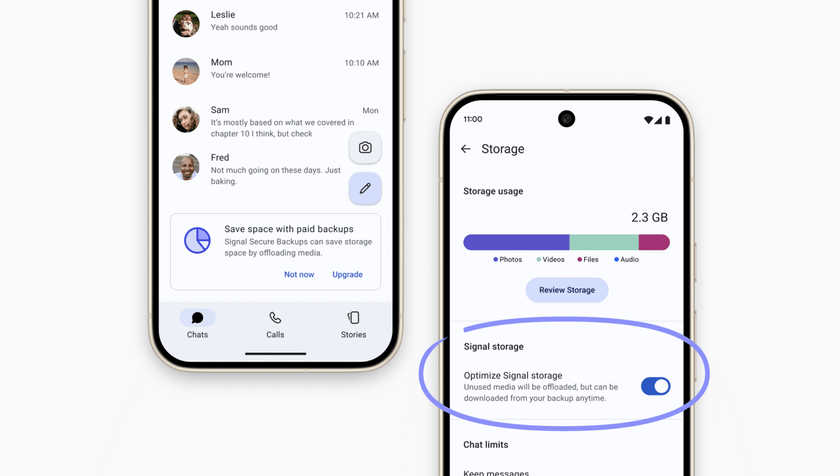
Signal shipped iOS version 8.30 at the end of September 2026, and it finishes a rollout that started a year earlier. The earlier step was Secure Backups, an optional cloud backup feature that arrived on Android first. Now every platform gets a matching backup system: Android, iOS, Linux, macOS and Windows.
Three changes stand out:
- On-device backups reach iPhone and Signal Desktop. These platforms could not make local backups before.
- Android local backups got a rebuild. They now use the same format as iOS and desktop.
- Restore works across platforms. A backup made on one system can restore on another.
Signal also described this as the end of the first phase of its backup project. The team now plans to work on other parts of the app.
Hosted Backups vs Local Backups
Signal now offers two backup paths, and you can use both at the same time.
Signal-hosted backups (Secure Backups)
Signal stores an encrypted copy of your data on its servers. The free tier keeps your text messages and the media from the last 45 days. A paid plan raises the media storage to 100 GB. Free users also face a cap of 128 KB per message. Signal says it cannot read these backups without your recovery key.
Local (on-device) backups
You pick the destination: an internal drive, an external disk, a USB stick, or a NAS. Local backups have no size limit, so your whole media library can fit if your storage is big enough. This option suits people who do not want any backup data in a cloud, even an encrypted one.
Do the two modes conflict?
No. Taking a hosted backup does not erase your local backups. Paying users also get a new option: they can remove old media from local storage and keep only thumbnails, while Signal fetches the full files from the hosted backup on demand.
Why a Cross-Platform Format Matters
Before this update, switching from Android to iPhone meant losing your history. Android had local backup files, iOS had nothing comparable, and the two could not talk to each other. That gap kept many people stuck on one platform or forced them to accept a clean start.
Now one format works everywhere. Some real situations this solves:
- You move from an Android phone to an iPhone and keep every conversation.
- Your laptop dies, and you restore your data on a new Linux or Windows machine.
- You replace your phone and want a full copy on your home NAS first.
Android’s old backup also stored everything in one archive, so each daily snapshot duplicated the same media again and again. The new design stores media more efficiently, so repeated backups waste far less space. That matters a lot if you back up daily to a small NAS volume.
A related perk for desktop users
If you link a new computer and scroll past the 45-day media window, Signal Desktop can now ask your primary phone for missing files. The phone sends them as an end-to-end encrypted attachment. This trick does not work for local backups, because Signal cannot know where you store those files.
How the Encryption Protects Your Data
Every Signal backup, hosted or local, is end-to-end encrypted. You need a recovery key to open it.
The hosted model
For hosted backups, Signal adds an extra secret that rotates daily and sits inside a Trusted Execution Environment, which is a protected hardware area. That design gives forward secrecy: a key leaked tomorrow does not automatically expose older backups.
The local model
Local backups cannot use that hardware shield, because the files live on your own storage. As a result, your local recovery key decrypts every past backup, not just the newest one. Treat that key like a master password:
- Store it in a password manager. Signal’s Android and iOS apps both integrate with password managers for this.
- Never share it with anyone.
- Keep one offline copy (for example, printed and locked away) for emergencies.
- If you think someone saw the key, create a fresh backup setup and delete the old files.
Think of the backup file as a locked safe and the recovery key as the only combination. A stolen disk alone does not expose your chats, but a stolen disk plus the key exposes everything on it.
Disappearing Messages and Backups
Disappearing messages follow special rules, and they deserve attention if you care about privacy.
- Messages set to vanish within 24 hours stay out of backups.
- When you restore a local backup, Signal skips any message whose timer already expired.
- Signal does not delete old backup files from the folder you chose.
That last point is the catch. An old backup file may still hold messages that have long since vanished from your chat. If you rely on disappearing messages for safety, use a shorter timer and delete old backup files on a schedule. A cleanup script (see below) handles this for you.
Setting Up a Local Backup (Practical Steps)
Menu names can shift between versions, so use this as a guide and follow the on-screen wording in your app.
- Update Signal to the latest version on every device (iOS 8.30 or newer, plus the current desktop and Android builds).
- Open the backup section in Signal’s settings and choose the on-device option.
- Generate and save your recovery key in a password manager before you do anything else.
- Choose a destination. Pick a drive with enough space. For a NAS, mount the share first so it appears as a normal folder.
- Run the first backup and wait for it to finish.
- Test a restore on a spare device, or at least confirm that the backup files exist and have a sensible size.
Where do backups go on each system?
| Platform | Typical destination |
|---|---|
| Windows | Local folder or mapped network drive |
| macOS | Local folder or mounted SMB/NFS share |
| Linux | Local folder or mounted NAS path |
| iPhone | A location you select through the system file picker |
| Android | A folder you select |
Always use the destination Signal shows you inside the app. The exact folder layout is Signal’s business, so copy the folder as it is and never edit files inside it.
A Simple Backup Strategy That Works
Good tools still need a plan. Try the classic 3-2-1 rule:
- 3 copies of your data (the live app, plus two backups)
- 2 different media (for example, your laptop disk and a NAS)
- 1 copy off-site (an encrypted hosted backup, or a disk at a relative’s home)
For most people, a practical setup looks like this:
- Turn on Signal’s hosted Secure Backups as the off-site copy.
- Take a local backup to an external disk once a week.
- Sync that folder to your NAS automatically.
- Store the recovery key in your password manager and keep one paper copy.
- Do a test restore twice a year.
If you distrust cloud services completely, skip step 1 and keep two local copies in different places instead.
Limits and Gotchas
Keep these points in mind before you rely on the feature:
- One key unlocks everything. Losing the key means losing the backups. Leaking the key exposes every local backup.
- No automatic cleanup. Signal leaves old backup files on your storage, so you must manage retention yourself.
- Free hosted tier limits. Only 45 days of media and a per-message size cap apply.
- Network shares need care. A sleeping NAS or a dropped VPN can make a backup fail silently. Check your logs.
- Different devices, different timing. Phones may only back up when charging or idle, depending on your settings.
- Test your restores. A backup you never tested is only a hope.
For home-lab admins, this last point deserves real attention. Schedule a quarterly restore test on a spare phone or VM, and write down the exact steps.
Conclusion
Signal 8.30 fixes one of the app’s longest-standing complaints. You can now keep your encrypted history on a disk or NAS that you control, and you can carry it between Android, iPhone, Windows, macOS and Linux. The design also saves space through better media handling.
Your job is to handle the human side: guard the recovery key, schedule copies, clean up old files, and test a restore. Do those four things, and a lost phone stops being a disaster. It becomes a short afternoon of setup.
FAQ
Does Signal 8.30 support local backups on iPhone?
Yes. Signal 8.30 brings on-device backups to iPhone for the first time.
Can I restore an Android backup on an iPhone?
Yes. Android local backups now use the same cross-platform format as iOS and desktop, so you can restore across platforms.
Can I save Signal backups to a NAS?
Yes. Choose a folder on a mounted NAS share as the destination, or copy the backup folder to the NAS with a script such as rsync or robocopy.
Are local Signal backups encrypted?
Yes. They are end-to-end encrypted, and you need your recovery key to open them.
What happens if I lose my recovery key?
You cannot decrypt the backups, and Signal cannot help you recover them. Store the key in a password manager and keep an offline copy.
Is there a size limit for local backups?
No. Local backups have no size restrictions, apart from the free space on your storage.
Do disappearing messages end up in my backup?
Messages set to disappear within 24 hours stay out of backups. Expired messages are skipped when you restore. Old backup files stay on your disk until you delete them.
Do I need to pay for local backups?
No. Local backups are free. Paid plans only affect the hosted storage size and some extras, such as purging old local media while keeping thumbnails.
Can I use hosted and local backups together?
Yes. One does not erase the other, and combining them gives you a stronger backup plan.
Want more articles and tutorials like this?
Get new tutorials, security alerts, and IT tips straight to your inbox.