Snort IDS: Detecting Suspicious Network Traffic
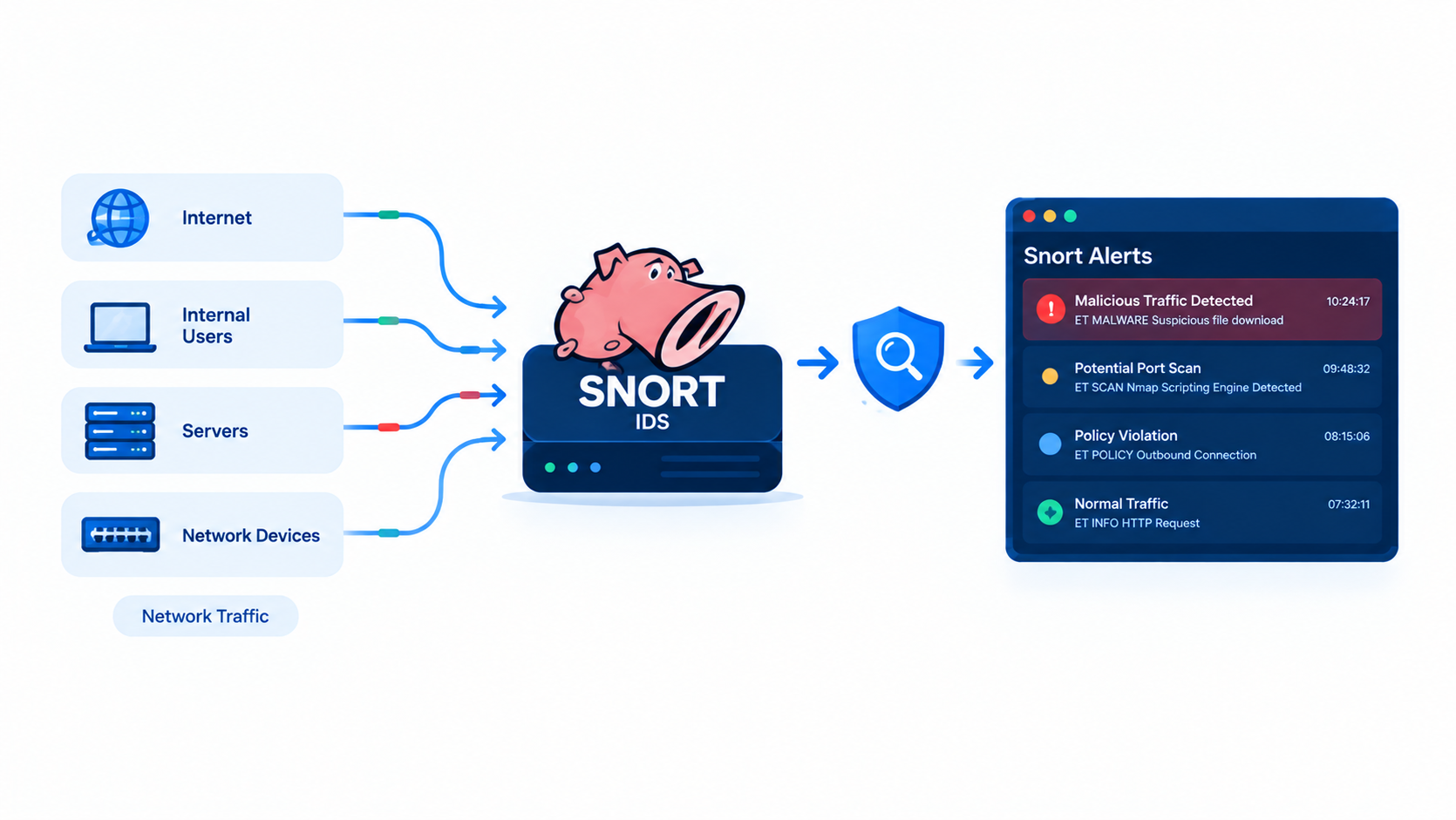
Attackers rarely knock before they enter. They scan your ports, guess your passwords, and probe your web apps, and every step leaves a trace on the wire. Snort reads that traffic and tells you when something looks wrong. In this guide, you will install Snort 3, write your own detection rules, test them with real scans, and learn to read and tune the alerts. Every command comes from a lab you can rebuild in one evening.
Table of Contents
- What Is Snort and How Does It Work?
- IDS vs IPS: Where Snort Fits
- Lab Setup and Requirements
- Installing Snort 3 on Ubuntu
- Configuring snort.lua
- Understanding Snort Rules
- Writing Rules to Detect Suspicious Traffic
- Testing Your Detection
- Reading and Analyzing Alerts
- Tuning Snort and Cutting False Positives
- Running Snort as a Service
- Best Practices
- Conclusion
- FAQ
What Is Snort and How Does It Work?
Snort is a network intrusion detection and prevention engine. Martin Roesch released it in 1998, and Cisco Talos maintains it today. It runs on Linux, BSD, and Windows, and it costs nothing to use.
Snort works like a security guard who reads every package that crosses the front door. For each packet, it follows four steps:
- Capture. A data acquisition library (DAQ) pulls packets from a network card or a pcap file.
- Decode. Snort breaks the packet into layers: Ethernet, IP, TCP or UDP, and the application data.
- Inspect. Inspectors rebuild streams and parse protocols such as HTTP, DNS, and SMB.
- Match. The detection engine checks the traffic against your rules and raises an alert on a match.
Why Snort 3 matters
Snort 3 is a full rewrite of the old 2.9 series. It uses Lua for configuration, supports multiple packet threads, and detects services without relying on port numbers. It also uses “sticky buffers” in rules, which makes rules easier to read. If you still run Snort 2, plan a move. The snort2lua tool converts old configs and rules.

IDS vs IPS: Where Snort Fits
An IDS watches and reports. An IPS watches and blocks. Snort can do both, and the difference comes down to where you place it.
In IDS mode, Snort sees a copy of the traffic. You feed it from a SPAN port, a network tap, or a mirror port. If Snort fails, your network keeps running. This is the safest way to start.
In IPS mode, Snort sits inline between two network segments. It can drop packets that match a rule. The price is risk: a bad rule or a crash can cut off real users.
Tip: Run Snort as an IDS for at least a few weeks. Learn what normal looks like on your network before you let it block anything.
For a deeper comparison of firewalls, IDS, and IPS, read our guide on firewall vs IDS vs IPS.
Lab Setup and Requirements
Build a small lab so you can attack your own network safely. You need:
| Component | Purpose | Example |
|---|---|---|
| Sensor | Runs Snort | Ubuntu 22.04/24.04, 2 CPU, 4 GB RAM |
| Target | Hosts services to protect | Any Linux VM with SSH and Apache |
| Attacker | Generates suspicious traffic | Kali Linux with Nmap and Hydra |
Put all three machines on one virtual network. In VirtualBox or VMware, enable promiscuous mode on the sensor’s adapter so it can see traffic meant for other hosts.
Warning: Only scan and attack machines you own or have written permission to test. Scanning other people’s networks is illegal in most countries.
Installing Snort 3 on Ubuntu
Ubuntu’s default repository still ships Snort 2.9, so build Snort 3 from source. You need two projects: libdaq and snort3.
Step 1: Install dependencies
bash
sudo apt update
sudo apt install -y build-essential cmake git pkg-config flex bison \
  libpcap-dev libpcre2-dev libdumbnet-dev libluajit-5.1-dev \
  zlib1g-dev libhwloc-dev liblzma-dev libssl-dev libnghttp2-dev \
  libunwind-dev autotools-dev libtool
Step 2: Build the DAQ library
bash
mkdir -p ~/snort-src && cd ~/snort-src
git clone https://github.com/snort3/libdaq.git
cd libdaq
./bootstrap
./configure
make -j"$(nproc)"
sudo make install
sudo ldconfig
Step 3: Build Snort 3
bash
cd ~/snort-src
git clone https://github.com/snort3/snort3.git
cd snort3
./configure_cmake.sh --prefix=/usr/local
cd build
make -j"$(nproc)"
sudo make install
The build takes a while on small VMs, so give it a few minutes.
Step 4: Verify the install
bash
snort -VYou should see the Snort banner, the 3.x version number, and the DAQ and LuaJIT versions. If the command fails with a missing library error, run sudo ldconfig again.
Step 5: Download the community rules
Snort needs rules to detect anything. The free community ruleset is a good start.
bash
sudo mkdir -p /usr/local/etc/rules /var/log/snort
cd /tmp
wget https://www.snort.org/downloads/community/snort3-community-rules.tar.gz
tar xzf snort3-community-rules.tar.gz
sudo cp snort3-community-rules/snort3-community.rules /usr/local/etc/rules/
sudo touch /usr/local/etc/rules/local.rules
The Snort project also sells a subscriber ruleset that updates faster, and a free registered ruleset that lags by about 30 days. Pick what fits your budget.
Configuring snort.lua
Snort 3 reads one main file, snort.lua. The install places a template at /usr/local/etc/snort/snort.lua. Back it up first, then edit it.
bash
sudo cp /usr/local/etc/snort/snort.lua /usr/local/etc/snort/snort.lua.bak
sudo nano /usr/local/etc/snort/snort.lua
Set your network variables
Near the top, tell Snort which network you protect:
lua
HOME_NET = '192.168.56.0/24'
EXTERNAL_NET = '!$HOME_NET'
Use your real subnet. A wrong HOME_NET is the most common reason rules stay silent.
Load your rules
Find the ips section and point it at your rule files:
lua
ips =
{
    enable_builtin_rules = true,
    variables = default_variables,
    rules = [[
        include /usr/local/etc/rules/snort3-community.rules
        include /usr/local/etc/rules/local.rules
    ]]
}
Choose an alert output
Enable the fast alert logger and write alerts to a file:
lua
alert_fast =
{
    file = true,
    packet = false,
    limit = 100
}
The limit value rolls the file over at 100 MB so it never fills your disk.
Validate before you run
bash
sudo snort -c /usr/local/etc/snort/snort.lua -TSnort prints “successfully validated the configuration” when everything loads. Fix any error before you continue.
Understanding Snort Rules
A rule has two parts: a header and options. The header says which traffic to look at. The options say what to look for.
alert tcp any any -> $HOME_NET 22 (msg:"Example"; flags:S; sid:1000001; rev:1;)| Part | Meaning |
|---|---|
alert | Action. Log an alert when the rule matches. |
tcp | Protocol. Snort also supports udp, icmp, ip, and service names like http. |
any any | Source address and port. |
-> | Direction. Traffic flows from left to right. |
$HOME_NET 22 | Destination address and port. |
msg | Text that appears in the alert. |
flags:S | Match packets with the SYN flag set. |
sid | Unique rule ID. Use 1,000,000 and above for your own rules. |
rev | Revision number. Raise it each time you edit the rule. |
Common rule options
contentsearches the payload for a string.nocaseignores upper and lower case.http_uriandhttp_headerjump to a specific part of an HTTP request.detection_filterfires only after a set number of hits in a set time.flowlimits a rule to one traffic direction or to established sessions.classtypeandpriorityhelp you sort alerts later.
Writing Rules to Detect Suspicious Traffic
The community rules catch known exploits. Your own rules catch what matters in your network. Open local.rules and add the examples below.
bash
sudo nano /usr/local/etc/rules/local.rules1. Detect ping sweeps
Attackers often ping a whole subnet to find live hosts. This rule flags ICMP echo requests:
alert icmp any any -> $HOME_NET any (msg:"LOCAL ICMP echo request"; itype:8; sid:1000001; rev:1;)On a busy network, this rule creates noise. Use it in the lab, then raise the bar with a detection_filter in production.
2. Detect SYN port scans
A scanner sends many SYN packets to many ports in a short time. A normal client does not. Count them:
alert tcp any any -> $HOME_NET any (msg:"LOCAL Possible TCP SYN port scan"; flags:S; detection_filter:track by_src, count 20, seconds 5; classtype:attempted-recon; sid:1000010; rev:1;)The rule stays quiet until one source sends 20 SYN packets within 5 seconds. Then it alerts.
3. Detect SSH brute force
Password guessing creates many connection attempts to port 22:
alert tcp $EXTERNAL_NET any -> $HOME_NET 22 (msg:"LOCAL Possible SSH brute force"; flags:S; detection_filter:track by_src, count 5, seconds 60; classtype:attempted-admin; sid:1000020; rev:1;)Five new SSH connections from one address in a minute deserve a look. Adjust the numbers to match how your admins actually work.
4. Detect SQL injection attempts
Snort 3 understands HTTP, so you can search the request URI directly:
alert http any any -> $HOME_NET any (msg:"LOCAL SQLi UNION SELECT in URI"; http_uri; content:"union",nocase; content:"select",nocase,distance 0; classtype:web-application-attack; sid:1000030; rev:1;)The rule looks for “union” followed by “select” in the same URI. Attackers can hide payloads with encoding tricks, so treat this as one layer, not a full defense. A web application firewall should back it up.
5. Detect Nmap’s scripting engine
Nmap announces itself in the User-Agent header when you run NSE scripts against web servers:
alert http any any -> $HOME_NET any (msg:"LOCAL Nmap Scripting Engine user-agent"; http_header:field user-agent; content:"Nmap Scripting Engine",nocase; classtype:attempted-recon; sid:1000040; rev:1;)A careful attacker can change this header, but many scripts and bots do not bother.
6. Detect a reverse shell on a common port
Many reverse shells call home on port 4444. Alert on outbound connections to it:
alert tcp $HOME_NET any -> $EXTERNAL_NET 4444 (msg:"LOCAL Outbound connection to port 4444"; flags:S; classtype:trojan-activity; sid:1000050; rev:1;)Legitimate software rarely uses this port. Any hit on a server deserves a quick investigation.
![Image suggestion]
- Title: Writing custom Snort detection rules
- Image:
unsplash-search:cybersecurity code screen - Alt text: Analyst writing custom Snort rules in a text editor
- Note: replace with a screenshot of your
local.rulesfile in the editor.
Testing Your Detection
Never trust a rule you did not test. Run Snort on the sensor, then attack the target from the attacker VM.
Start Snort in IDS mode
bash
sudo snort -c /usr/local/etc/snort/snort.lua \
  -i enp0s3 -A alert_fast -s 65535 -k none \
  -l /var/log/snort
Replace enp0s3 with your interface name (ip a lists them). The -k none flag skips checksum checks, which helps in virtual labs where network cards offload checksums.
Generate suspicious traffic
From the attacker machine, replace 192.168.56.20 with your target:
bash
# Ping sweep
nmap -sn 192.168.56.0/24

# SYN port scan
nmap -sS -p 1-1000 192.168.56.20

# Nmap script scan against the web server
nmap -p 80 --script http-title 192.168.56.20

# SSH brute force against a test account
hydra -l testuser -P /usr/share/wordlists/rockyou.txt -t 4 ssh://192.168.56.20

# SQL injection style request
curl "http://192.168.56.20/index.php?id=1%20UNION%20SELECT%201,2,3"
Test with a pcap instead
You can also replay a saved capture. This approach is repeatable and safe:
bash
sudo snort -c /usr/local/etc/snort/snort.lua \
  -R /usr/local/etc/rules/local.rules \
  -r capture.pcap -A alert_fast -k none -q
Check each rule fires once and only for the traffic you expect.
Reading and Analyzing Alerts
Watch the alert file live:
bash
sudo tail -f /var/log/snort/alert_fast.txtA typical line looks like this:
10/15-09:42:17.482113 [**] [1:1000010:1] "LOCAL Possible TCP SYN port scan" [**] [Classification: Attempted Information Leak] [Priority: 2] {TCP} 192.168.56.30:51234 -> 192.168.56.20:443Break it down:
| Field | Meaning |
|---|---|
10/15-09:42:17 | Date and time of the alert |
[1:1000010:1] | Generator ID, rule SID, and revision |
"LOCAL Possible..." | The msg text from the rule |
[Priority: 2] | Severity. Lower numbers mean higher priority. |
{TCP} | Protocol |
192.168.56.30:51234 -> ... | Source and destination with ports |
Quick triage one-liners
Find the noisiest source addresses:
bash
awk '{print $(NF-2)}' /var/log/snort/alert_fast.txt | cut -d: -f1 | sort | uniq -c | sort -rn | headCount alerts per rule:
bash
grep -oP '\[\*\*\] \[\d+:\d+:\d+\] "\K[^"]+' /var/log/snort/alert_fast.txt | sort | uniq -c | sort -rnShow everything from one suspect host:
bash
grep "192.168.56.30" /var/log/snort/alert_fast.txtAsk the right questions
An alert is a lead, not a verdict. For each one, ask:
- Does the source address belong to someone I know, such as a scanner or a monitoring tool?
- Did the target actually respond, or did the connection die?
- Do other alerts from the same source appear before or after this one?
- Does the target service match the attack? A Windows exploit against a Linux host rarely succeeds.
For heavy use, switch to JSON output (-A alert_json) and ship the logs to a SIEM such as Wazuh, Splunk, or Elastic. Then you can search, graph, and correlate alerts across many sensors.
Tuning Snort and Cutting False Positives
A new Snort install shouts. Within a day, you will see hundreds of alerts, and most mean nothing. If you ignore them, you will miss the real one. Tune early.
Suppress a noisy rule for a trusted host
Add this to snort.lua to silence one rule for one address:
lua
suppress =
{
    { gid = 1, sid = 1000001, track = 'by_src', ip = '192.168.56.5' }
}
Use this for your vulnerability scanner and monitoring server.
Limit repeated alerts
Stop one chatty source from flooding the log:
lua
event_filter =
{
    { gid = 1, sid = 1000010, type = 'limit', track = 'by_src', count = 1, seconds = 60 }
}
Snort now logs one scan alert per source each minute.
Trim your ruleset
Do not enable every rule category. If you run no Windows servers, skip the Windows exploit rules. Fewer rules also means faster inspection and lower CPU use.
Keep rules fresh
Download new community rules on a schedule. A simple cron job handles it:
bash
# /etc/cron.weekly/update-snort-rules
#!/bin/bash
cd /tmp || exit 1
wget -q https://www.snort.org/downloads/community/snort3-community-rules.tar.gz
tar xzf snort3-community-rules.tar.gz
cp snort3-community-rules/snort3-community.rules /usr/local/etc/rules/
systemctl restart snort
Make it executable with sudo chmod +x /etc/cron.weekly/update-snort-rules.
Running Snort as a Service
You do not want to start Snort by hand after every reboot. Create a systemd unit.
bash
sudo nano /etc/systemd/system/snort.serviceini
[Unit]
Description=Snort 3 Intrusion Detection System
After=network.target

[Service]
Type=simple
ExecStart=/usr/local/bin/snort -c /usr/local/etc/snort/snort.lua -i enp0s3 -A alert_fast -s 65535 -k none -l /var/log/snort -D
Restart=on-failure

[Install]
WantedBy=multi-user.target
If you use the -D daemon flag, set Type=forking. Otherwise, remove -D and keep Type=simple. Either way, load and start the unit:
bash
sudo systemctl daemon-reload
sudo systemctl enable --now snort
sudo systemctl status snort
Also, turn off network card offloading on the monitoring interface. Offloading can merge packets and hide attacks from Snort:
bash
sudo ethtool -K enp0s3 gro off lro offBest Practices
- Place sensors well. Put one behind your firewall to see what gets through, and one in your server VLAN to see internal movement.
- Start in IDS mode. Move to inline IPS only after you trust your rules.
- Version your rules. Keep
local.rulesin Git so you can track and undo changes. - Document each custom rule. Add a comment above every rule that explains why it exists.
- Combine tools. Snort sees the network. Pair it with host logs, a firewall, and a SIEM for the full picture.
- Review alerts daily. Even ten minutes a day beats a log nobody reads.
- Test after every change. Replay a pcap to confirm a new rule fires and an old one still works.
- Secure the sensor. Lock down SSH, restrict log access, and patch the OS. An attacker who owns your sensor can blind you.
Snort and Suricata both do this job well. If you want to compare them, see our upcoming Snort vs Suricata comparison.
Conclusion
Snort turns raw network traffic into clear signals. You installed Snort 3, set your home network, loaded community and custom rules, and wrote detections for ping sweeps, SYN scans, SSH brute force, SQL injection, Nmap scripts, and reverse shell callbacks. You then tested each rule with real attack traffic, learned to read the alert format, and cut false positives with suppression and event filters.
Start small. Run Snort as an IDS on a lab network, review every alert, and tune as you learn. Once your rules are accurate and your team trusts them, you can add more sensors, forward logs to a SIEM, and consider inline prevention.
FAQ
What is Snort IDS used for?
Snort monitors network traffic and alerts you to suspicious activity such as port scans, brute force attempts, malware communication, and web attacks. Security teams use it to spot threats early and to collect evidence during an investigation.
Is Snort free?
Yes. Snort is open source under the GPL. The community ruleset is free. Cisco Talos also sells a subscriber ruleset with faster updates, and a registered ruleset that you get for free after signing up, delayed by about 30 days.
What is the difference between Snort 2 and Snort 3?
Snort 3 is a rewrite with Lua configuration, multi-threaded packet processing, automatic service detection, and easier rule syntax. Snort 2 is the legacy branch. The snort2lua tool helps you convert old rules and configs.
Can Snort block attacks?
Yes, in inline IPS mode. Snort sits between two network segments and drops packets that match a drop rule. In IDS mode, it only alerts. Most teams begin with IDS mode to avoid blocking real traffic by mistake.
How is Snort different from a firewall?
A firewall allows or blocks traffic based on addresses, ports, and connection state. Snort inspects the content and behavior of traffic and reports attacks that a firewall would allow, such as an exploit sent over an open web port.
Does Snort work on encrypted traffic?
Not on the payload. Snort cannot read inside TLS without help. It still sees metadata such as addresses, ports, and connection patterns. To inspect HTTPS content, you need a TLS-decrypting proxy or host-based detection on the server.
How much hardware does Snort need?
A lab sensor runs fine on 2 CPU cores and 4 GB of RAM. A busy production link needs more cores, more memory, and fast network cards. Rule count and traffic volume drive the load.
Snort or Suricata: which should I choose?
Both detect threats well and share similar rule formats. Snort 3 and Suricata both support multiple threads. Many teams pick the one their staff already knows. Try both in a lab and measure the results on your own traffic.
Want more articles and tutorials like this?
Get new tutorials, security alerts, and IT tips straight to your inbox.